Assuta VR operation
BioSignals PICO user guide
Complete operation and staff reference
For patients, clinic staff and device administrators using PICO Neo 2 or Neo 2 Eye. No biofeedback knowledge is assumed. Read the quick route below, then consult the relevant screen chapter.
Everyday route
Contents
- 01 Installation and first launch
- 02 Device binding and personal identification
- 03 All device settings
- 04 All device settings
- 05 Login sensor selection and baseline
- 06 Movie library and projection
- 07 Understanding the VR display
- 08 Breathing voice and additional content
- 09 Controllers moving objects and exiting
- 10 Reading and confirming the training summary
- 11 Troubleshooting
- 12 Troubleshooting
- 13 System logic and score calculation
- 14 Breathing score formula
- 15 Staff handover and maintenance
- 16 Inherited maintenance menus
Installation and first launch
Charge the headset and controllers, connect the headset to Internet and prepare the sensor and a local training video. Opening the app is not enough to create an Internet connection. The headset Wi-Fi connection and the app’s connection to its server are separate checks.
For a new headset, obtain the approved PICO APK from the organisation’s download library. Open it from Downloads or the headset file manager. If the browser cannot launch the downloaded file, use the file manager. Allow installation from that source only when Android requests it. Browser availability and menu wording depend on headset firmware; staff should assist if no browser or installer is available.
One APK contains the app, VR runtime and breathing recordings. A separate Unity app, PC or USB debugging is not required for normal customer operation. Local training movies must still be placed on the headset; the installer does not supply the clinic’s entire movie library.
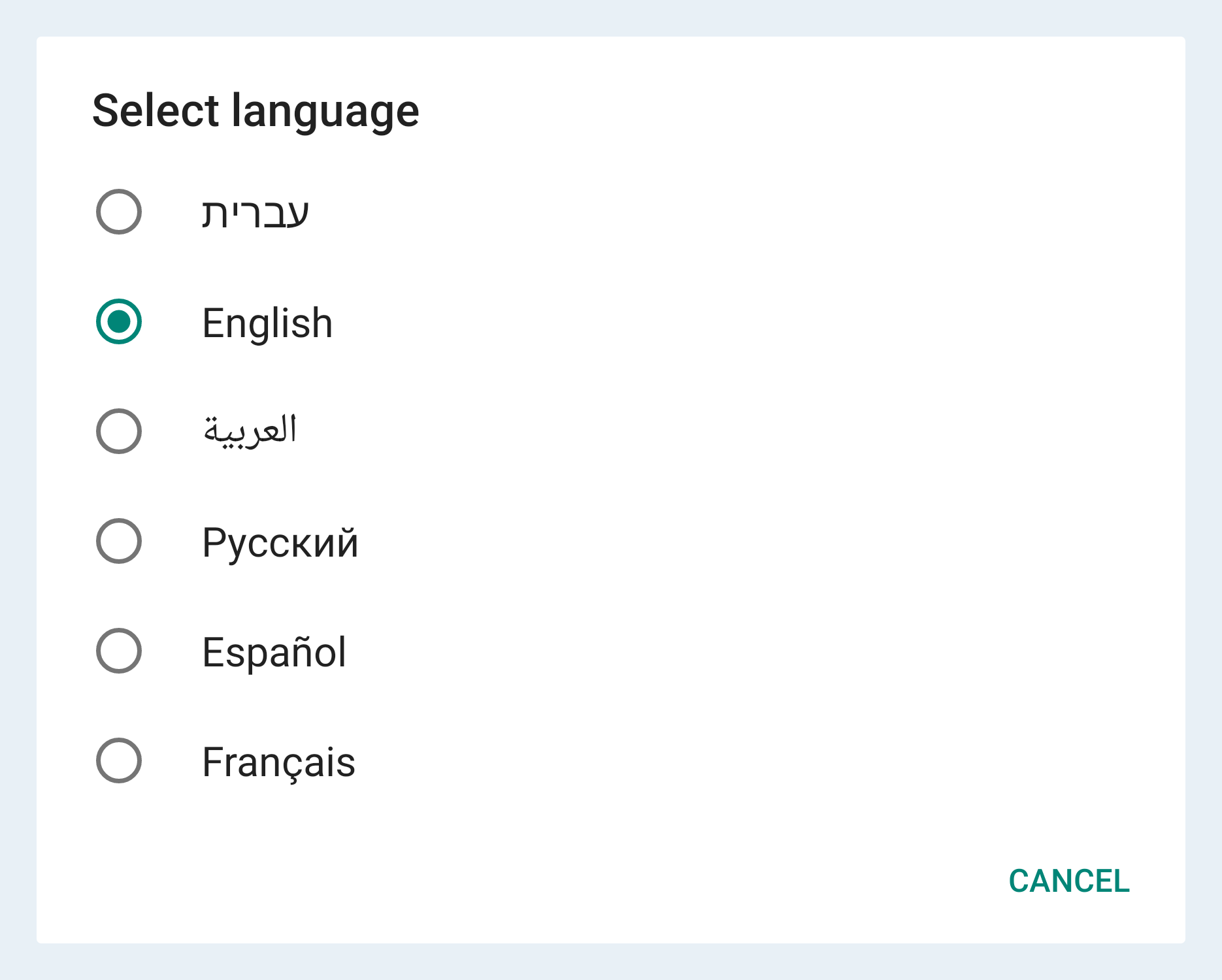
The first screen works offline. Select עברית, English, العربية, Русский, Español or Français, then Continue. Hebrew is preselected. The choice is saved only after confirmation; later launches skip this screen. Change language from the login screen or device settings. Changing language opens a fresh login and does not translate patient names, logos or server-authored media.
Accept the permissions requested for the configured hardware, such as Bluetooth discovery and access to local media. On older Android/PICO firmware, BLE discovery can also require Location services. If permission was denied, use Open Settings, enable the required permission and retry. Do not enter another patient’s credentials to bypass a configuration problem.
At startup, the app waits when its server cannot be reached and retries automatically. Retry requests another attempt; Wi-Fi settings opens the headset’s connection settings. It does not automatically force you into Wi-Fi settings. A Wi-Fi icon does not prove the server is reachable: a captive portal, unavailable Internet or server outage can still block startup.
Open this guide from the login footer using Assuta VR operation. It loads from the website in the app’s selected language and requires Internet. Back to login closes the viewer. The guide does not start a training session, and it does not send your identifier to the website.
Installation and first launch
Device binding and personal identification
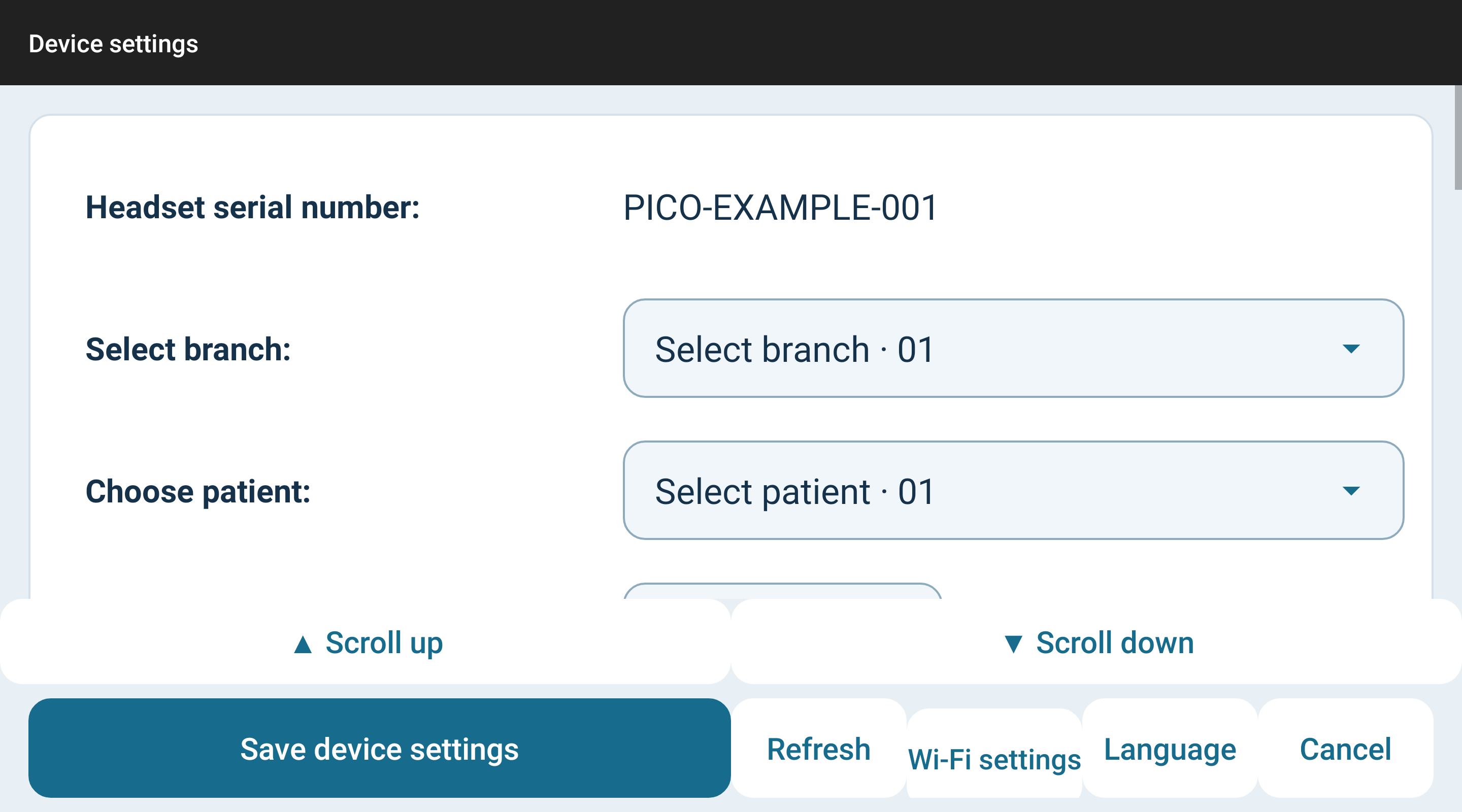
Staff configure each headset before patient use. In Device settings, verify the read-only headset serial number, select the Assuta branch, select a patient from that branch and enter the permitted sensor serial number. Branch and patient lists come from the server. Changing branch requires selecting the appropriate patient again.
Save device settings validates the branch, patient and sensor, saves the pending training options and returns to login. Missing directory data can leave Save unavailable; use Refresh after restoring the connection. Cancel or Back returns without saving pending form changes.
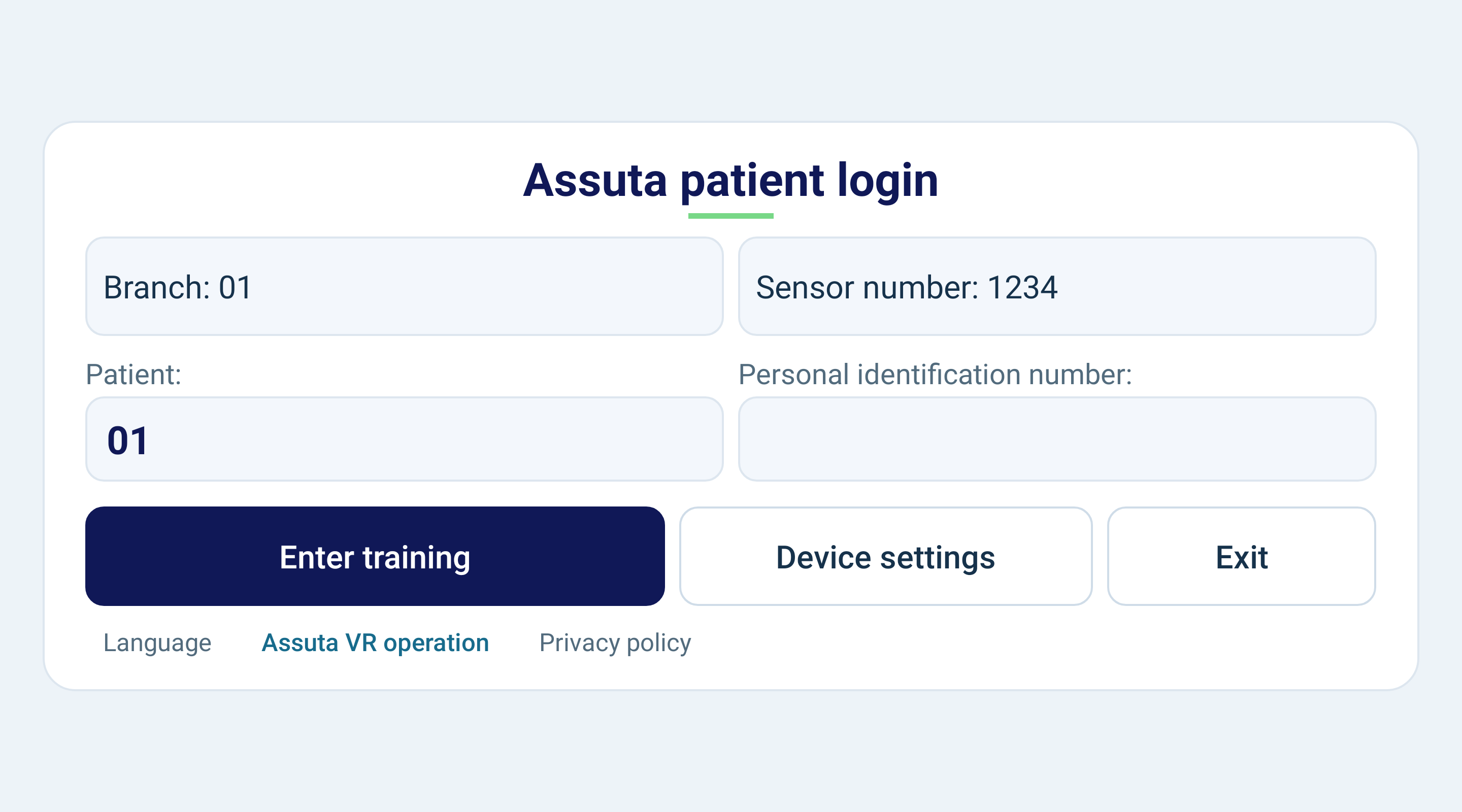
The login screen shows the configured branch, sensor and patient. The patient is selected in settings, not by the person training. Personal identification number is a separate numeric session note. It does not change the selected patient or act as a password. Its value is sent in the session COMMENTS field; do not type unnecessary sensitive information.
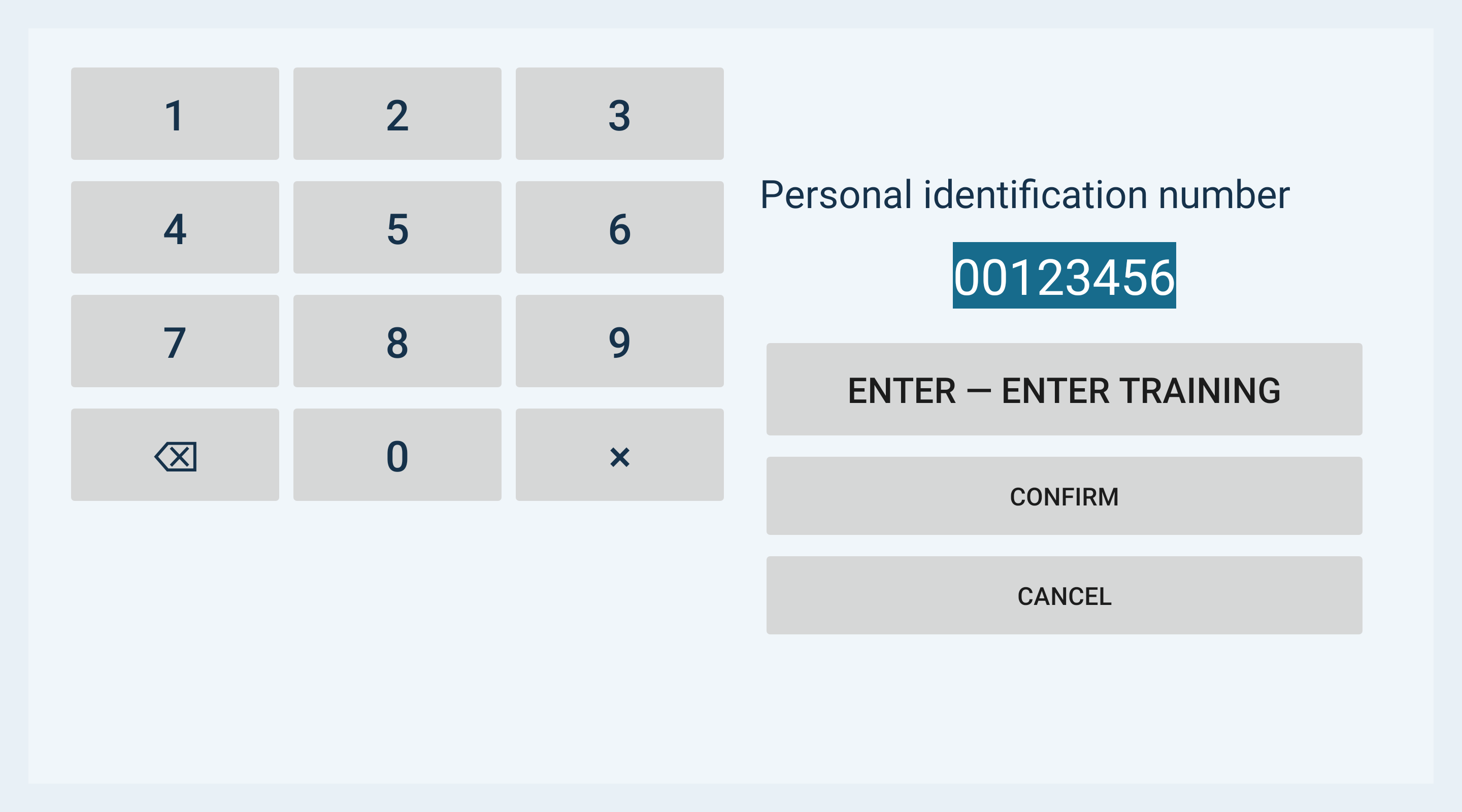
Require personal identifier is on by default, so an empty value prevents entry. The numeric keypad allows up to 50 digits, including leading zeros. Previously entered numbers are selected when editing, so the first new digit replaces the old value. Delete and Clear remove digits; Cancel abandons the edit.
In the personal-identifier keypad, Enter both accepts the value and starts entry to training. Confirm accepts the value without starting; you can then press Enter training on login. Enter in other numeric settings confirms that setting instead. Numeric entry does not open a full alphabetic keyboard.
Three actions save immediately: selecting a movie, changing language and resetting VR positions. Cancel in settings does not undo those actions. Reset affects object positions only; it does not erase the patient binding, language, sound settings or training options.
Device binding and personal identification
All device settings
| Setting | Initial value | Purpose and operation |
|---|---|---|
| Headset serial number | Read only | Identifies this physical headset. If unavailable, restart the headset and contact staff; the value is not editable. |
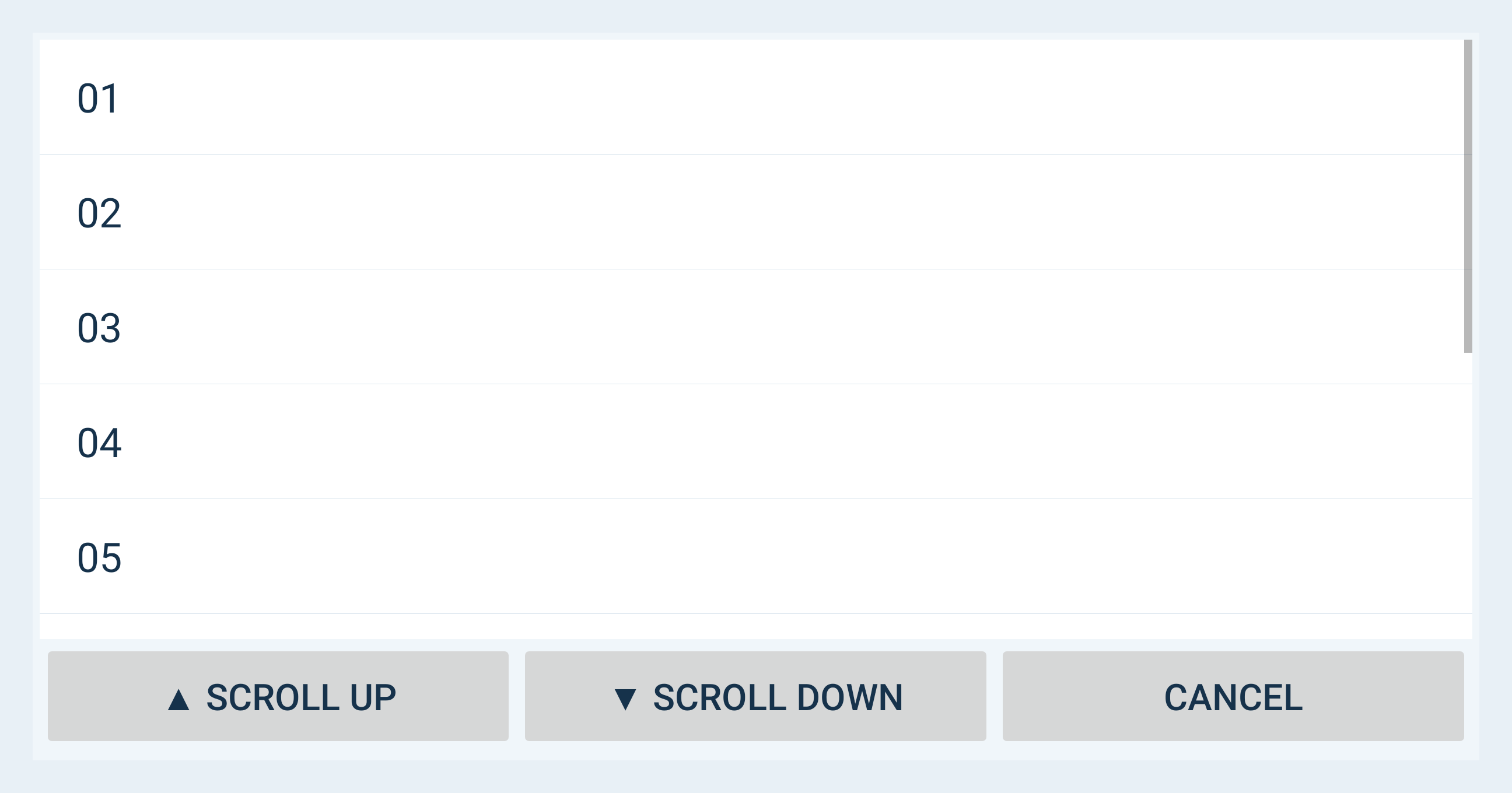
| Select branch | Set by staff | Select the assigned branch from the server list; scroll with the joystick. |
| Select patient | Set by staff | Choose the patient belonging to that branch. This fixes the patient shown on login. |
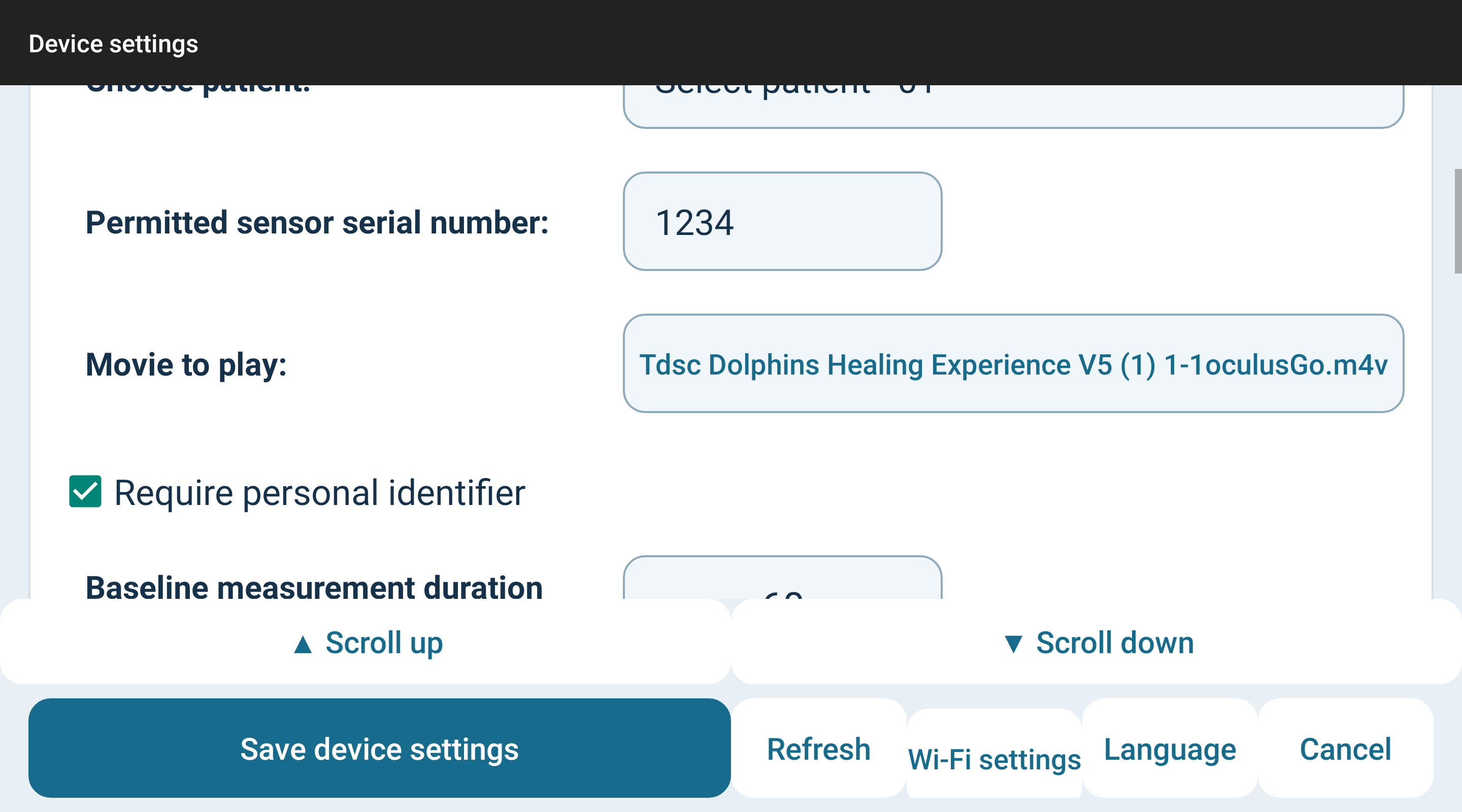
| Permitted sensor serial number | Set by staff | Numeric serial of the one permitted sensor. Other discovered sensors are for viewing only. |
| Movie to play | Set by staff | Open the scrollable local movie gallery, preview a file and save its projection. |
| Require personal identifier | On | When on, an empty personal identifier blocks login. Turning it off permits an empty identifier. |
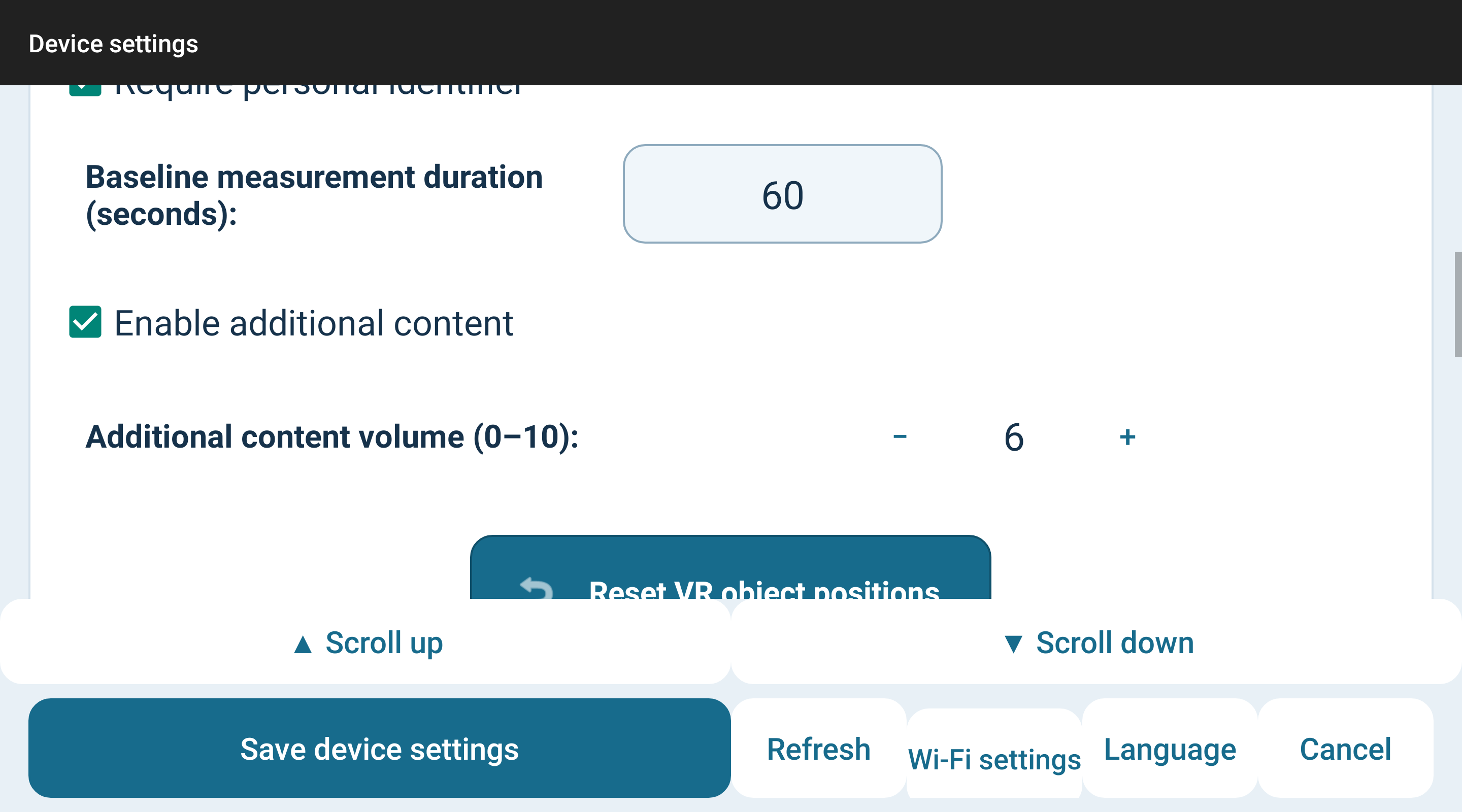
| Baseline measurement duration (seconds) | 60 | Positive whole seconds. Determines the baseline wait, not the total training duration set by the server. |
| Enable additional content | On | Enables content supplied by the additional session URL. It does not choose the main movie. |
| Additional content volume (0–10) | 6 / 10 | 0–10, in whole steps. 0 mutes additional audio/video only; it does not mute the main movie or breathing prompts. |
Use + and − for volume and breathing times. Save before leaving. Existing custom times remain after an upgrade; the former default 3.5/0.5/6.5/0.5 is upgraded once to 4/0/6/0. Choosing a different timing later remains possible. Scroll the long settings form with the joystick or the up/down buttons.
All device settings
All device settings
| Setting | Initial value | Purpose and operation |
|---|---|---|
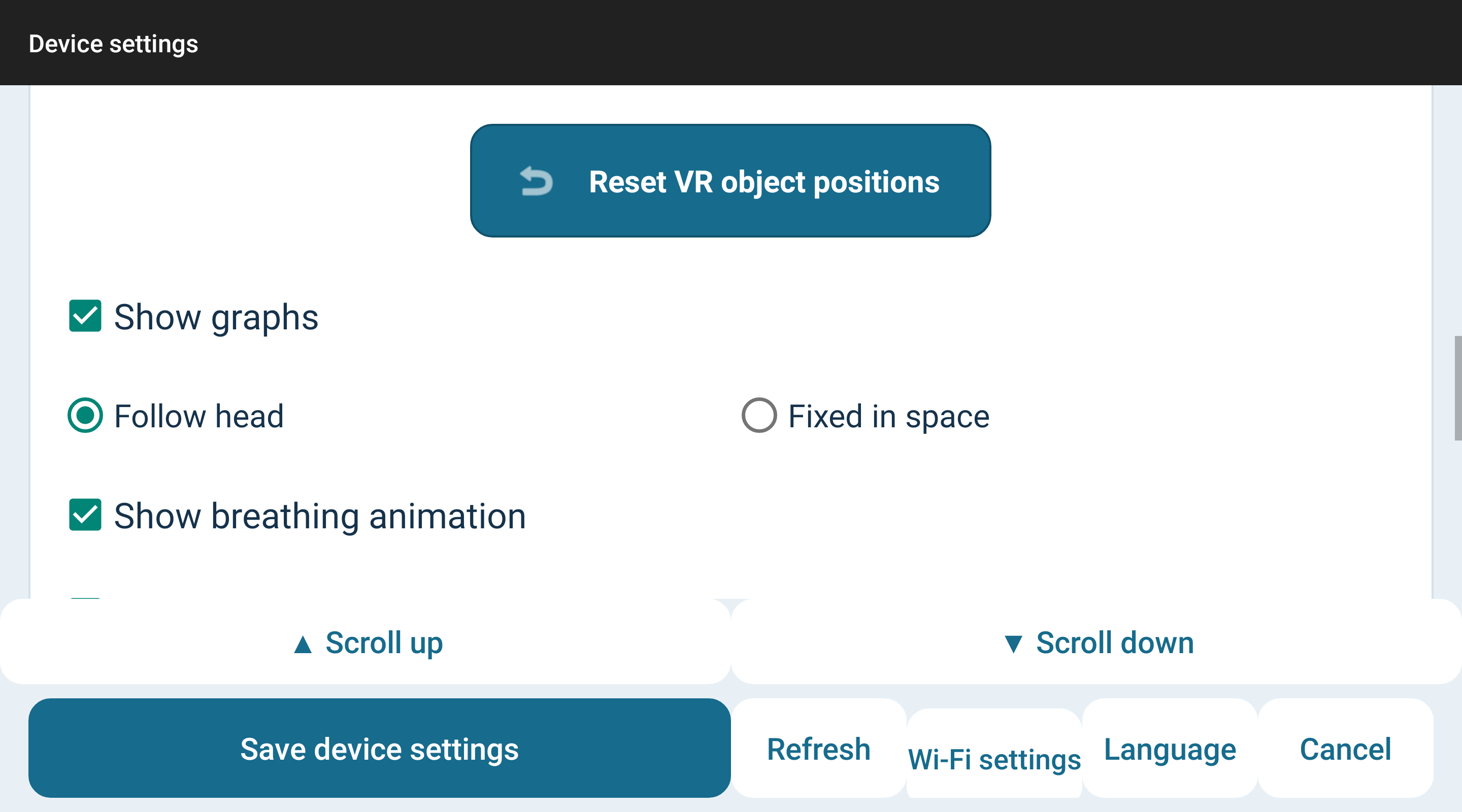
| Reset VR object positions | — | Immediate action: restores all movable VR objects to their defaults, including the new 22.5° video position. |
| Show graphs | On | Shows or hides signal graphs and the LF/HF, oxygen and PI panels. Heart rate, countdown and breathing have their own display behaviour. |
| Follow head | On | Follow head keeps the HUD relative to the viewer; Fixed in space anchors it to the starting view. EXIT and the additional video remain world anchored. |
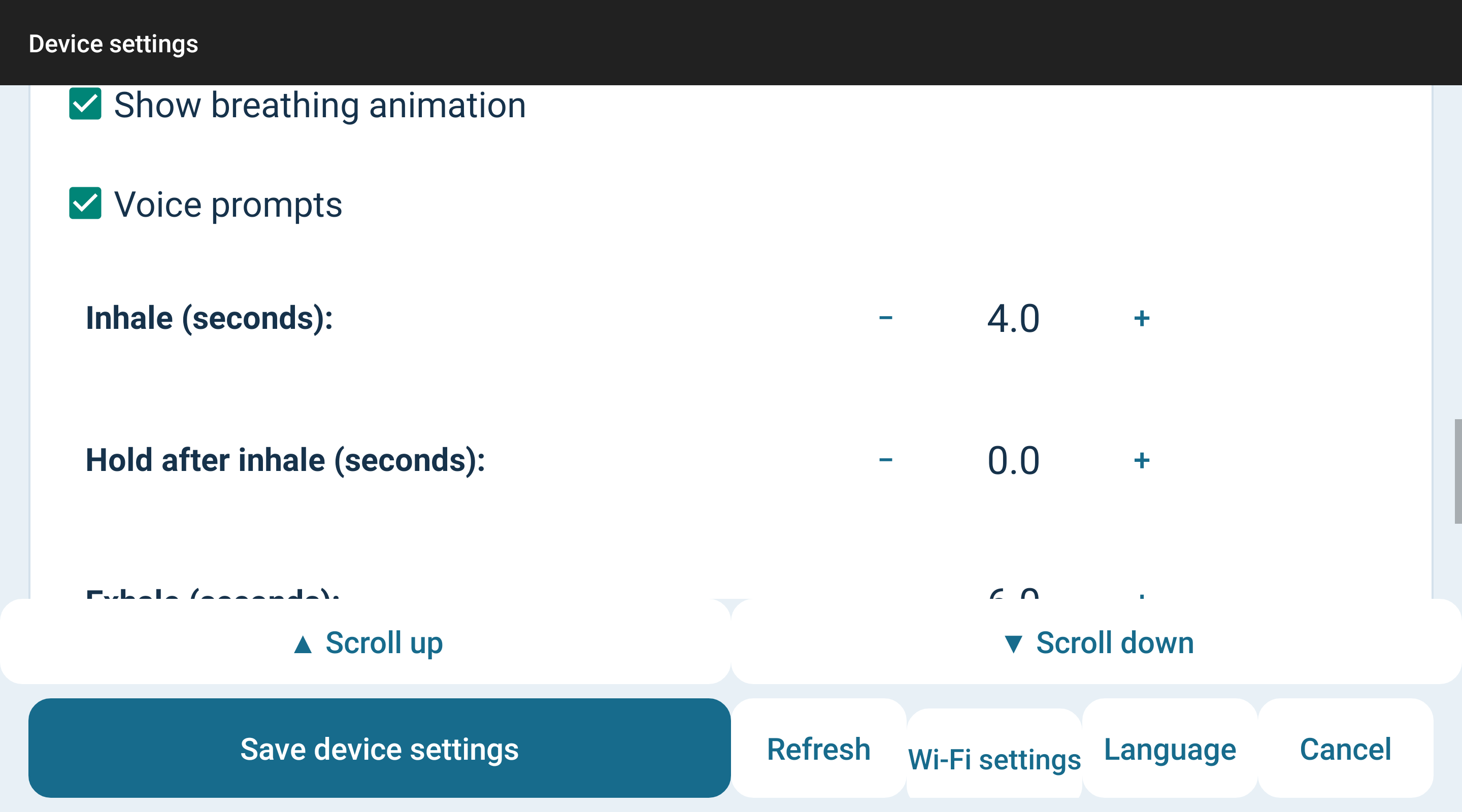
| Show breathing animation | On | Shows the expanding and contracting ball and breathing words. Turning it off also disables the spoken breathing cues. |
| Voice prompts | On | Spoken inhale/exhale in the chosen app language, only while breathing animation is enabled. |
| Inhale (seconds) | 4 | Ball expands. Adjustable from 0.5 to 60 seconds in 0.5-second steps. |
| Hold after inhale (seconds) | 0 | Ball stays at its current size. 0 skips this phase. Adjustable from 0 to 60 seconds in 0.5-second steps. |
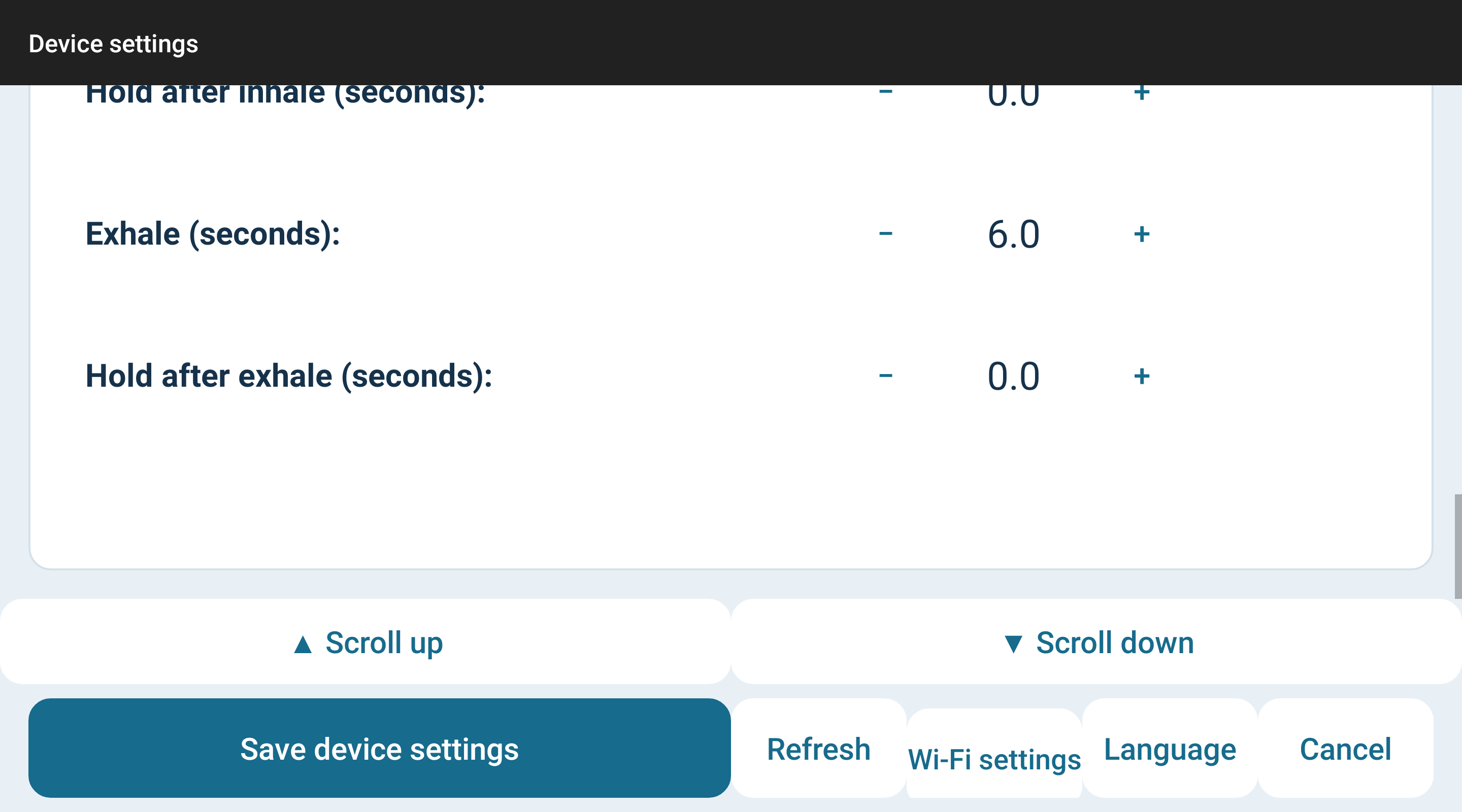
| Exhale (seconds) | 6 | Ball contracts. Adjustable from 0.5 to 60 seconds in 0.5-second steps. |
| Hold after exhale (seconds) | 0 | Ball stays at its current size. 0 skips this phase. Adjustable from 0 to 60 seconds in 0.5-second steps. |
Use + and − for volume and breathing times. Save before leaving. Existing custom times remain after an upgrade; the former default 3.5/0.5/6.5/0.5 is upgraded once to 4/0/6/0. Choosing a different timing later remains possible. Scroll the long settings form with the joystick or the up/down buttons.
All device settings
Login sensor selection and baseline
Verify the branch, sensor number and patient on the single-screen login card. Enter the personal identifier and press Enter training, or use keypad Enter. Device settings changes the binding; Language changes the UI; Privacy opens the configured policy. Exit on login restarts the normal app startup, rather than returning permanently to the headset launcher.
After authentication, the server’s TrainingMonitorPico page can show introductory content. This is a web content page, not the local VR movie. Its top button text is supplied by the server. Click that button to continue to BLE selection; this stage intentionally does not advance automatically.
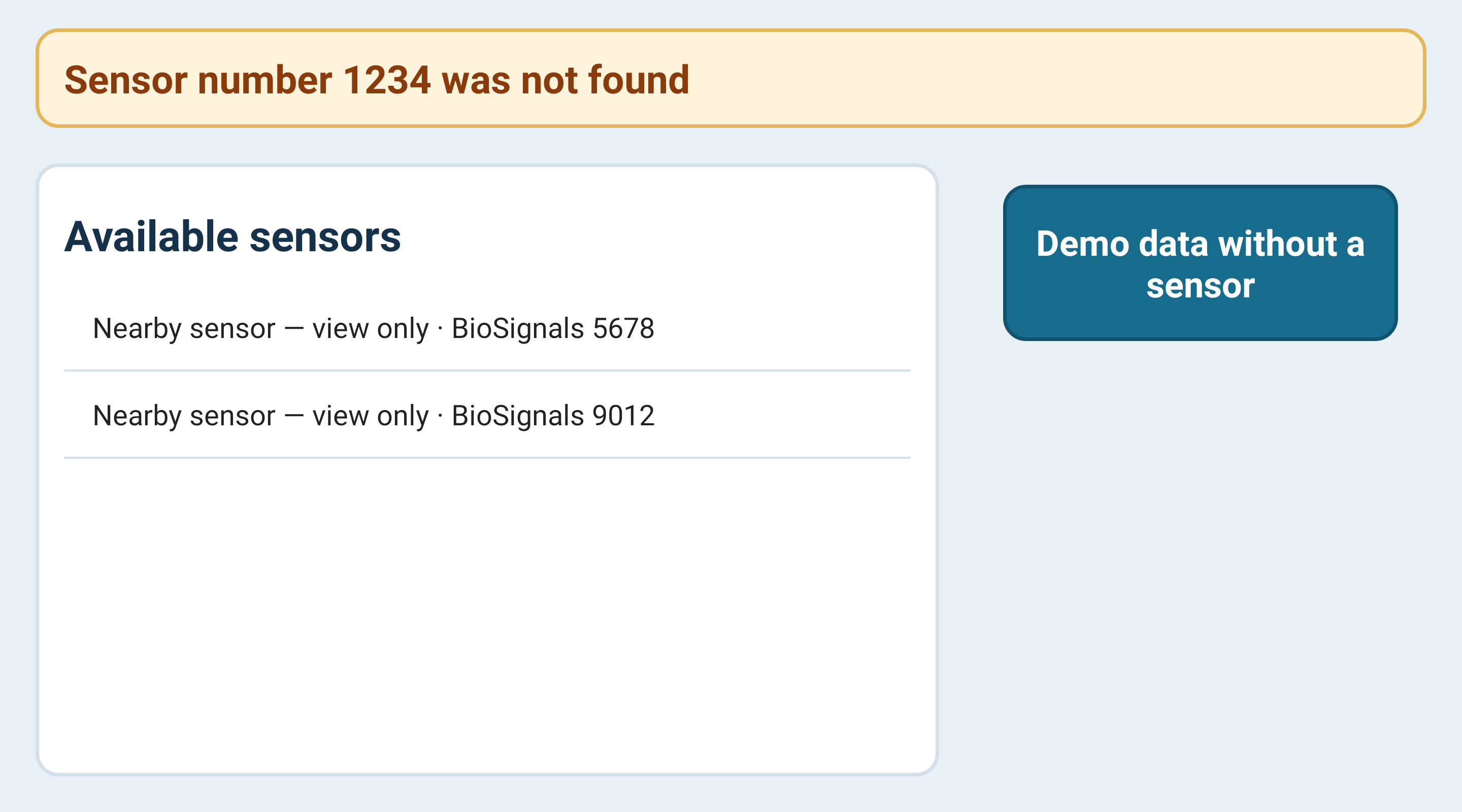
Available sensors appears above the selectable sensor list. Only a sensor matching the configured serial is permitted for training; other sensors are shown for observation. Turn on the correct sensor, keep it nearby and refresh the scan if needed. The missing-sensor notice includes the expected number and stays visible until a match is discovered.
Demo data without a sensor is a separate action button. It asks for confirmation before using the embedded Lucy demo recording. Demo replaces live sensor input, not the Internet or login requirements. All readings and the summary are simulated and are not the wearer’s personal result. Use the normal sensor path for a personal measurement.
After acquisition begins, Please wait for the baseline measurement and a countdown appear. The default is 60 seconds; staff can change it. Keep the sensor stable and wait. At the end, VR opens automatically. The countdown is a timed baseline window, not a guarantee of sufficient signal quality. Missing or poor data may later prevent a score.
The server sets the total session duration; it is not always four minutes. Baseline consumes part of the acquisition session, and the VR timer shows the time remaining to its actual end. A longer baseline can leave less time for VR practice. Reaching zero opens the summary rather than continuing the movie indefinitely.
On the native 2D measurement screen, channel checkboxes show or hide Heart signal, Focus, Skin conductance, Temperature, Breathing, Breathing 2, Pressure 1/2/3, Resistance 1/2 and HRV. These are display selections, not a way to make an absent sensor measure another channel. Values depend on the connected hardware. The VR button enters the immersive view after baseline; Exit follows the training-summary route. If an embedded web page is open, Back can first close that page.
Login sensor selection and baseline
Movie library and projection
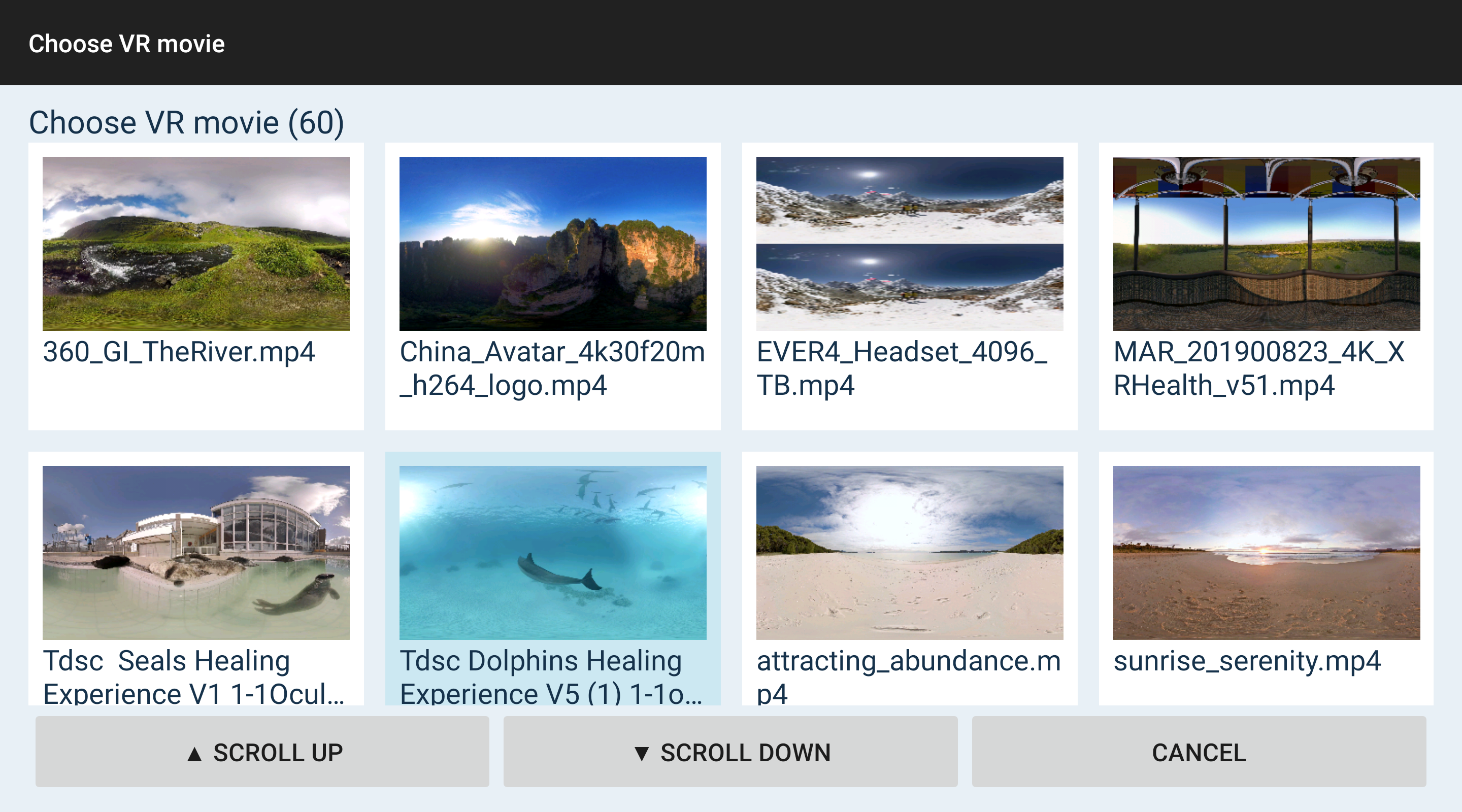
Open Choose VR movie in Device settings. The gallery scans readable local video files on the headset and scrolls continuously. Use the joystick or up/down buttons. The filename identifies the original file; a highlighted card marks the selected movie. A missing thumbnail does not by itself prove the video is unusable.
Click a card to open the preview. Choose Video projection from its list, then Select video to save both file and projection immediately. Cancel closes the preview without selecting it. The preview is a conventional video preview; a panoramic or stereo source can look split or distorted there even when its correct VR projection is available.
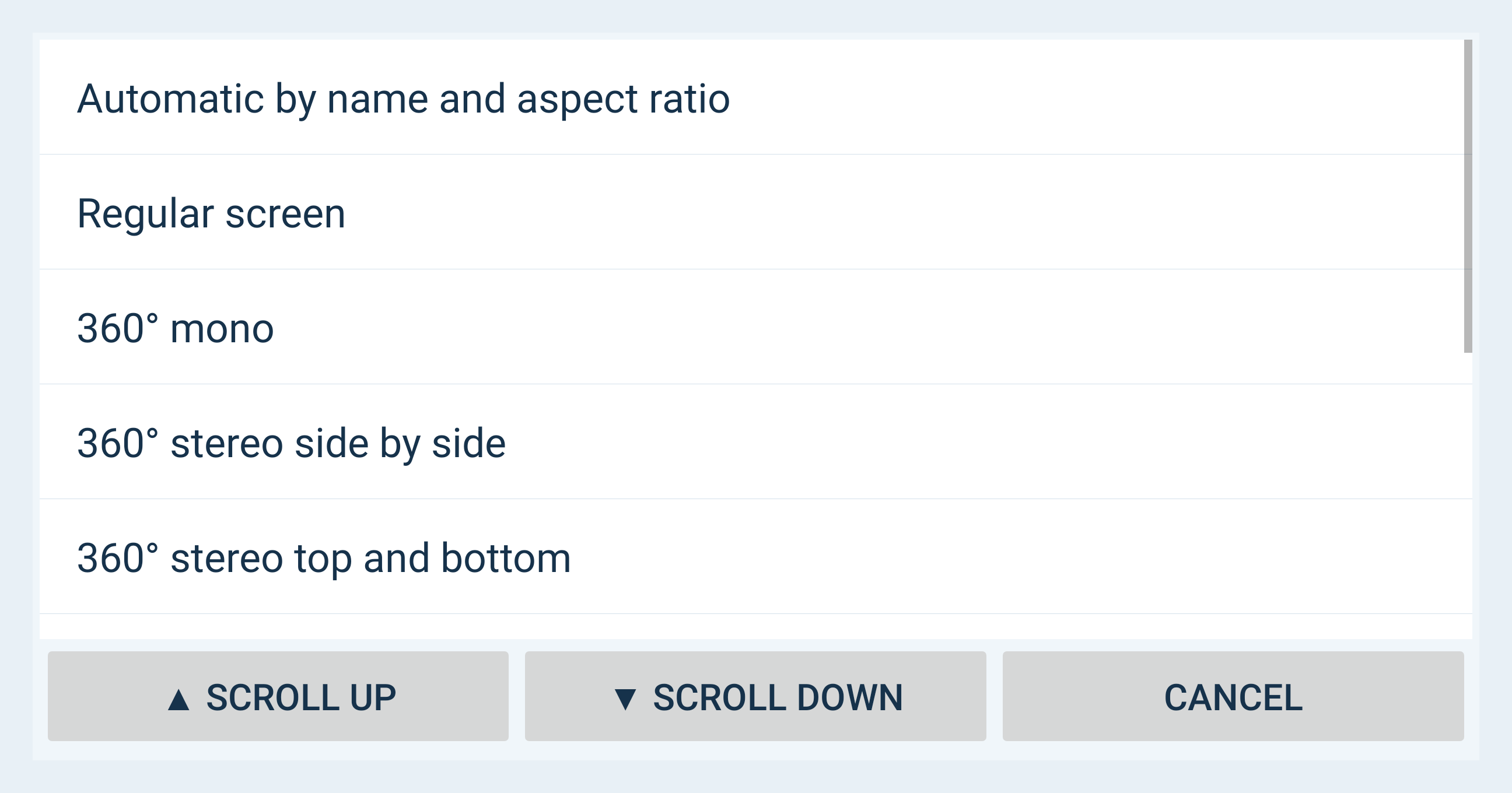
Automatic uses filename markers such as 360, 180, SBS or TB plus aspect ratio. If the view is wrong, choose the format explicitly; do not rename or overwrite the original as a first troubleshooting step.
Regular screen is a flat movie in front of the viewer. 180° covers the forward hemisphere; 360° surrounds the viewer. Mono supplies the same view to both eyes. Stereo uses a separate view for each eye.
Side by side means left/right images share one frame horizontally. Top and bottom means upper/lower images share it vertically. Select the matching arrangement for 180°, 360° or a stereo flat screen. All ten choices shown in the app are listed below.
Common scanned extensions include MP4, MKV, WEBM, MOV, AVI, M4V, 3GP, TS, MTS, M2TS, MPG, MPEG and OGV. Extension or resolution alone does not guarantee decoding: codec, profile, file integrity and headset hardware still matter. The app scales rendering surfaces to GPU limits without editing the original file. Choose another known-working local file when playback fails.
Movie library and projection
Understanding the VR display
The selected local movie plays behind the information objects and loops until the session ends. The default front of a panoramic movie is corrected toward the viewer. Look around with your head; scrolling the Android movie list and looking around a panoramic scene are different operations.
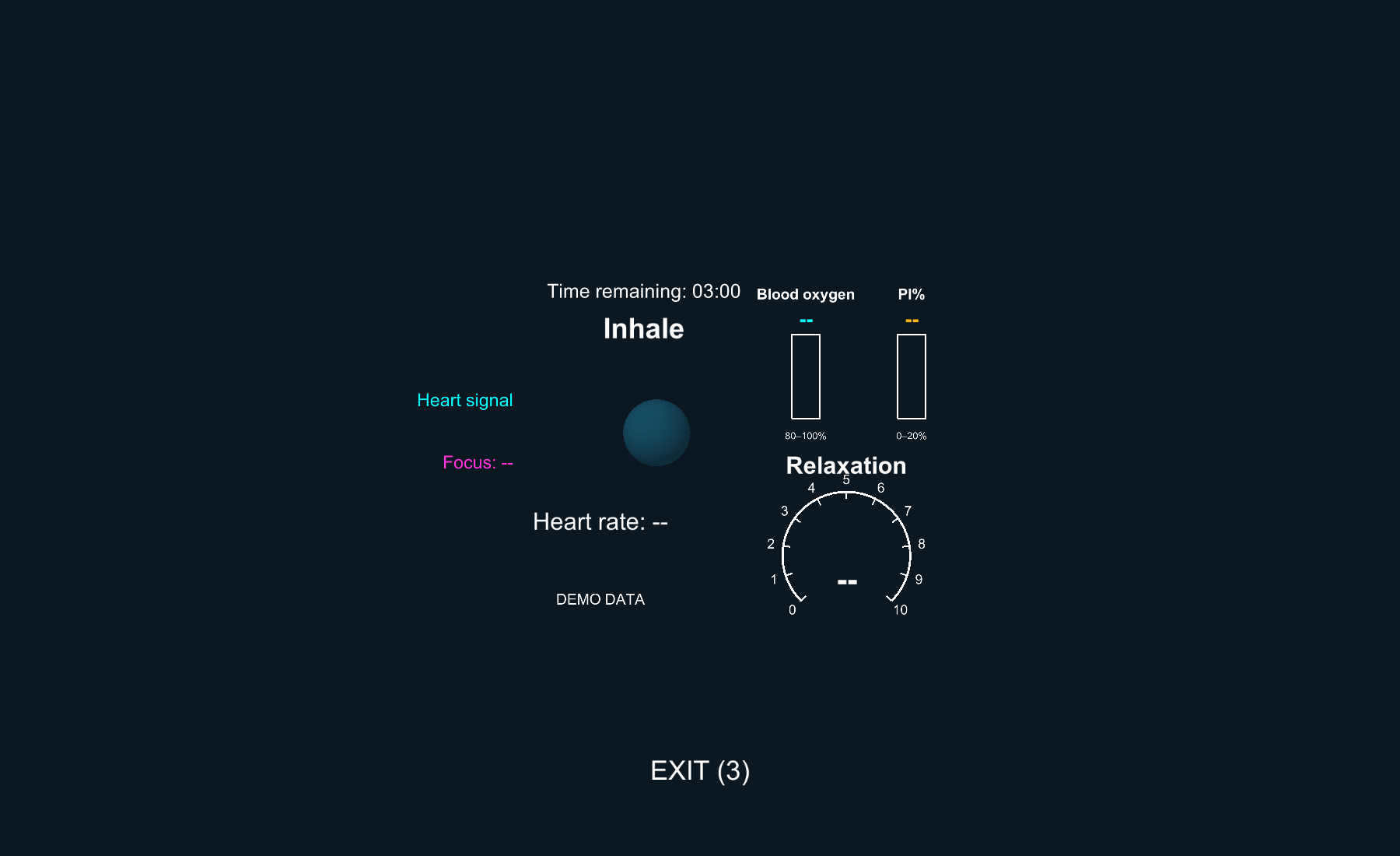
Heart rate is the latest available pulse value. Time remaining counts down to session end and starts above the breathing words. A dash means unavailable data, not a measured zero. These values can be moved separately with the trigger.
Heart signal shows the live pulse waveform. Focus is a separate signal display; its plotted direction is a display convention, not a new measurement. Relaxation is the LF/HF dial with marks 0–10. The dial position is capped for display, while a numeric reading can exceed 10. It is not a score out of ten.
Blood oxygen and PI% appear only when the configured device supplies their matching fields. Oxygen’s visual column spans 80–100 and PI’s spans 0–20; these are display ranges, not diagnostic thresholds. A sensor that does not supply a value cannot be made to measure it by enabling graphs.
NO LIVE SIGNAL means current live data are unavailable. Waiting for calculated data can appear while pulse is already visible: LF/HF needs calculated HRV data. Stale values are hidden rather than presented as current. Without a fresh LF/HF value, the additional video holds its current distance. A blank value is not evidence of a bad training result.
Graphs can follow the head or stay fixed, according to settings. The breathing guide moves as one group; graphs, dial, columns, pulse, time, status, EXIT and additional video have movable targets. Saved positions are relative to their view or anchor, not fixed coordinates in a room.
Understanding the VR display
Breathing voice and additional content
The default cycle is 4 seconds expanding, no hold, 6 seconds contracting, no hold: 10 seconds per cycle. The displayed words indicate inhale, exhale or a configured hold. Spoken words occur at the start of expansion and contraction only. They begin after the main movie’s first frame, do not speak during holds, and do not queue repeated words after a pause.
Both Show breathing animation and Voice prompts must be enabled. The recordings are embedded and use the selected app language; Hebrew retains the owner-provided recordings. Voice prompts, the main movie soundtrack and additional-content volume are separate audio paths. Headset system volume still affects what is heard.
The server’s VR_url_address can supply a direct audio or video URL. Audio plays together with the main movie and currently plays once. An additional video repeats in a loop and uses blue chroma key to remove its blue background. It is not a general-purpose web browser: HTML pages or unrecognised media links may be skipped. No extra URL needs to be typed by the patient.
The default video centre is 22.5° above the initial eye-level horizon and shares EXIT’s initial horizontal centre. It stays anchored when the viewer turns. LF/HF 0 maps to 8 m, 5 to 5.25 m and 10 or more to 2.5 m, along that elevated direction. Movement is smoothed. Dragging adds a saved offset; reset restores the default.
Additional-content volume defaults to 6 on a 0–10 scale. It is a relative gain, not a percentage or a headset master-volume control. Level 0 removes additional sound; level 10 is full gain. A failed or absent additional URL does not stop the main local movie. Network content cannot be guaranteed when Internet is unavailable.
ContentsControllers moving objects and exiting
In scrollable Android screens, move the joystick up or down to scroll settings, branch/patient lists and the movie gallery. Release it to stop. Buttons remain an alternative. A joystick does not change a selected patient automatically, and does not move the VR video’s distance; the latter follows LF/HF.
In VR, aim the controller beam directly at the visible object. Press and hold the trigger, move the controller to place the object, then release. Both controllers are supported, with one object held at a time. The beam turns cyan over a target and yellow while holding. A clear aim at the object is required; pointing beside it is not the intended operation.
Release saves the object’s relative offset on this headset. The next VR entry restores it, even after restarting the app. A head-following object follows the head in its new relative position; a world-anchored object stays anchored. Dragging uses the captured grab depth and is not a free zoom control. Automatic LF/HF depth movement of the additional video continues with its offset.
To restore the standard arrangement, open Device settings and press Reset VR object positions. This clears all saved object offsets, not just one. It acts immediately. If the video was moved manually, this is how to return its centre to the new 22.5° default.
To end training normally, look steadily at EXIT for three seconds, or use the controller’s app/back action. Looking away cancels the gaze countdown. Trigger-grabbing EXIT moves it; it is not the normal finish click. Normal exit and session expiry open the training summary. Read it and explicitly acknowledge before the app restarts.
HOME is different: it leaves for the headset system so you can change Wi-Fi or use other apps. Automatic app restart remains suspended until you explicitly launch BioSignals from the headset apps screen. HOME is not the acknowledged-summary route and should not be used as a pause/resume button. Returning starts the normal entry flow, not a continuation of the old training.
ContentsReading and confirming the training summary
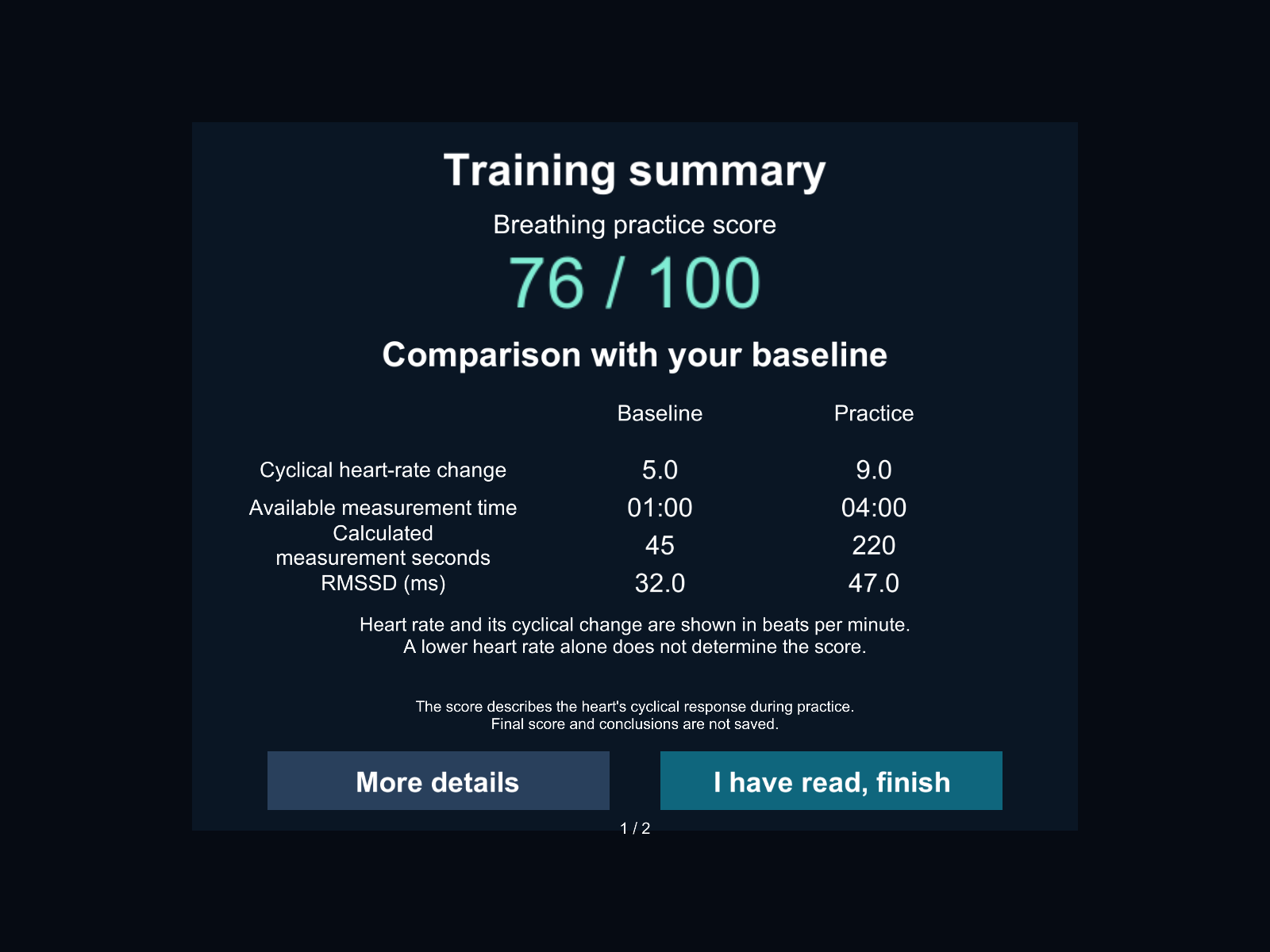
The summary compares the measured baseline with the period after baseline until exit or the session deadline. It uses the actual configured durations, not an assumed four-minute movie. It shows one breathing-practice score from 1 to 100 when data are sufficient. The score measures practice performance using the existing formula; the baseline comparison is shown alongside and is not itself the score formula.
More details cycles through the pages without ending the app. There are at most four measurement rows per VR page. Baseline and Practice columns remain separate; numeric values keep their normal order in Hebrew and Arabic too. Demo results are labelled as simulated. Example images in this guide show fictional values, not patient data.
| Measurement | How to read it |
|---|---|
| Duration | Measured duration is the length of each comparison period. Available measurement time estimates fresh beat coverage, not the movie length. |
| Heart rate | Typical heart rate is the median of valid pulse readings. The main range is the central 10th–90th percentile range, not the lowest and highest isolated values. |
| RSA | Cyclical heart-rate change describes the amplitude of repeating rises and falls in pulse, in beats per minute. It is the RSA component of this score. |
| LF/HF | LF/HF is the ratio of two calculated HRV frequency components. It contributes to this breathing score but is not a direct health grade. The live dial and summary can differ because their aggregation periods differ. |
| RMSSD / SDNN | RMSSD and SDNN describe variability of intervals between heartbeats, in milliseconds. They are supplementary measurements; they do not add points to this score. |
| Quality | Valid beats and calculated measurement seconds describe available evidence. Missing baseline LF/HF can appear as -- without blocking an otherwise supported practice score. |
Not enough data is an intentional result, not a score of zero or a failure by the patient. Short sessions, weak contact, gaps or insufficient calculated data can cause it. The final score and conclusions are held only for this display, not saved for later reopening. Existing server storage of signals/session events is separate.
Aim at I have read, finish and click the trigger, or use the three-second gaze confirmation when no controller is available. Release a trigger already held when the summary opens before clicking again. The summary waits for acknowledgement and then completes the normal restart. Reading time does not add measurement data or change the frozen score.
Reading and confirming the training summary
Troubleshooting
| What you see | What to do |
|---|---|
| Waiting for server | Check actual Internet access, complete any network login, then Retry. If Internet works but the server does not, contact staff; repeatedly reinstalling will not repair the server. |
| Save disabled or no patients | Wait for the directory, Refresh and reselect branch/patient. Staff must correct missing server assignments; do not select an unrelated patient. |
| Entry blocked | Check the required identifier, valid binding, headset serial and connection. The personal identifier is not the patient’s login password. |
| Black or empty page after login | This may be the server content stage, before VR. Check Internet and whether the top continue button appears. Report the exact stage to staff; do not change the local movie projection to fix a web page. |
| Configured sensor not found | Turn on and charge the sensor; check its serial, proximity, Bluetooth and discovery permissions. Refresh. Another sensor in the list cannot substitute for the permitted one without staff changing the binding. |
| Local video absent or fails | Verify the file is on the headset, readable and still at its saved path. Check storage permission and try a known-working file. A corrupt or unsupported codec is not fixed by choosing a larger resolution. |
| Split stretched or wrong view | Select the matching flat/180/360 and mono/SBS/top-bottom mode in the movie preview, then save. A 2D desktop mirror or preview is not itself proof that headset stereo failed. |
Troubleshooting
| What you see | What to do |
|---|---|
| Additional video absent | Enable additional content, check Internet and look 22.5° above the starting horizon or at its saved position. Staff should verify the URL is direct video, not an HTML page. Main-movie selection does not set this URL. |
| No sound or sound still heard at 0 | Check headset master volume and the relevant path. Additional volume 0 mutes only extra media; main audio or breathing can still play. For missing words, enable both animation and voice prompts. Save and enter a new training. |
| Pulse visible but LF/HF missing | Wait for calculated HRV and keep the sensor stable. Check contact and connection if live signal is missing. Do not interpret a blank field as zero or manually force a score. |
| Trigger or dragging does not work | Check controller charge/connection, release the trigger and aim at the object itself. Only one object can be held. If the headset controller service is unresponsive, return to the system and reconnect or restart the headset. |
| Objects missing or badly positioned | Look around for saved world-anchored objects. Check Show graphs/animation and use Reset VR object positions if needed. Reset removes all saved offsets, not training settings. |
| No summary score | This can be correct for short or insufficient data. Review measured duration, sensor contact and valid data. The minimum full session is 180 seconds, with additional quality requirements; elapsed time alone is insufficient. |
| App does not restart after HOME | Expected behaviour. Launch BioSignals explicitly from the headset apps screen. Use normal EXIT plus summary confirmation when you want the ordinary restart route. |
System logic and score calculation
Startup configuration and the clinic directory come from the server. The app validates the configured patient, authenticates and allocates a session before the introductory web page. TrainingMonitorPico uses that patient/session context, a one-use web entry ticket and a separate in-memory native token. The personal identifier in COMMENTS is a session note, not authentication or a substitute session number.
The selected main film is a local file. Introductory web content is server controlled. The extra media address is obtained from the existing get_user_BF_parameters response field VR_url_address and classified as audio/video. These are three different content sources. Server media may remain in its original language even when the app interface changes language.
Android acquires the sensor stream and forwards the established live protocol to Unity through the local WebSocket. UI placement and language do not change the measured samples. The summary takes an in-memory report copy and freezes it at exit/deadline; session end stops acquisition and media before waiting for the reader. HOME and failure recovery use separate lifecycle paths and may not show the acknowledged summary.
ContentsBreathing score formula
Score = round(10 × RSA × min(LF/HF ÷ 3, 1)), then limit to 1–100. Inputs are post-baseline RSA and the median measured epoch LF/HF. Example: RSA 6 and LF/HF 1.5 gives 30; RSA 6 and LF/HF 3 gives 60. Above LF/HF 3, that factor no longer increases. Lower pulse, oxygen, PI, RMSSD and SDNN do not add points.
A score requires at least 180 seconds for the full measured session. Both baseline and practice need at least 30 seconds, 20 valid beats, 80% usable beat records, fresh-beat coverage of at least half their duration and 20 seconds of positive DC data. Practice additionally needs at least two independent seconds of calculated HRV and finite positive LF/HF. A missing baseline ratio alone does not block a score.
For this report only, valid pulse is 25–240 bpm with contact field P1 at least 150; synthetic HRV is excluded. HRV contributions are grouped by received second before taking medians, so broadcast frequency does not overweight data. RSA uses strict local pulse peaks/valleys, alternating amplitude pairs and integer averaging. Invalid data or gaps over 5 seconds break pairing; paired extrema cannot be more than 30 seconds apart.
These are software sufficiency rules, not clinical thresholds. The report cannot establish a diagnosis or measure breathing depth directly. It has finite memory limits; truncation suppresses a score rather than inventing one. The phase-specific bounded PICO score must not be treated as identical to a separately calculated whole-session server report.
ContentsStaff handover and maintenance
Before handing over: verify the installed build, Internet access, selected branch and patient, permitted sensor, chosen local video and projection. Confirm that the personal identifier belongs to the current participant. Test the controller beam, sound and a readable headset view. Demo input must never be presented as the participant’s own measurement.
Local settings belong to this headset, not to a cloud profile. Changing patient does not automatically reset the VR layout. Removing the app or clearing its data can erase language, binding, options and saved positions. Keep an approved installer and an inventory of local movies before maintenance; do not assume reinstalling restores these choices.
For support, record build identity, headset model and firmware, language, the screen or stage, time, error text, movie filename and projection. Supply sensor or patient identifiers only through an authorised private support channel. Do not include authentication tokens, passwords or identifiable patient screenshots in public messages.
ContentsInherited maintenance menus
The native measurement screen also contains an options menu with Multimedia, Quest API and Language. These are inherited maintenance routes, separate from the normal PICO movie picker and VR workflow. Multimedia opens the older server-controlled media screen; its content and availability depend on server configuration. It is not the local VR video library.
Quest API Provisioning is for administrators only: base URL, development override and its URL, transition fallback, authentication token, scheme and header name. Save stores the configuration; Check runs a health check; Close leaves the dialog. Do not change deployment settings during a patient session. This legacy runtime configuration is separate from the dedicated TrainingMonitorPico login/session route; missing provisioning does not by itself stop the BLE/local flow.
The guide covers the current PICO screens and active workflow, with inherited maintenance entries identified separately. It does not describe every legacy Android class as a supported PICO feature. Settings, scoring and lifecycle explanations were checked against this build’s source; they are not a clinical validation. LF/HF is a calculated ratio, not a direct measurement of diaphragm movement. A higher score is software feedback, not a diagnosis or proof of treatment success.
Contents