Contents and screen directory
- Before you start
- Connect and verify live data
- Read the signal before reading the score
- A complete training session
- Recording, history, export and privacy
- Sound, video, fullscreen and display
- Troubleshooting — in a safe order
- Demonstrations, results and limits
- Training selector
- Live GSR Graph Only
- Simple GSR
- GSR Training PRO
- GSR and HRV
- HRV Training
- Enhanced HRV Training
- HRV for AI-HRV
- Guided Breathing
- EMDR Training
- HR Coherence
- Blood Pressure Trend
- BioSignals Training Suite
- VR Training
- Micro Tremor — BSS-F1
- Breathing Belt Training
- Real Time Live Parameters
- EMG Relaxation Training
- Biofeedback Emotional Mirror
- Cognitive Stress Test
- AI-HRV Stress Assessment
- Stress Meter
- HRV Sync Flow
- HRV Challenge
- Immersive Zen Audio
- Night Monitor
- Secure Sessions Report
- Calm Memory Game
- Study Room Journey
- Unity Off-road — Test Screen / Test Screen 2
- Sky Calm Adventure
- NeuroBalance
- Mind Runner
- Brain Control: City of Calm
- Bio Prayer
- BioSignals Session Review
- Local Session Report
- Course Continuation Choice
- Continuation Guidance
- Relaxation Challenge
- EMDR — Older Link
- Connection Diagnostic — Support Only
Before you start
Use the exercise assigned by your professional and the compatible sensor supplied with your system. This guide explains operation, not diagnosis or a treatment prescription. Prepare a comfortable seat, stable device support, charged sensor, working application and internet for page/media loading. Keep hands comfortably supported and minimize movement. Do not change a prescribed training duration or breathing pattern merely to improve a score. If an exercise causes discomfort, stop and contact your professional. The browser screen, desktop program and VR headset are different interfaces: this guide covers browser screens only.
Back to contentsConnect and verify live data
First connect the sensor using the instructions for your device and open the supported BioSignals application on that same computer or phone. Confirm that the application itself receives changing readings. Then open the training selector from the application or the approved training link. Leave the application running while using the browser. A public webpage by itself does not connect to a remote sensor or grant account access. On pages with a device-model selector, select the actual device, not the device whose readings look preferable. Phone/computer buttons do not pair Bluetooth or select a physical USB port. If local-network access is requested, allow it only for the trusted BioSignals page and your own local device. Do not disable browser security globally.
Back to contentsRead the signal before reading the score
Connected means a connection exists; it is not proof that every channel is valid. Check that the expected channel is present, readings advance, and the page is not marked waiting, disconnected, stale or demonstration. A zero, flat line or missing value is not automatically relaxation. Reposition only as directed by your device instructions, then wait for a stable signal before calibration. GSR represents skin conductance; pulse/BVP is an optical waveform; HR is heart rate; IBI/RR is beat spacing; HRV describes variation in that spacing. Temperature, movement, muscle activity and breathing require their corresponding inputs. A displayed pressure trend or estimated score is not a substitute for a validated blood-pressure instrument. Never compare different people or device scales as if all scores had universal clinical meaning.
Back to contentsA complete training session
1. Identify the correct trainee privately in the application when required. 2. Connect the sensor and verify the signal. 3. Open the assigned screen, choose language and read its Help. 4. Set only the options relevant to your task: signal source, duration, comfortable breathing pace, sound and difficulty. 5. If the screen has calibration, remain still and complete it before scoring. 6. Start the exercise; if you also need browser-recorded data, separately start its Save Data function. 7. Watch quality and follow instructions rather than chasing every beat. 8. Use the exercise’s End/Finish command, then stop/finalize any separate recording. 9. Review history and export required files before leaving. 10. Return to the application and end its session as instructed. Closing a tab is not evidence that a cloud training session ended or a report was delivered.
Back to contentsRecording, history, export and privacy
Start Save Data begins that page’s local data capture; use the corresponding Stop command to finish. Read Saved Data opens its retained recordings. View signals rows and View HRV rows are different views; a channel may be absent. Export CSV downloads data, not a cloud delivery receipt. Keep downloaded files in a private location and check they open before deleting anything. Local browser history normally belongs to that browser, device and site address; private mode, clearing site data or changing device can remove access. It is not automatically backed up to your account. Export History JSON and Import History JSON, where offered, transfer that specific feature’s history, not every page or your clinical record. Never use Clear History, Delete or Discard before confirming what will be removed. Account reports require separate authorized sign-in. Do not publish reports, recordings or credentials in support screenshots.
Back to contentsSound, video, fullscreen and display
Browsers often require a deliberate Play/Enable Audio click before sound. Check device volume, tab mute, selected output and headphone fit. Pause audio or guidance separately when needed: pausing a visual cue or score may not pause recording. Fullscreen expands the page; use its exit control or Escape where supported. Width/height zoom changes the chart view, not the measured signal. Set custom media only in fields that explicitly accept it; use a publicly playable link or a local file where supported, not a private account link. Add/Save URL normally saves a media choice, not a measurement. Default restores the provided selection. Keep sound at a comfortable level. For directional exercises use correctly oriented stereo headphones and test left/right before starting.
Back to contentsTroubleshooting — in a safe order
No readings: check sensor power and connection, then the acquisition application, then the browser’s connection indicator. Retry/Reconnect restores a connection, not missing historical samples. Frozen signal: stop scoring, check freshness and contact, then restart calibration only after stability returns. No sound/video: click Play once, check mute/output, internet and media availability. Blank game: allow loading time, close unnecessary heavy tabs and use a supported browser; do not interpret a loaded background as a live signal. Missing history: check the same browser, profile, site address and saved-file location; never clear site data as the first repair. Missing cloud report: verify the correct account and session through the report screen; a local export does not prove a cloud session exists. For support provide screen name, time, device model, browser and a redacted error screenshot, never a password, patient record or raw recording.
Back to contentsDemonstrations, results and limits
Demo/simulator values are examples, not measurements from your body. Turn demonstration off before a real exercise and verify genuine sensor input. Calibrated colors, difficulty and coherence/stress numbers are software feedback, not a universal medical diagnosis or evidence of a particular emotion. A page named VR does not mean the AI therapist is enabled. Buttons may differ by screen, permissions and version; use the chapter matching the actual title. Older links and diagnostic pages are described for recognition, not as recommended alternative connection methods. This guide is translated into six languages; some existing application labels, imported media, prayer text or legacy screens may retain their original language. Printing the guide produces documentation only, not a patient report.
Back to contentsTraining selector
Open training screen ↗Operating sequence and interpretation
Choose the language first, then use the search field to narrow the cards by title or activity. Select the card image or title to open that screen. Two Unity test cards intentionally lead to the same destination. A preview is not live data. Start the sensor application before selecting a live exercise.
Controls on this screen (2)
Control names below quote the interface’s existing labels so you can recognize them; their displayed language can vary. Only use a control when it is available. A hidden or disabled control is not an invitation to bypass a prerequisite.
| On-screen label | How to use it |
|---|---|
| Back | Return to the previous screen. Finish and save your exercise/recording first; navigation is not a save command. |
| search | Set this labelled option before starting, using its shown units/options. Check the effect on screen and preserve the assigned exercise; changing a preference does not save a measurement. |
Live GSR Graph Only
Open training screen ↗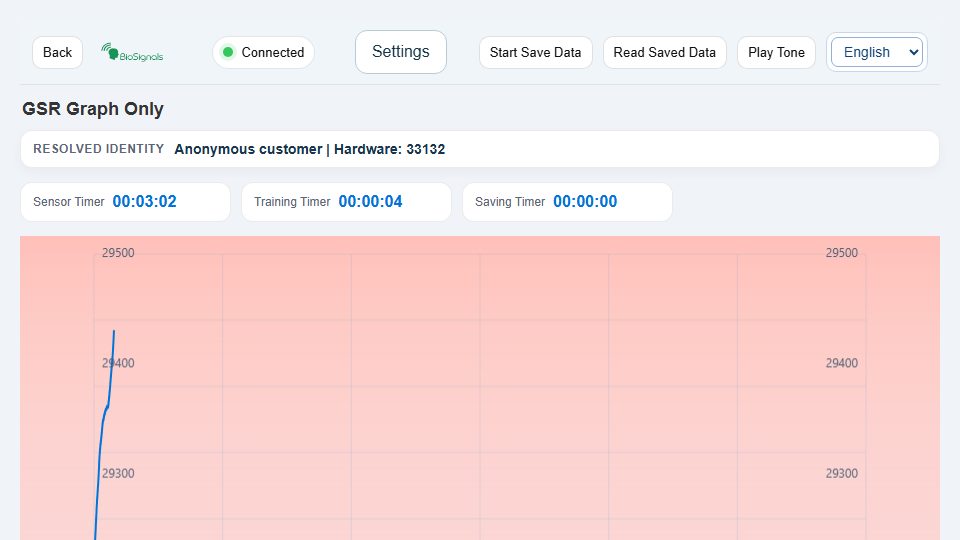
Operating sequence and interpretation
Use this uncluttered graph to inspect skin-conductance changes before adding game or video feedback. Confirm a moving valid GSR trace, sit quietly and observe a sustained trend rather than an isolated jump. Width/height zoom changes only the view. Use Save Data separately if you need a retained recording; inspect saved rows and export before leaving.
Controls on this screen (14)
Control names below quote the interface’s existing labels so you can recognize them; their displayed language can vary. Only use a control when it is available. A hidden or disabled control is not an invitation to bypass a prerequisite.
| On-screen label | How to use it |
|---|---|
| Back | Return to the previous screen. Finish and save your exercise/recording first; navigation is not a save command. |
| Retry | Retry the page’s connection after verifying that the sensor application is running. Do not repeatedly restart a good recording; check status and quality first. |
| Phone | Select the actual device, supported signal or displayed mode. Changing the choice does not add a sensor or validate an absent channel. Compare results only under equivalent settings. |
| Help | Open or close this screen’s instructions. Read its task-specific rules before starting. |
| Fullscreen | Enter/exit fullscreen. It changes layout only, not sensor quality, recording or account login. |
| Start Save Data | Start or stop this page’s local data capture according to its current button label. Exercise scoring and cloud recording are separate. |
| Read Saved Data | Open the feature’s saved sessions. Select the intended date/session before viewing or exporting. Local history is not automatically cloud history. |
| Play Tone | Choose, enable, play, stop or adjust the labelled sound/media. A deliberate click may be required for playback. Check output and comfortable volume; this does not start measurement saving. |
| Horizontal Zoom | Move the visible chart window or change its scale. Compare the same time range when reviewing; zoom does not alter the saved measurements. |
| Close | Open or close this screen’s instructions. Read its task-specific rules before starting. |
| Close | Open the feature’s saved sessions. Select the intended date/session before viewing or exporting. Local history is not automatically cloud history. |
| View signals rows | Open the named result/table/tab or navigate the selected record. Confirm the current session and available channels before interpretation. Viewing does not start a new sensor measurement. |
| View HRV rows | Open the named result/table/tab or navigate the selected record. Confirm the current session and available channels before interpretation. Viewing does not start a new sensor measurement. |
| Save CSV files | Download the selected session, table or history in the stated format. Check the file and its scope; store it privately. Export does not email it or prove cloud backup. |
Simple GSR
Open training screen ↗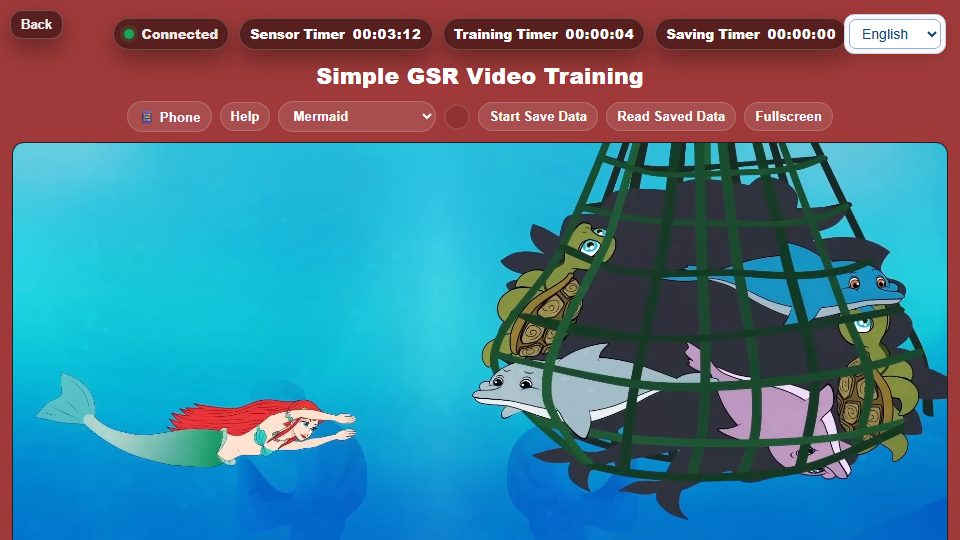
Operating sequence and interpretation
Select a video from the supplied list and confirm that the GSR line is updating. Start playback with a user click if the browser requires it. Observe feedback while staying comfortable and still. A stalled video can be a media/network problem even when the graph is live. Zoom and local recording are separate controls.
Controls on this screen (13)
Control names below quote the interface’s existing labels so you can recognize them; their displayed language can vary. Only use a control when it is available. A hidden or disabled control is not an invitation to bypass a prerequisite.
| On-screen label | How to use it |
|---|---|
| Back | Return to the previous screen. Finish and save your exercise/recording first; navigation is not a save command. |
| Phone | Select the actual device, supported signal or displayed mode. Changing the choice does not add a sensor or validate an absent channel. Compare results only under equivalent settings. |
| Help | Open or close this screen’s instructions. Read its task-specific rules before starting. |
| Mermaid Blooming Flowers Ski Car Race | Choose, enable, play, stop or adjust the labelled sound/media. A deliberate click may be required for playback. Check output and comfortable volume; this does not start measurement saving. |
| Start Save Data | Start or stop this page’s local data capture according to its current button label. Exercise scoring and cloud recording are separate. |
| Read Saved Data | Open the feature’s saved sessions. Select the intended date/session before viewing or exporting. Local history is not automatically cloud history. |
| Fullscreen | Enter/exit fullscreen. It changes layout only, not sensor quality, recording or account login. |
| Width Zoom 1.0x | Move the visible chart window or change its scale. Compare the same time range when reviewing; zoom does not alter the saved measurements. |
| Height Zoom 1.0x | Move the visible chart window or change its scale. Compare the same time range when reviewing; zoom does not alter the saved measurements. |
| Close | Open or close this screen’s instructions. Read its task-specific rules before starting. |
| Close | Open the feature’s saved sessions. Select the intended date/session before viewing or exporting. Local history is not automatically cloud history. |
| View signals rows | Open the named result/table/tab or navigate the selected record. Confirm the current session and available channels before interpretation. Viewing does not start a new sensor measurement. |
| Save CSV files | Download the selected session, table or history in the stated format. Check the file and its scope; store it privately. Export does not email it or prove cloud backup. |
GSR Training PRO
Open training screen ↗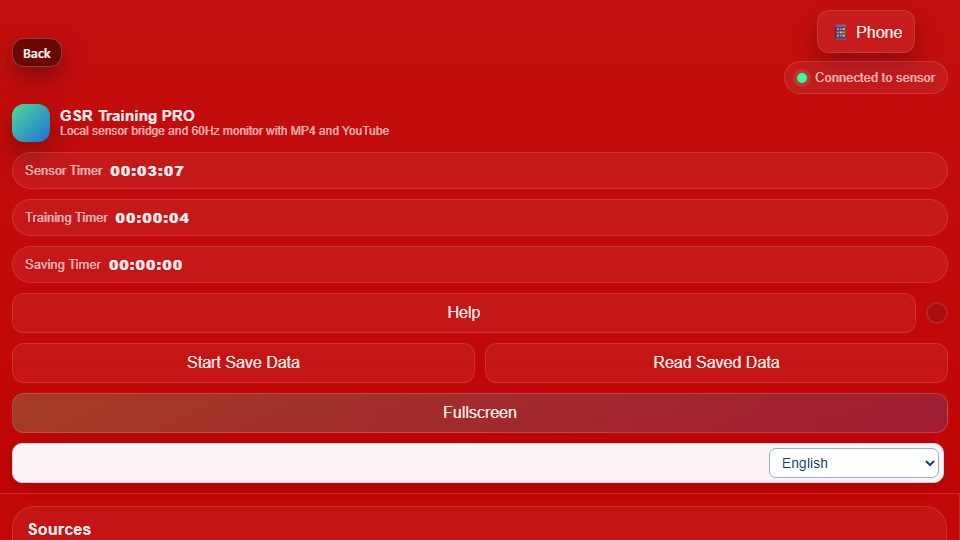
Operating sequence and interpretation
Choose a video and the sound selections for falling/rising feedback. If adding your own item, enter its name and a playable URL, then Add; select an item before Delete selected. These changes manage the media list, not patient measurements. Check audio at low volume, establish reliable GSR and follow the feedback. Use the chart and recording controls independently.
Controls on this screen (23)
Control names below quote the interface’s existing labels so you can recognize them; their displayed language can vary. Only use a control when it is available. A hidden or disabled control is not an invitation to bypass a prerequisite.
| On-screen label | How to use it |
|---|---|
| Back | Return to the previous screen. Finish and save your exercise/recording first; navigation is not a save command. |
| Phone | Select the actual device, supported signal or displayed mode. Changing the choice does not add a sensor or validate an absent channel. Compare results only under equivalent settings. |
| Help | Open or close this screen’s instructions. Read its task-specific rules before starting. |
| Start Save Data | Start or stop this page’s local data capture according to its current button label. Exercise scoring and cloud recording are separate. |
| Read Saved Data | Open the feature’s saved sessions. Select the intended date/session before viewing or exporting. Local history is not automatically cloud history. |
| Fullscreen | Enter/exit fullscreen. It changes layout only, not sensor quality, recording or account login. |
| video | Choose, enable, play, stop or adjust the labelled sound/media. A deliberate click may be required for playback. Check output and comfortable volume; this does not start measurement saving. |
| custom Video Name | Choose, enable, play, stop or adjust the labelled sound/media. A deliberate click may be required for playback. Check output and comfortable volume; this does not start measurement saving. |
| custom Video Url | Choose, enable, play, stop or adjust the labelled sound/media. A deliberate click may be required for playback. Check output and comfortable volume; this does not start measurement saving. |
| Add | Choose, enable, play, stop or adjust the labelled sound/media. A deliberate click may be required for playback. Check output and comfortable volume; this does not start measurement saving. |
| Delete selected | Remove the selected item or history only after checking the confirmation and exporting anything needed. Clearing history can be irreversible. For media lists this removes a media choice, not a clinical record. |
| f Sound | Choose, enable, play, stop or adjust the labelled sound/media. A deliberate click may be required for playback. Check output and comfortable volume; this does not start measurement saving. |
| r Sound | Choose, enable, play, stop or adjust the labelled sound/media. A deliberate click may be required for playback. Check output and comfortable volume; this does not start measurement saving. |
| custom Sound Name | Choose, enable, play, stop or adjust the labelled sound/media. A deliberate click may be required for playback. Check output and comfortable volume; this does not start measurement saving. |
| custom Sound Url | Choose, enable, play, stop or adjust the labelled sound/media. A deliberate click may be required for playback. Check output and comfortable volume; this does not start measurement saving. |
| Add sound | Choose, enable, play, stop or adjust the labelled sound/media. A deliberate click may be required for playback. Check output and comfortable volume; this does not start measurement saving. |
| Width Zoom 1.0x | Move the visible chart window or change its scale. Compare the same time range when reviewing; zoom does not alter the saved measurements. |
| Height Zoom 1.0x | Move the visible chart window or change its scale. Compare the same time range when reviewing; zoom does not alter the saved measurements. |
| Close | Open or close this screen’s instructions. Read its task-specific rules before starting. |
| Close | Open the feature’s saved sessions. Select the intended date/session before viewing or exporting. Local history is not automatically cloud history. |
| View signals rows | Open the named result/table/tab or navigate the selected record. Confirm the current session and available channels before interpretation. Viewing does not start a new sensor measurement. |
| View HRV rows | Open the named result/table/tab or navigate the selected record. Confirm the current session and available channels before interpretation. Viewing does not start a new sensor measurement. |
| Save CSV files | Download the selected session, table or history in the stated format. Check the file and its scope; store it privately. Export does not email it or prove cloud backup. |
GSR and HRV
Open training screen ↗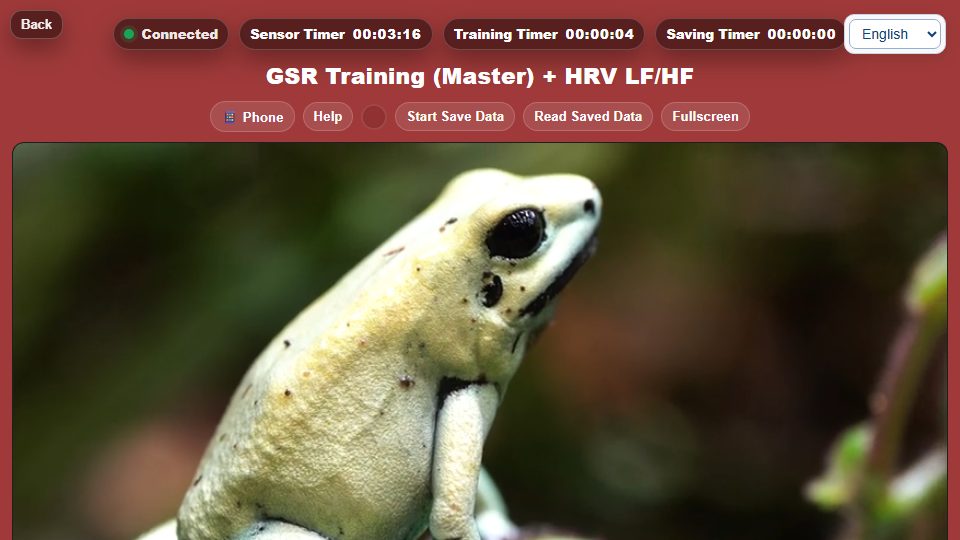
Operating sequence and interpretation
Compare skin-conductance and heart-variability feedback in the same screen. Verify that your device supplies both kinds of information; a valid GSR signal does not establish valid beat intervals. Observe gradual changes during the assigned exercise without treating the two scales as interchangeable. In saved history distinguish signal rows from HRV rows.
Controls on this screen (13)
Control names below quote the interface’s existing labels so you can recognize them; their displayed language can vary. Only use a control when it is available. A hidden or disabled control is not an invitation to bypass a prerequisite.
| On-screen label | How to use it |
|---|---|
| Back | Return to the previous screen. Finish and save your exercise/recording first; navigation is not a save command. |
| Phone | Select the actual device, supported signal or displayed mode. Changing the choice does not add a sensor or validate an absent channel. Compare results only under equivalent settings. |
| Help | Open or close this screen’s instructions. Read its task-specific rules before starting. |
| Start Save Data | Start or stop this page’s local data capture according to its current button label. Exercise scoring and cloud recording are separate. |
| Read Saved Data | Open the feature’s saved sessions. Select the intended date/session before viewing or exporting. Local history is not automatically cloud history. |
| Fullscreen | Enter/exit fullscreen. It changes layout only, not sensor quality, recording or account login. |
| Width Zoom 1.0x | Move the visible chart window or change its scale. Compare the same time range when reviewing; zoom does not alter the saved measurements. |
| Height Zoom 1.0x | Move the visible chart window or change its scale. Compare the same time range when reviewing; zoom does not alter the saved measurements. |
| Close | Open or close this screen’s instructions. Read its task-specific rules before starting. |
| Close | Open the feature’s saved sessions. Select the intended date/session before viewing or exporting. Local history is not automatically cloud history. |
| View signals rows | Open the named result/table/tab or navigate the selected record. Confirm the current session and available channels before interpretation. Viewing does not start a new sensor measurement. |
| View HRV rows | Open the named result/table/tab or navigate the selected record. Confirm the current session and available channels before interpretation. Viewing does not start a new sensor measurement. |
| Save CSV files | Download the selected session, table or history in the stated format. Check the file and its scope; store it privately. Export does not email it or prove cloud backup. |
HRV Training
Open training screen ↗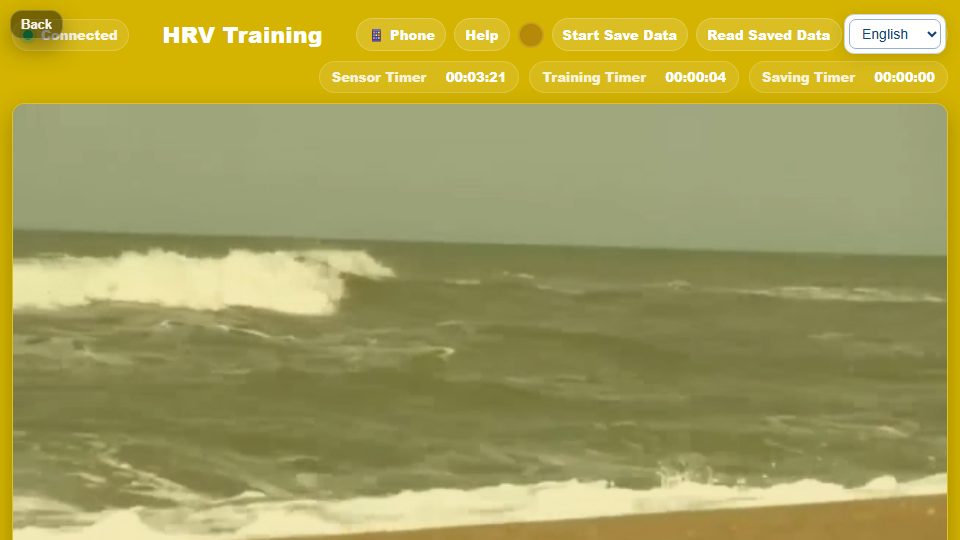
Operating sequence and interpretation
Check the pulse-derived display before starting the assigned HRV exercise. Remain still, follow a comfortable rhythm and allow sufficient valid beats to accumulate; a new connection need not yield immediate HRV. Use width/height zoom for readability. Start/stop local capture separately and review HRV rows only when present.
Controls on this screen (13)
Control names below quote the interface’s existing labels so you can recognize them; their displayed language can vary. Only use a control when it is available. A hidden or disabled control is not an invitation to bypass a prerequisite.
| On-screen label | How to use it |
|---|---|
| Back | Return to the previous screen. Finish and save your exercise/recording first; navigation is not a save command. |
| Phone | Select the actual device, supported signal or displayed mode. Changing the choice does not add a sensor or validate an absent channel. Compare results only under equivalent settings. |
| Help | Open or close this screen’s instructions. Read its task-specific rules before starting. |
| Start Save Data | Start or stop this page’s local data capture according to its current button label. Exercise scoring and cloud recording are separate. |
| Read Saved Data | Open the feature’s saved sessions. Select the intended date/session before viewing or exporting. Local history is not automatically cloud history. |
| Fullscreen | Enter/exit fullscreen. It changes layout only, not sensor quality, recording or account login. |
| Width Zoom 1.0x | Move the visible chart window or change its scale. Compare the same time range when reviewing; zoom does not alter the saved measurements. |
| Height Zoom 1.0x | Move the visible chart window or change its scale. Compare the same time range when reviewing; zoom does not alter the saved measurements. |
| Close | Open or close this screen’s instructions. Read its task-specific rules before starting. |
| Close | Open the feature’s saved sessions. Select the intended date/session before viewing or exporting. Local history is not automatically cloud history. |
| View signals rows | Open the named result/table/tab or navigate the selected record. Confirm the current session and available channels before interpretation. Viewing does not start a new sensor measurement. |
| View HRV rows | Open the named result/table/tab or navigate the selected record. Confirm the current session and available channels before interpretation. Viewing does not start a new sensor measurement. |
| Save CSV files | Download the selected session, table or history in the stated format. Check the file and its scope; store it privately. Export does not email it or prove cloud backup. |
Enhanced HRV Training
Open training screen ↗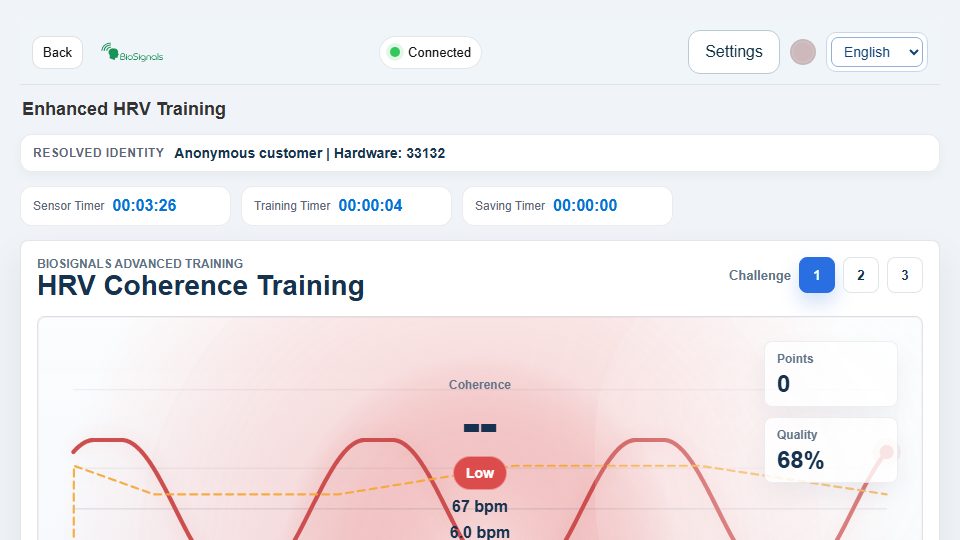
Operating sequence and interpretation
Choose the training level before Start Training and review the inhale/hold/exhale/hold timing fields. Observe the live score and zones only while the signal is valid. Pause Scoring pauses evaluation, not necessarily acquisition. End Training finalizes the exercise’s session; Saved Sessions opens its history. Save To Disk/Open From Disk transfer that history. Reset Training Session is not a replacement for saving a completed result.
Controls on this screen (31)
Control names below quote the interface’s existing labels so you can recognize them; their displayed language can vary. Only use a control when it is available. A hidden or disabled control is not an invitation to bypass a prerequisite.
| On-screen label | How to use it |
|---|---|
| Back | Return to the previous screen. Finish and save your exercise/recording first; navigation is not a save command. |
| Retry | Retry the page’s connection after verifying that the sensor application is running. Do not repeatedly restart a good recording; check status and quality first. |
| Device | Select the actual device, supported signal or displayed mode. Changing the choice does not add a sensor or validate an absent channel. Compare results only under equivalent settings. |
| Phone | Select the actual device, supported signal or displayed mode. Changing the choice does not add a sensor or validate an absent channel. Compare results only under equivalent settings. |
| Help | Open or close this screen’s instructions. Read its task-specific rules before starting. |
| Start Save Data | Start or stop this page’s local data capture according to its current button label. Exercise scoring and cloud recording are separate. |
| Read Saved Data | Open the feature’s saved sessions. Select the intended date/session before viewing or exporting. Local history is not automatically cloud history. |
| Fullscreen | Enter/exit fullscreen. It changes layout only, not sensor quality, recording or account login. |
| 1 | Set this labelled option before starting, using its shown units/options. Check the effect on screen and preserve the assigned exercise; changing a preference does not save a measurement. |
| 2 | Set this labelled option before starting, using its shown units/options. Check the effect on screen and preserve the assigned exercise; changing a preference does not save a measurement. |
| 3 | Set this labelled option before starting, using its shown units/options. Check the effect on screen and preserve the assigned exercise; changing a preference does not save a measurement. |
| Start Training | Start the named exercise, test or guidance after preparation and any required calibration. This is not automatically the separate Save Data function. |
| End Training | End the named exercise or finalize its recording as labelled. Review the result and export before leaving. An early end may make an assessment incomplete. |
| Saved Sessions | Open the feature’s saved sessions. Select the intended date/session before viewing or exporting. Local history is not automatically cloud history. |
| Pause Scoring | Pause or resume the function named on the button (exercise, scoring, guidance, scrolling, replay or sound). Verify its state; other recording can continue. |
| Reset Training Session | Restart/reset the named exercise, round or view. Save useful results first; reset is not a backup. Reset zoom only changes chart viewing. |
| inhale | Set the labelled phase duration or breathing pace in the units shown. Follow your assigned comfortable pattern; confirm all phases before starting. Do not force breath holds. |
| hold1 | Set the labelled phase duration or breathing pace in the units shown. Follow your assigned comfortable pattern; confirm all phases before starting. Do not force breath holds. |
| exhale | Set the labelled phase duration or breathing pace in the units shown. Follow your assigned comfortable pattern; confirm all phases before starting. Do not force breath holds. |
| hold2 | Set the labelled phase duration or breathing pace in the units shown. Follow your assigned comfortable pattern; confirm all phases before starting. Do not force breath holds. |
| Save To Disk | Download the selected session, table or history in the stated format. Check the file and its scope; store it privately. Export does not email it or prove cloud backup. |
| Open From Disk | Select a compatible file previously exported for this feature. Keep a backup first and verify dates, units and session selection after loading. Do not import someone else’s private records. |
| Close | Open the feature’s saved sessions. Select the intended date/session before viewing or exporting. Local history is not automatically cloud history. |
| training Sessions File | Select a compatible file previously exported for this feature. Keep a backup first and verify dates, units and session selection after loading. Do not import someone else’s private records. |
| Close | Open or close this screen’s instructions. Read its task-specific rules before starting. |
| View all rows | Open the named result/table/tab or navigate the selected record. Confirm the current session and available channels before interpretation. Viewing does not start a new sensor measurement. |
| View HRV rows | Open the named result/table/tab or navigate the selected record. Confirm the current session and available channels before interpretation. Viewing does not start a new sensor measurement. |
| Export CSV | Download the selected session, table or history in the stated format. Check the file and its scope; store it privately. Export does not email it or prove cloud backup. |
| Close | Close the current panel. This does not necessarily stop the exercise, media or a separate recording. |
| Window Position | Move the visible chart window or change its scale. Compare the same time range when reviewing; zoom does not alter the saved measurements. |
| Zoom Window | Move the visible chart window or change its scale. Compare the same time range when reviewing; zoom does not alter the saved measurements. |
HRV for AI-HRV
Open training screen ↗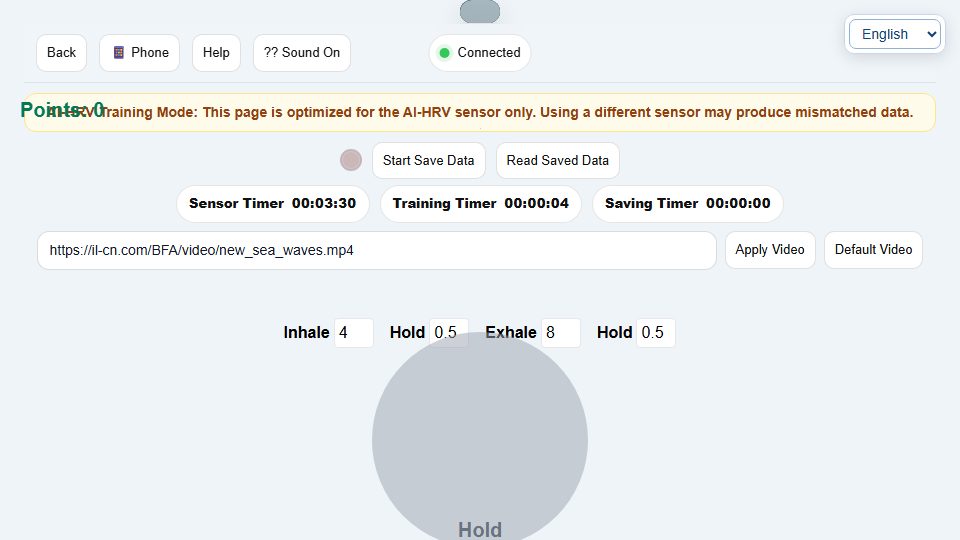
Operating sequence and interpretation
Use the compatible AI-HRV input and check that the pulse display advances. Set the four breathing durations only as instructed. Apply Video loads the supplied custom link; Default Video restores the built-in choice. Enable sound with a click if needed. Media and breathing guidance are not proof of sensor connection; confirm the measurements separately.
Controls on this screen (18)
Control names below quote the interface’s existing labels so you can recognize them; their displayed language can vary. Only use a control when it is available. A hidden or disabled control is not an invitation to bypass a prerequisite.
| On-screen label | How to use it |
|---|---|
| Back | Return to the previous screen. Finish and save your exercise/recording first; navigation is not a save command. |
| Phone | Select the actual device, supported signal or displayed mode. Changing the choice does not add a sensor or validate an absent channel. Compare results only under equivalent settings. |
| Help | Open or close this screen’s instructions. Read its task-specific rules before starting. |
| Sound On | Choose, enable, play, stop or adjust the labelled sound/media. A deliberate click may be required for playback. Check output and comfortable volume; this does not start measurement saving. |
| Start Save Data | Start or stop this page’s local data capture according to its current button label. Exercise scoring and cloud recording are separate. |
| Read Saved Data | Open the feature’s saved sessions. Select the intended date/session before viewing or exporting. Local history is not automatically cloud history. |
| custom Video Url | Choose, enable, play, stop or adjust the labelled sound/media. A deliberate click may be required for playback. Check output and comfortable volume; this does not start measurement saving. |
| Apply Video | Choose, enable, play, stop or adjust the labelled sound/media. A deliberate click may be required for playback. Check output and comfortable volume; this does not start measurement saving. |
| Default Video | Choose, enable, play, stop or adjust the labelled sound/media. A deliberate click may be required for playback. Check output and comfortable volume; this does not start measurement saving. |
| inhale | Set the labelled phase duration or breathing pace in the units shown. Follow your assigned comfortable pattern; confirm all phases before starting. Do not force breath holds. |
| hold1 | Set the labelled phase duration or breathing pace in the units shown. Follow your assigned comfortable pattern; confirm all phases before starting. Do not force breath holds. |
| exhale | Set the labelled phase duration or breathing pace in the units shown. Follow your assigned comfortable pattern; confirm all phases before starting. Do not force breath holds. |
| hold2 | Set the labelled phase duration or breathing pace in the units shown. Follow your assigned comfortable pattern; confirm all phases before starting. Do not force breath holds. |
| Close | Open the feature’s saved sessions. Select the intended date/session before viewing or exporting. Local history is not automatically cloud history. |
| View signals rows | Open the named result/table/tab or navigate the selected record. Confirm the current session and available channels before interpretation. Viewing does not start a new sensor measurement. |
| View HRV rows | Open the named result/table/tab or navigate the selected record. Confirm the current session and available channels before interpretation. Viewing does not start a new sensor measurement. |
| Save CSV files | Download the selected session, table or history in the stated format. Check the file and its scope; store it privately. Export does not email it or prove cloud backup. |
| Close | Open or close this screen’s instructions. Read its task-specific rules before starting. |
Guided Breathing
Open training screen ↗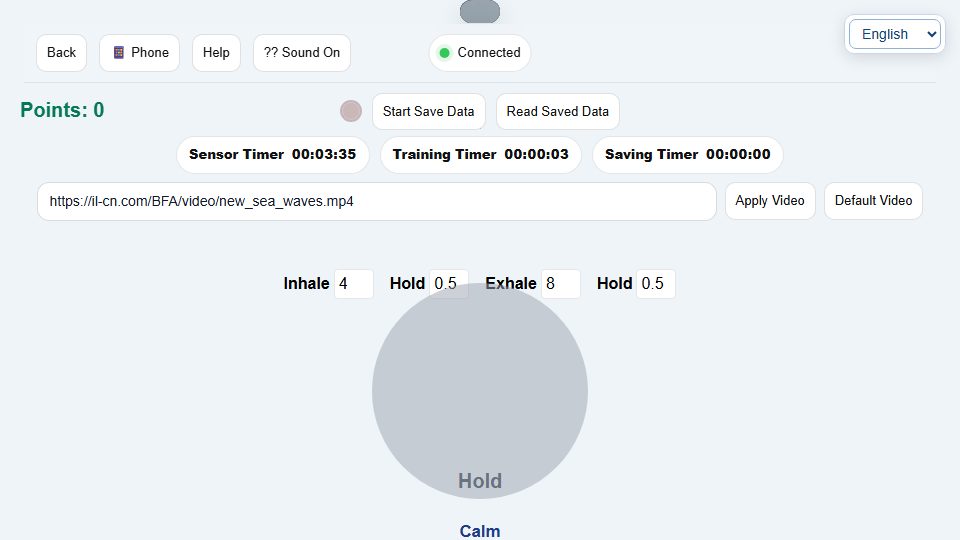
Operating sequence and interpretation
Read the breathing instruction, then set inhale, first hold, exhale and second hold in seconds. Follow the visual/voice cue without forcing deeper breaths or holds. Use Sound to mute or enable guidance. Apply Video and Default Video manage the background. If the cue runs while measurements are absent, it remains guidance, not a verified biofeedback recording.
Controls on this screen (18)
Control names below quote the interface’s existing labels so you can recognize them; their displayed language can vary. Only use a control when it is available. A hidden or disabled control is not an invitation to bypass a prerequisite.
| On-screen label | How to use it |
|---|---|
| Back | Return to the previous screen. Finish and save your exercise/recording first; navigation is not a save command. |
| Phone | Select the actual device, supported signal or displayed mode. Changing the choice does not add a sensor or validate an absent channel. Compare results only under equivalent settings. |
| Help | Open or close this screen’s instructions. Read its task-specific rules before starting. |
| Sound On | Choose, enable, play, stop or adjust the labelled sound/media. A deliberate click may be required for playback. Check output and comfortable volume; this does not start measurement saving. |
| Start Save Data | Start or stop this page’s local data capture according to its current button label. Exercise scoring and cloud recording are separate. |
| Read Saved Data | Open the feature’s saved sessions. Select the intended date/session before viewing or exporting. Local history is not automatically cloud history. |
| custom Video Url | Choose, enable, play, stop or adjust the labelled sound/media. A deliberate click may be required for playback. Check output and comfortable volume; this does not start measurement saving. |
| Apply Video | Choose, enable, play, stop or adjust the labelled sound/media. A deliberate click may be required for playback. Check output and comfortable volume; this does not start measurement saving. |
| Default Video | Choose, enable, play, stop or adjust the labelled sound/media. A deliberate click may be required for playback. Check output and comfortable volume; this does not start measurement saving. |
| inhale | Set the labelled phase duration or breathing pace in the units shown. Follow your assigned comfortable pattern; confirm all phases before starting. Do not force breath holds. |
| hold1 | Set the labelled phase duration or breathing pace in the units shown. Follow your assigned comfortable pattern; confirm all phases before starting. Do not force breath holds. |
| exhale | Set the labelled phase duration or breathing pace in the units shown. Follow your assigned comfortable pattern; confirm all phases before starting. Do not force breath holds. |
| hold2 | Set the labelled phase duration or breathing pace in the units shown. Follow your assigned comfortable pattern; confirm all phases before starting. Do not force breath holds. |
| Close | Open the feature’s saved sessions. Select the intended date/session before viewing or exporting. Local history is not automatically cloud history. |
| View signals rows | Open the named result/table/tab or navigate the selected record. Confirm the current session and available channels before interpretation. Viewing does not start a new sensor measurement. |
| View HRV rows | Open the named result/table/tab or navigate the selected record. Confirm the current session and available channels before interpretation. Viewing does not start a new sensor measurement. |
| Save CSV files | Download the selected session, table or history in the stated format. Check the file and its scope; store it privately. Export does not email it or prove cloud backup. |
| Close | Open or close this screen’s instructions. Read its task-specific rules before starting. |
EMDR Training
Open training screen ↗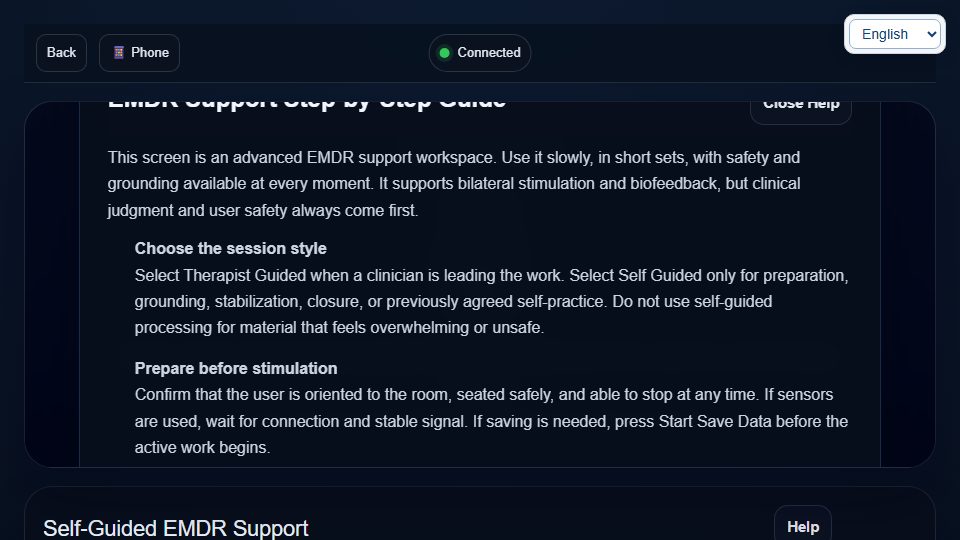
Operating sequence and interpretation
Use only within the exercise your professional has assigned. Check the visual guidance and sound at a comfortable level, adjust the available breathing phases as instructed and choose the video only if needed. Stop if uncomfortable. This page’s title does not establish a complete supervised EMDR treatment, and its animations must not be treated as proof of a physiological response.
Controls on this screen (16)
Control names below quote the interface’s existing labels so you can recognize them; their displayed language can vary. Only use a control when it is available. A hidden or disabled control is not an invitation to bypass a prerequisite.
| On-screen label | How to use it |
|---|---|
| Back | Return to the previous screen. Finish and save your exercise/recording first; navigation is not a save command. |
| Phone | Select the actual device, supported signal or displayed mode. Changing the choice does not add a sensor or validate an absent channel. Compare results only under equivalent settings. |
| Sound On | Choose, enable, play, stop or adjust the labelled sound/media. A deliberate click may be required for playback. Check output and comfortable volume; this does not start measurement saving. |
| Start Save Data | Start or stop this page’s local data capture according to its current button label. Exercise scoring and cloud recording are separate. |
| Read Saved Data | Open the feature’s saved sessions. Select the intended date/session before viewing or exporting. Local history is not automatically cloud history. |
| custom Video Url | Choose, enable, play, stop or adjust the labelled sound/media. A deliberate click may be required for playback. Check output and comfortable volume; this does not start measurement saving. |
| Apply Video | Choose, enable, play, stop or adjust the labelled sound/media. A deliberate click may be required for playback. Check output and comfortable volume; this does not start measurement saving. |
| Default Video | Choose, enable, play, stop or adjust the labelled sound/media. A deliberate click may be required for playback. Check output and comfortable volume; this does not start measurement saving. |
| inhale | Set the labelled phase duration or breathing pace in the units shown. Follow your assigned comfortable pattern; confirm all phases before starting. Do not force breath holds. |
| hold1 | Set the labelled phase duration or breathing pace in the units shown. Follow your assigned comfortable pattern; confirm all phases before starting. Do not force breath holds. |
| exhale | Set the labelled phase duration or breathing pace in the units shown. Follow your assigned comfortable pattern; confirm all phases before starting. Do not force breath holds. |
| hold2 | Set the labelled phase duration or breathing pace in the units shown. Follow your assigned comfortable pattern; confirm all phases before starting. Do not force breath holds. |
| Close | Open the feature’s saved sessions. Select the intended date/session before viewing or exporting. Local history is not automatically cloud history. |
| View signals rows | Open the named result/table/tab or navigate the selected record. Confirm the current session and available channels before interpretation. Viewing does not start a new sensor measurement. |
| View HRV rows | Open the named result/table/tab or navigate the selected record. Confirm the current session and available channels before interpretation. Viewing does not start a new sensor measurement. |
| Save CSV files | Download the selected session, table or history in the stated format. Check the file and its scope; store it privately. Export does not email it or prove cloud backup. |
HR Coherence
Open training screen ↗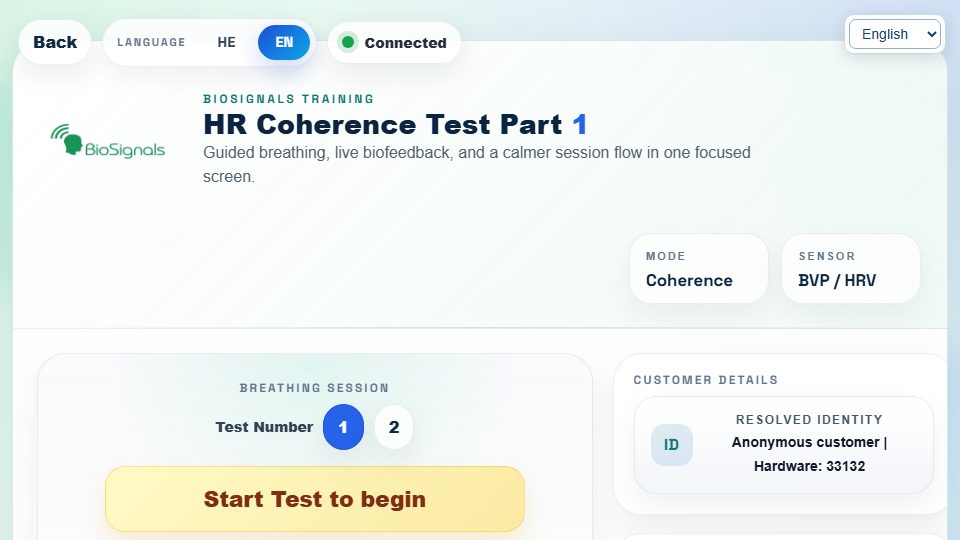
Operating sequence and interpretation
Select the available level and begin the test only after checking the live pulse input. Follow the displayed rhythm and observe the coherence feedback without interpreting it as a diagnosis. Sound is optional. The connection/status control is not a sensor-pairing button. Local Save Data and the test start are separate actions.
Controls on this screen (17)
Control names below quote the interface’s existing labels so you can recognize them; their displayed language can vary. Only use a control when it is available. A hidden or disabled control is not an invitation to bypass a prerequisite.
| On-screen label | How to use it |
|---|---|
| Back | Return to the previous screen. Finish and save your exercise/recording first; navigation is not a save command. |
| HE | Choose the interface language. This changes labels, not stored measurements. Some existing media or older screens may retain another language. |
| EN | Choose the interface language. This changes labels, not stored measurements. Some existing media or older screens may retain another language. |
| 1 | Set this labelled option before starting, using its shown units/options. Check the effect on screen and preserve the assigned exercise; changing a preference does not save a measurement. |
| 2 | Set this labelled option before starting, using its shown units/options. Check the effect on screen and preserve the assigned exercise; changing a preference does not save a measurement. |
| התחל בדיקה | Start the named exercise, test or guidance after preparation and any required calibration. This is not automatically the separate Save Data function. |
| Sound | Choose, enable, play, stop or adjust the labelled sound/media. A deliberate click may be required for playback. Check output and comfortable volume; this does not start measurement saving. |
| WS | Retry the page’s connection after verifying that the sensor application is running. Do not repeatedly restart a good recording; check status and quality first. |
| Help | Open or close this screen’s instructions. Read its task-specific rules before starting. |
| Start Save Data | Start or stop this page’s local data capture according to its current button label. Exercise scoring and cloud recording are separate. |
| Read Saved Data | Open the feature’s saved sessions. Select the intended date/session before viewing or exporting. Local history is not automatically cloud history. |
| Fullscreen | Enter/exit fullscreen. It changes layout only, not sensor quality, recording or account login. |
| Close | Open or close this screen’s instructions. Read its task-specific rules before starting. |
| Close | Open the feature’s saved sessions. Select the intended date/session before viewing or exporting. Local history is not automatically cloud history. |
| View signals rows | Open the named result/table/tab or navigate the selected record. Confirm the current session and available channels before interpretation. Viewing does not start a new sensor measurement. |
| View HRV rows | Open the named result/table/tab or navigate the selected record. Confirm the current session and available channels before interpretation. Viewing does not start a new sensor measurement. |
| Save CSV files | Download the selected session, table or history in the stated format. Check the file and its scope; store it privately. Export does not email it or prove cloud backup. |
Blood Pressure Trend
Open training screen ↗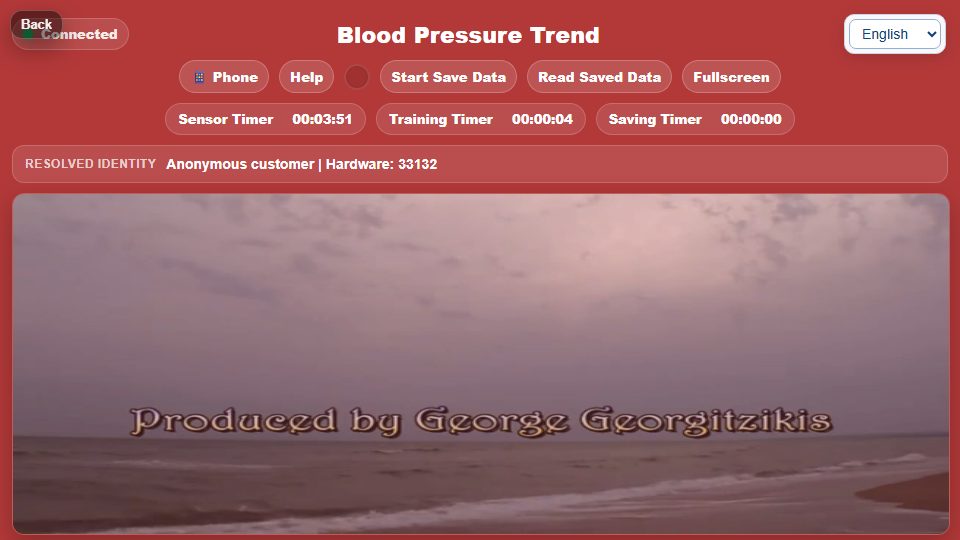
Operating sequence and interpretation
Use this screen to view the supported pressure-related trend and its graph. Confirm which input your actual device provides before interpreting the display. Do not infer calibrated systolic/diastolic blood pressure merely from a moving waveform or a pulse signal. Zoom changes the viewing range. Record and export only available readings; discuss interpretation with your professional.
Controls on this screen (13)
Control names below quote the interface’s existing labels so you can recognize them; their displayed language can vary. Only use a control when it is available. A hidden or disabled control is not an invitation to bypass a prerequisite.
| On-screen label | How to use it |
|---|---|
| Back | Return to the previous screen. Finish and save your exercise/recording first; navigation is not a save command. |
| Phone | Select the actual device, supported signal or displayed mode. Changing the choice does not add a sensor or validate an absent channel. Compare results only under equivalent settings. |
| Help | Open or close this screen’s instructions. Read its task-specific rules before starting. |
| Start Save Data | Start or stop this page’s local data capture according to its current button label. Exercise scoring and cloud recording are separate. |
| Read Saved Data | Open the feature’s saved sessions. Select the intended date/session before viewing or exporting. Local history is not automatically cloud history. |
| Fullscreen | Enter/exit fullscreen. It changes layout only, not sensor quality, recording or account login. |
| x Zoom | Move the visible chart window or change its scale. Compare the same time range when reviewing; zoom does not alter the saved measurements. |
| y Zoom | Move the visible chart window or change its scale. Compare the same time range when reviewing; zoom does not alter the saved measurements. |
| Close | Open or close this screen’s instructions. Read its task-specific rules before starting. |
| Close | Open the feature’s saved sessions. Select the intended date/session before viewing or exporting. Local history is not automatically cloud history. |
| View signals rows | Open the named result/table/tab or navigate the selected record. Confirm the current session and available channels before interpretation. Viewing does not start a new sensor measurement. |
| View HRV rows | Open the named result/table/tab or navigate the selected record. Confirm the current session and available channels before interpretation. Viewing does not start a new sensor measurement. |
| Save CSV files | Download the selected session, table or history in the stated format. Check the file and its scope; store it privately. Export does not email it or prove cloud backup. |
BioSignals Training Suite
Open training screen ↗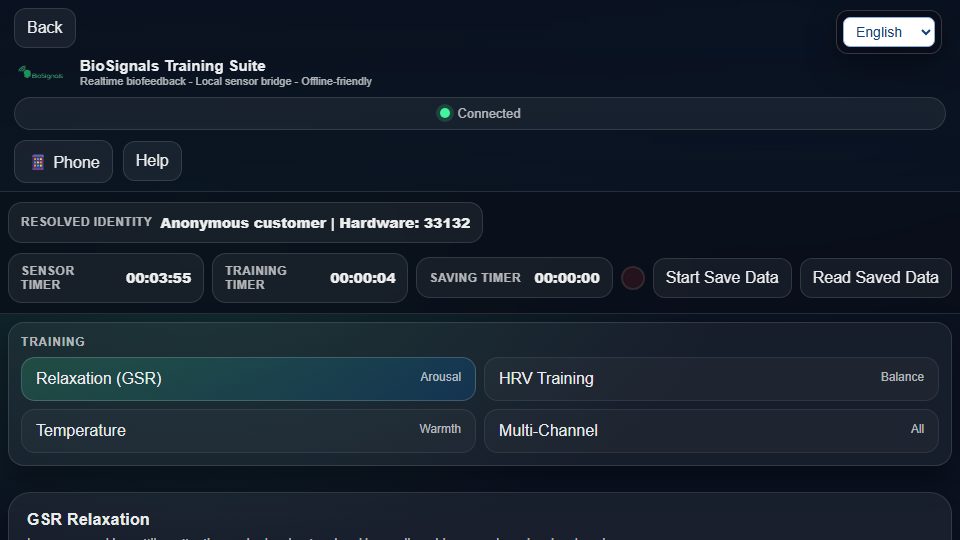
Operating sequence and interpretation
Choose the GSR, HRV, temperature or multi-channel tab according to the available sensor. The GSR area provides tone and media controls; HRV provides inhale/hold/exhale/hold timing and Start/Pause/Reset; temperature includes a Celsius/Fahrenheit display switch. Choose or add media within the active tab. Hiding video does not end the session. Check the active tab before changing settings and manage local recording separately.
Controls on this screen (45)
Control names below quote the interface’s existing labels so you can recognize them; their displayed language can vary. Only use a control when it is available. A hidden or disabled control is not an invitation to bypass a prerequisite.
| On-screen label | How to use it |
|---|---|
| Back | Return to the previous screen. Finish and save your exercise/recording first; navigation is not a save command. |
| Phone | Select the actual device, supported signal or displayed mode. Changing the choice does not add a sensor or validate an absent channel. Compare results only under equivalent settings. |
| Help | Open or close this screen’s instructions. Read its task-specific rules before starting. |
| Fullscreen | Enter/exit fullscreen. It changes layout only, not sensor quality, recording or account login. |
| Start Save Data | Start or stop this page’s local data capture according to its current button label. Exercise scoring and cloud recording are separate. |
| Read Saved Data | Open the feature’s saved sessions. Select the intended date/session before viewing or exporting. Local history is not automatically cloud history. |
| Relaxation (GSR) Arousal | Set this labelled option before starting, using its shown units/options. Check the effect on screen and preserve the assigned exercise; changing a preference does not save a measurement. |
| HRV Training Balance | Set this labelled option before starting, using its shown units/options. Check the effect on screen and preserve the assigned exercise; changing a preference does not save a measurement. |
| Temperature Warmth | Set this labelled option before starting, using its shown units/options. Check the effect on screen and preserve the assigned exercise; changing a preference does not save a measurement. |
| Multi-Channel All | Set this labelled option before starting, using its shown units/options. Check the effect on screen and preserve the assigned exercise; changing a preference does not save a measurement. |
| Tone | Choose, enable, play, stop or adjust the labelled sound/media. A deliberate click may be required for playback. Check output and comfortable volume; this does not start measurement saving. |
| Stop tone | Choose, enable, play, stop or adjust the labelled sound/media. A deliberate click may be required for playback. Check output and comfortable volume; this does not start measurement saving. |
| Choose guidance... Body scan (10 min) Breath awareness Mindful breathing Meditation | Choose, enable, play, stop or adjust the labelled sound/media. A deliberate click may be required for playback. Check output and comfortable volume; this does not start measurement saving. |
| Play | Choose, enable, play, stop or adjust the labelled sound/media. A deliberate click may be required for playback. Check output and comfortable volume; this does not start measurement saving. |
| Pause | Choose, enable, play, stop or adjust the labelled sound/media. A deliberate click may be required for playback. Check output and comfortable volume; this does not start measurement saving. |
| Stop | Choose, enable, play, stop or adjust the labelled sound/media. A deliberate click may be required for playback. Check output and comfortable volume; this does not start measurement saving. |
| audio Name | Choose, enable, play, stop or adjust the labelled sound/media. A deliberate click may be required for playback. Check output and comfortable volume; this does not start measurement saving. |
| audio Url | Choose, enable, play, stop or adjust the labelled sound/media. A deliberate click may be required for playback. Check output and comfortable volume; this does not start measurement saving. |
| Add | Choose, enable, play, stop or adjust the labelled sound/media. A deliberate click may be required for playback. Check output and comfortable volume; this does not start measurement saving. |
| Delete selected | Remove the selected item or history only after checking the confirmation and exporting anything needed. Clearing history can be irreversible. For media lists this removes a media choice, not a clinical record. |
| Bunny Roller | Choose, enable, play, stop or adjust the labelled sound/media. A deliberate click may be required for playback. Check output and comfortable volume; this does not start measurement saving. |
| yt Name | Choose, enable, play, stop or adjust the labelled sound/media. A deliberate click may be required for playback. Check output and comfortable volume; this does not start measurement saving. |
| yt Url | Choose, enable, play, stop or adjust the labelled sound/media. A deliberate click may be required for playback. Check output and comfortable volume; this does not start measurement saving. |
| Add | Set this labelled option before starting, using its shown units/options. Check the effect on screen and preserve the assigned exercise; changing a preference does not save a measurement. |
| Hide | Choose, enable, play, stop or adjust the labelled sound/media. A deliberate click may be required for playback. Check output and comfortable volume; this does not start measurement saving. |
| Show | Choose, enable, play, stop or adjust the labelled sound/media. A deliberate click may be required for playback. Check output and comfortable volume; this does not start measurement saving. |
| inhale | Set the labelled phase duration or breathing pace in the units shown. Follow your assigned comfortable pattern; confirm all phases before starting. Do not force breath holds. |
| hold1 | Set the labelled phase duration or breathing pace in the units shown. Follow your assigned comfortable pattern; confirm all phases before starting. Do not force breath holds. |
| exhale | Set the labelled phase duration or breathing pace in the units shown. Follow your assigned comfortable pattern; confirm all phases before starting. Do not force breath holds. |
| hold2 | Set the labelled phase duration or breathing pace in the units shown. Follow your assigned comfortable pattern; confirm all phases before starting. Do not force breath holds. |
| Start | Start the named exercise, test or guidance after preparation and any required calibration. This is not automatically the separate Save Data function. |
| Pause | Pause or resume the function named on the button (exercise, scoring, guidance, scrolling, replay or sound). Verify its state; other recording can continue. |
| Reset | Restart/reset the named exercise, round or view. Save useful results first; reset is not a backup. Reset zoom only changes chart viewing. |
| Flowers Bunny YouTube demo | Demonstration/simulator mode is for examples only. Disable it before genuine measurement and independently verify a live sensor signal. |
| Toggle °C/°F | Set this labelled option before starting, using its shown units/options. Check the effect on screen and preserve the assigned exercise; changing a preference does not save a measurement. |
| Choose audio Body scan (10 min) Breath awareness Mindful breathing Meditation | Choose, enable, play, stop or adjust the labelled sound/media. A deliberate click may be required for playback. Check output and comfortable volume; this does not start measurement saving. |
| Sunrise 3 Sunrise 1 Sunrise 2 Flowers | Choose, enable, play, stop or adjust the labelled sound/media. A deliberate click may be required for playback. Check output and comfortable volume; this does not start measurement saving. |
| suite XZoom | Move the visible chart window or change its scale. Compare the same time range when reviewing; zoom does not alter the saved measurements. |
| suite YZoom | Move the visible chart window or change its scale. Compare the same time range when reviewing; zoom does not alter the saved measurements. |
| Reset Zoom | Move the visible chart window or change its scale. Compare the same time range when reviewing; zoom does not alter the saved measurements. |
| Close | Open or close this screen’s instructions. Read its task-specific rules before starting. |
| Close | Open the feature’s saved sessions. Select the intended date/session before viewing or exporting. Local history is not automatically cloud history. |
| View signals rows | Open the named result/table/tab or navigate the selected record. Confirm the current session and available channels before interpretation. Viewing does not start a new sensor measurement. |
| View HRV rows | Open the named result/table/tab or navigate the selected record. Confirm the current session and available channels before interpretation. Viewing does not start a new sensor measurement. |
| Save CSV files | Download the selected session, table or history in the stated format. Check the file and its scope; store it privately. Export does not email it or prove cloud backup. |
VR Training
Open training screen ↗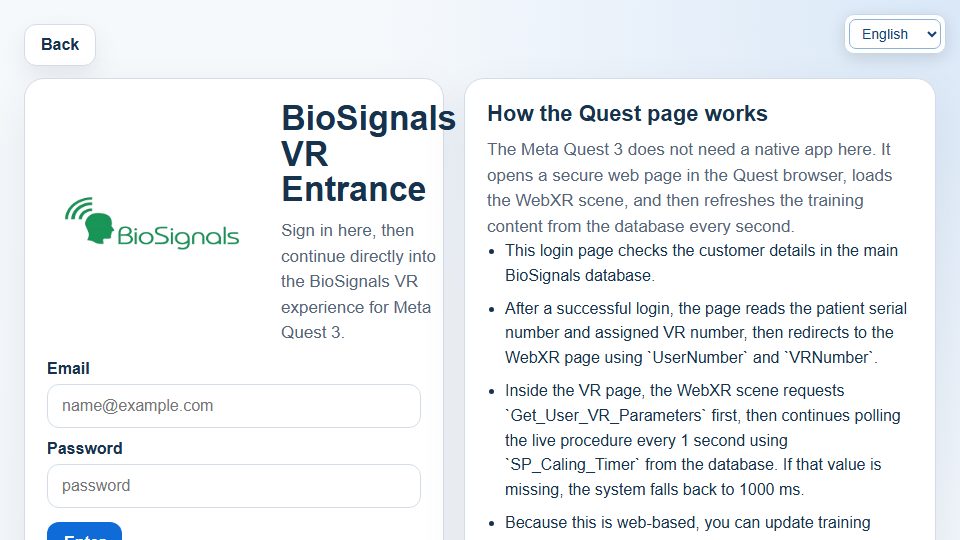
Operating sequence and interpretation
Enter your own authorized email and password and select Enter. Do not substitute another person’s account. This browser entry depends on the assigned service and its authorization; a visible login form does not guarantee headset, microphone, AI conversation or cloud recording is active. If access is refused, verify the address and registration through support rather than repeatedly guessing credentials.
Controls on this screen (4)
Control names below quote the interface’s existing labels so you can recognize them; their displayed language can vary. Only use a control when it is available. A hidden or disabled control is not an invitation to bypass a prerequisite.
| On-screen label | How to use it |
|---|---|
| Back | Return to the previous screen. Finish and save your exercise/recording first; navigation is not a save command. |
| Use only your authorized account details. Do not share credentials or enter them on another site; log out when finished on a shared device. | |
| Password | Use only your authorized account details. Do not share credentials or enter them on another site; log out when finished on a shared device. |
| Enter | Use only your authorized account details. Do not share credentials or enter them on another site; log out when finished on a shared device. |
Micro Tremor — BSS-F1
Open training screen ↗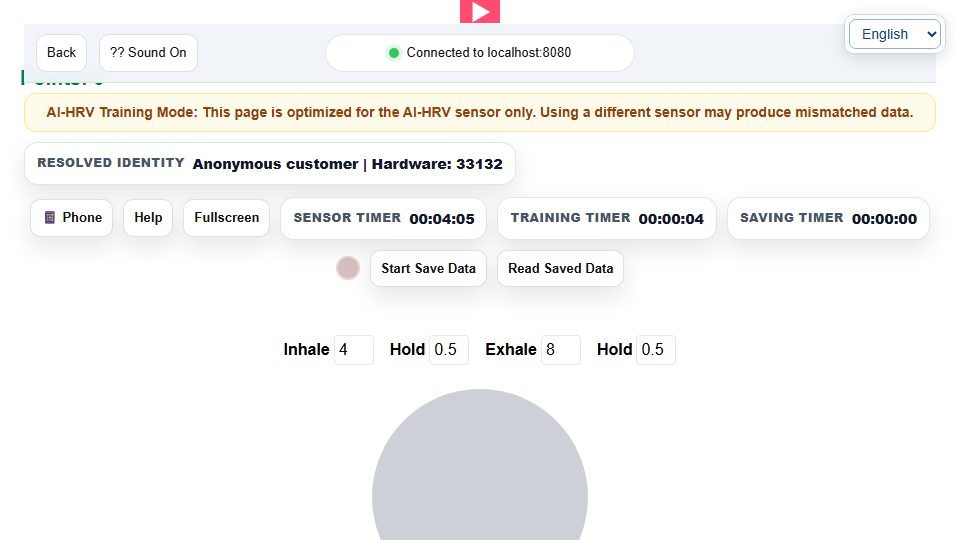
Operating sequence and interpretation
Use the compatible BSS-F1 input, support the hand consistently and observe the movement-related graphs. Deliberate movement can change the trace and should not be compared with a quiet baseline as though conditions were identical. Configure available breathing/media options only for the assigned task. A motion trace alone does not diagnose a movement disorder. Save a separate local recording when needed.
Controls on this screen (16)
Control names below quote the interface’s existing labels so you can recognize them; their displayed language can vary. Only use a control when it is available. A hidden or disabled control is not an invitation to bypass a prerequisite.
| On-screen label | How to use it |
|---|---|
| ← Back | Return to the previous screen. Finish and save your exercise/recording first; navigation is not a save command. |
| Sound On | Choose, enable, play, stop or adjust the labelled sound/media. A deliberate click may be required for playback. Check output and comfortable volume; this does not start measurement saving. |
| Phone | Select the actual device, supported signal or displayed mode. Changing the choice does not add a sensor or validate an absent channel. Compare results only under equivalent settings. |
| Help | Open or close this screen’s instructions. Read its task-specific rules before starting. |
| Fullscreen | Enter/exit fullscreen. It changes layout only, not sensor quality, recording or account login. |
| Start Save Data | Start or stop this page’s local data capture according to its current button label. Exercise scoring and cloud recording are separate. |
| Read Saved Data | Open the feature’s saved sessions. Select the intended date/session before viewing or exporting. Local history is not automatically cloud history. |
| inhale | Set the labelled phase duration or breathing pace in the units shown. Follow your assigned comfortable pattern; confirm all phases before starting. Do not force breath holds. |
| hold1 | Set the labelled phase duration or breathing pace in the units shown. Follow your assigned comfortable pattern; confirm all phases before starting. Do not force breath holds. |
| exhale | Set the labelled phase duration or breathing pace in the units shown. Follow your assigned comfortable pattern; confirm all phases before starting. Do not force breath holds. |
| hold2 | Set the labelled phase duration or breathing pace in the units shown. Follow your assigned comfortable pattern; confirm all phases before starting. Do not force breath holds. |
| Close | Open or close this screen’s instructions. Read its task-specific rules before starting. |
| Close | Open the feature’s saved sessions. Select the intended date/session before viewing or exporting. Local history is not automatically cloud history. |
| View signals rows | Open the named result/table/tab or navigate the selected record. Confirm the current session and available channels before interpretation. Viewing does not start a new sensor measurement. |
| View HRV rows | Open the named result/table/tab or navigate the selected record. Confirm the current session and available channels before interpretation. Viewing does not start a new sensor measurement. |
| Save CSV files | Download the selected session, table or history in the stated format. Check the file and its scope; store it privately. Export does not email it or prove cloud backup. |
Breathing Belt Training
Open training screen ↗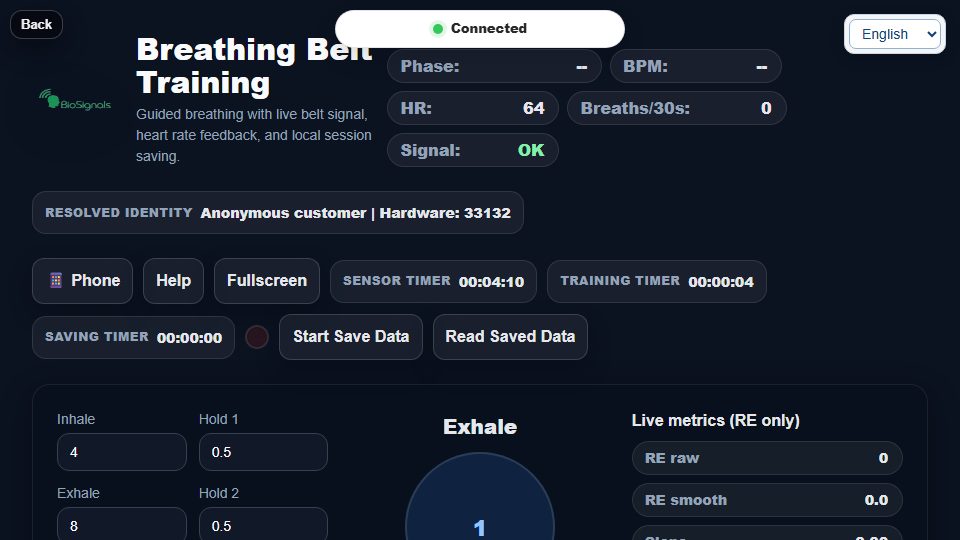
Operating sequence and interpretation
Fit the compatible breathing belt according to its instructions and verify that the waveform responds to comfortable breathing. Set the four phase durations and use Start/Pause/Reset for the guide. Belt movement is not a direct measurement of air volume or oxygen. Avoid tightening the belt or exaggerating breaths to improve the graph. Record locally separately from the breathing guide.
Controls on this screen (24)
Control names below quote the interface’s existing labels so you can recognize them; their displayed language can vary. Only use a control when it is available. A hidden or disabled control is not an invitation to bypass a prerequisite.
| On-screen label | How to use it |
|---|---|
| Back | Return to the previous screen. Finish and save your exercise/recording first; navigation is not a save command. |
| Phone | Select the actual device, supported signal or displayed mode. Changing the choice does not add a sensor or validate an absent channel. Compare results only under equivalent settings. |
| Help | Open or close this screen’s instructions. Read its task-specific rules before starting. |
| Fullscreen | Enter/exit fullscreen. It changes layout only, not sensor quality, recording or account login. |
| Start Save Data | Start or stop this page’s local data capture according to its current button label. Exercise scoring and cloud recording are separate. |
| Read Saved Data | Open the feature’s saved sessions. Select the intended date/session before viewing or exporting. Local history is not automatically cloud history. |
| inhale | Set the labelled phase duration or breathing pace in the units shown. Follow your assigned comfortable pattern; confirm all phases before starting. Do not force breath holds. |
| hold1 | Set the labelled phase duration or breathing pace in the units shown. Follow your assigned comfortable pattern; confirm all phases before starting. Do not force breath holds. |
| exhale | Set the labelled phase duration or breathing pace in the units shown. Follow your assigned comfortable pattern; confirm all phases before starting. Do not force breath holds. |
| hold2 | Set the labelled phase duration or breathing pace in the units shown. Follow your assigned comfortable pattern; confirm all phases before starting. Do not force breath holds. |
| Start | Start the named exercise, test or guidance after preparation and any required calibration. This is not automatically the separate Save Data function. |
| Pause | Pause or resume the function named on the button (exercise, scoring, guidance, scrolling, replay or sound). Verify its state; other recording can continue. |
| Reset | Restart/reset the named exercise, round or view. Save useful results first; reset is not a backup. Reset zoom only changes chart viewing. |
| turn Delta | Set this labelled option before starting, using its shown units/options. Check the effect on screen and preserve the assigned exercise; changing a preference does not save a measurement. |
| min Amp | Set this labelled option before starting, using its shown units/options. Check the effect on screen and preserve the assigned exercise; changing a preference does not save a measurement. |
| min Period | Set this labelled option before starting, using its shown units/options. Check the effect on screen and preserve the assigned exercise; changing a preference does not save a measurement. |
| cycles Avg | Set this labelled option before starting, using its shown units/options. Check the effect on screen and preserve the assigned exercise; changing a preference does not save a measurement. |
| chart Width Slider | Set this labelled option before starting, using its shown units/options. Check the effect on screen and preserve the assigned exercise; changing a preference does not save a measurement. |
| chart Height Slider | Set this labelled option before starting, using its shown units/options. Check the effect on screen and preserve the assigned exercise; changing a preference does not save a measurement. |
| Close | Open or close this screen’s instructions. Read its task-specific rules before starting. |
| Close | Open the feature’s saved sessions. Select the intended date/session before viewing or exporting. Local history is not automatically cloud history. |
| View signals rows | Open the named result/table/tab or navigate the selected record. Confirm the current session and available channels before interpretation. Viewing does not start a new sensor measurement. |
| View HRV rows | Open the named result/table/tab or navigate the selected record. Confirm the current session and available channels before interpretation. Viewing does not start a new sensor measurement. |
| Save CSV files | Download the selected session, table or history in the stated format. Check the file and its scope; store it privately. Export does not email it or prove cloud backup. |
Real Time Live Parameters
Open training screen ↗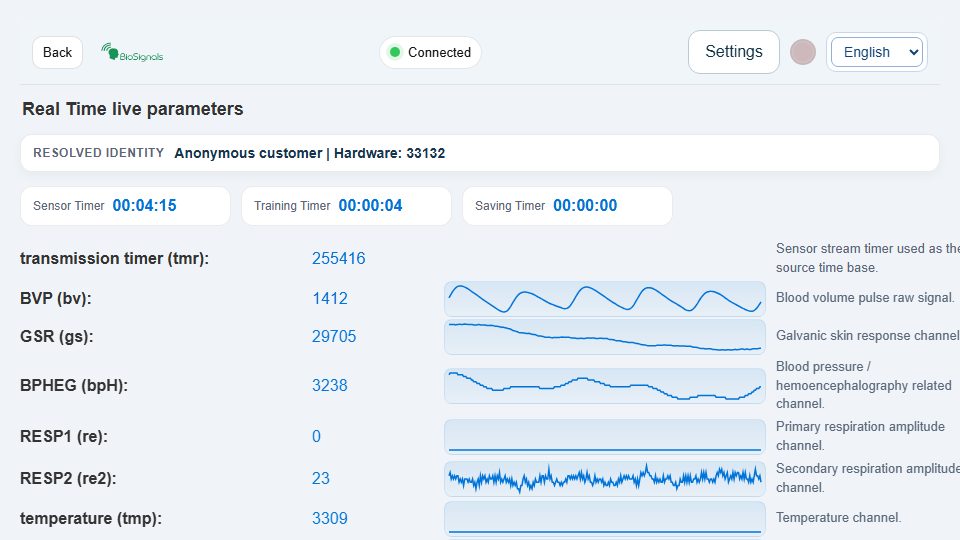
Operating sequence and interpretation
Use the live parameters dashboard to check which values your actual device supplies. Choose the correct model and Retry only after checking the application connection. Missing channels should remain unavailable rather than be inferred from another value. Open saved recordings to inspect signal/HRV rows and use Window Position/Zoom Window when the saved chart is available.
Controls on this screen (16)
Control names below quote the interface’s existing labels so you can recognize them; their displayed language can vary. Only use a control when it is available. A hidden or disabled control is not an invitation to bypass a prerequisite.
| On-screen label | How to use it |
|---|---|
| Back | Return to the previous screen. Finish and save your exercise/recording first; navigation is not a save command. |
| Retry | Retry the page’s connection after verifying that the sensor application is running. Do not repeatedly restart a good recording; check status and quality first. |
| Device | Select the actual device, supported signal or displayed mode. Changing the choice does not add a sensor or validate an absent channel. Compare results only under equivalent settings. |
| Phone | Select the actual device, supported signal or displayed mode. Changing the choice does not add a sensor or validate an absent channel. Compare results only under equivalent settings. |
| Help | Open or close this screen’s instructions. Read its task-specific rules before starting. |
| Start Save Data | Start or stop this page’s local data capture according to its current button label. Exercise scoring and cloud recording are separate. |
| Read Saved Data | Open the feature’s saved sessions. Select the intended date/session before viewing or exporting. Local history is not automatically cloud history. |
| Fullscreen | Enter/exit fullscreen. It changes layout only, not sensor quality, recording or account login. |
| Close | Open or close this screen’s instructions. Read its task-specific rules before starting. |
| Close | Open the feature’s saved sessions. Select the intended date/session before viewing or exporting. Local history is not automatically cloud history. |
| View all rows | Open the named result/table/tab or navigate the selected record. Confirm the current session and available channels before interpretation. Viewing does not start a new sensor measurement. |
| View HRV rows | Open the named result/table/tab or navigate the selected record. Confirm the current session and available channels before interpretation. Viewing does not start a new sensor measurement. |
| Export CSV | Download the selected session, table or history in the stated format. Check the file and its scope; store it privately. Export does not email it or prove cloud backup. |
| Close | Close the current panel. This does not necessarily stop the exercise, media or a separate recording. |
| Window Position | Move the visible chart window or change its scale. Compare the same time range when reviewing; zoom does not alter the saved measurements. |
| Zoom Window | Move the visible chart window or change its scale. Compare the same time range when reviewing; zoom does not alter the saved measurements. |
EMG Relaxation Training
Open training screen ↗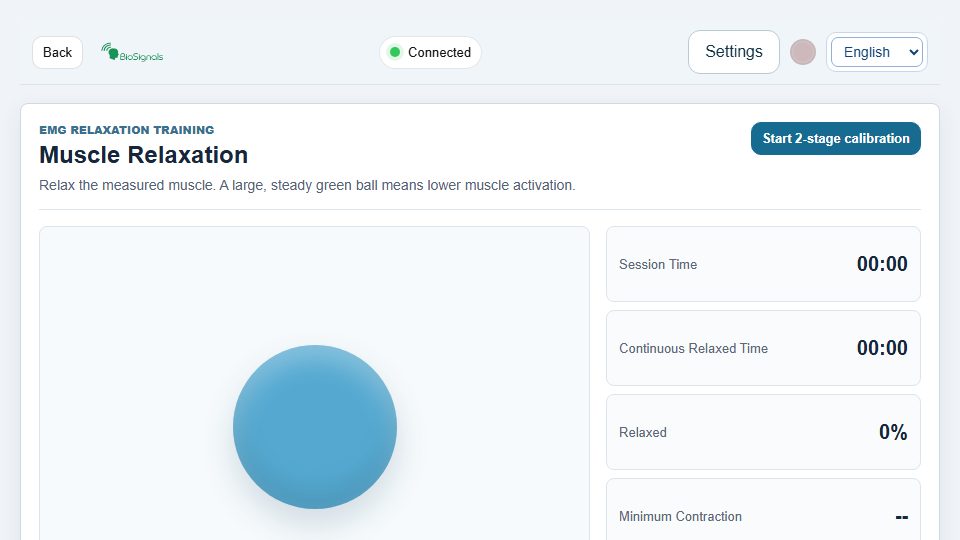
Operating sequence and interpretation
Use an appropriate EMG input and professional sensor-placement instructions. Start 2-stage calibration and follow the relaxed/minimum and contraction/maximum prompts without exceeding the instructed effort. Review the resulting limits; Apply values is for deliberate manual limits, not a way to fabricate a signal. Observe activation zones during relaxation, maintaining comparable posture. Recalibrate if placement changes.
Controls on this screen (20)
Control names below quote the interface’s existing labels so you can recognize them; their displayed language can vary. Only use a control when it is available. A hidden or disabled control is not an invitation to bypass a prerequisite.
| On-screen label | How to use it |
|---|---|
| Back | Return to the previous screen. Finish and save your exercise/recording first; navigation is not a save command. |
| Retry | Retry the page’s connection after verifying that the sensor application is running. Do not repeatedly restart a good recording; check status and quality first. |
| Device | Select the actual device, supported signal or displayed mode. Changing the choice does not add a sensor or validate an absent channel. Compare results only under equivalent settings. |
| Phone | Select the actual device, supported signal or displayed mode. Changing the choice does not add a sensor or validate an absent channel. Compare results only under equivalent settings. |
| Help | Open or close this screen’s instructions. Read its task-specific rules before starting. |
| Start Save Data | Start or stop this page’s local data capture according to its current button label. Exercise scoring and cloud recording are separate. |
| Read Saved Data | Open the feature’s saved sessions. Select the intended date/session before viewing or exporting. Local history is not automatically cloud history. |
| Fullscreen | Enter/exit fullscreen. It changes layout only, not sensor quality, recording or account login. |
| Start 2-stage calibration | Establish the personal baseline following the displayed stages. Keep valid input and the requested posture. Recalibrate deliberately if conditions change, not to force a preferred score. |
| Minimum contraction | Set this labelled option before starting, using its shown units/options. Check the effect on screen and preserve the assigned exercise; changing a preference does not save a measurement. |
| Maximum contraction | Set this labelled option before starting, using its shown units/options. Check the effect on screen and preserve the assigned exercise; changing a preference does not save a measurement. |
| Apply values | Set this labelled option before starting, using its shown units/options. Check the effect on screen and preserve the assigned exercise; changing a preference does not save a measurement. |
| Close | Open or close this screen’s instructions. Read its task-specific rules before starting. |
| Close | Open the feature’s saved sessions. Select the intended date/session before viewing or exporting. Local history is not automatically cloud history. |
| View all rows | Open the named result/table/tab or navigate the selected record. Confirm the current session and available channels before interpretation. Viewing does not start a new sensor measurement. |
| View HRV rows | Open the named result/table/tab or navigate the selected record. Confirm the current session and available channels before interpretation. Viewing does not start a new sensor measurement. |
| Export CSV | Download the selected session, table or history in the stated format. Check the file and its scope; store it privately. Export does not email it or prove cloud backup. |
| Close | Close the current panel. This does not necessarily stop the exercise, media or a separate recording. |
| Window Position | Move the visible chart window or change its scale. Compare the same time range when reviewing; zoom does not alter the saved measurements. |
| Zoom Window | Move the visible chart window or change its scale. Compare the same time range when reviewing; zoom does not alter the saved measurements. |
Biofeedback Emotional Mirror
Open training screen ↗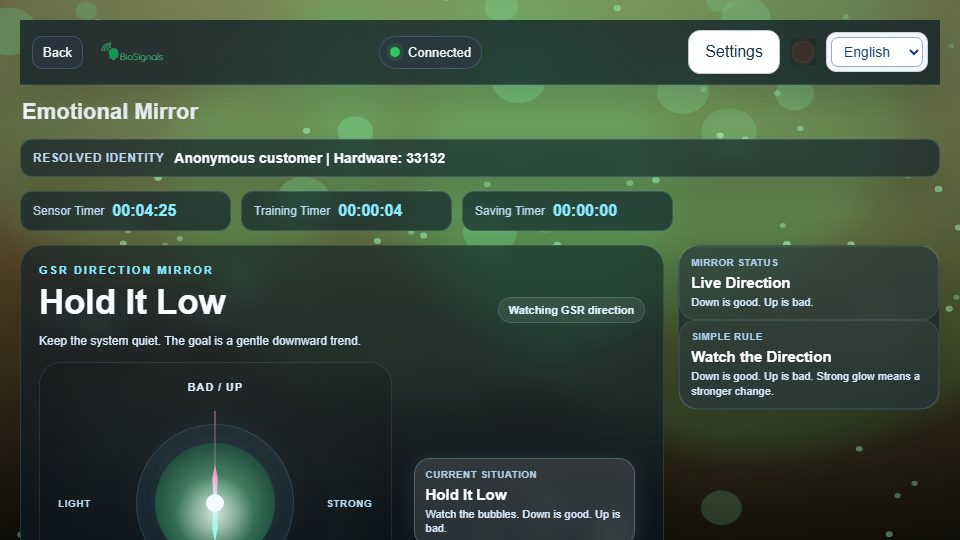
Operating sequence and interpretation
Observe the visual bubble feedback while valid GSR changes over time. Let a stable trend develop instead of making abrupt hand movements to move the display. The mirror reflects software interpretation of signal direction, not recognition of your actual emotion. Use local saving and history if you want to compare the same exercise under similar conditions.
Controls on this screen (16)
Control names below quote the interface’s existing labels so you can recognize them; their displayed language can vary. Only use a control when it is available. A hidden or disabled control is not an invitation to bypass a prerequisite.
| On-screen label | How to use it |
|---|---|
| Back | Return to the previous screen. Finish and save your exercise/recording first; navigation is not a save command. |
| Retry | Retry the page’s connection after verifying that the sensor application is running. Do not repeatedly restart a good recording; check status and quality first. |
| Device | Select the actual device, supported signal or displayed mode. Changing the choice does not add a sensor or validate an absent channel. Compare results only under equivalent settings. |
| 📱 Phone | Select the actual device, supported signal or displayed mode. Changing the choice does not add a sensor or validate an absent channel. Compare results only under equivalent settings. |
| Help | Open or close this screen’s instructions. Read its task-specific rules before starting. |
| Start Save Data | Start or stop this page’s local data capture according to its current button label. Exercise scoring and cloud recording are separate. |
| Read Saved Data | Open the feature’s saved sessions. Select the intended date/session before viewing or exporting. Local history is not automatically cloud history. |
| Fullscreen | Enter/exit fullscreen. It changes layout only, not sensor quality, recording or account login. |
| Close | Open or close this screen’s instructions. Read its task-specific rules before starting. |
| Close | Open the feature’s saved sessions. Select the intended date/session before viewing or exporting. Local history is not automatically cloud history. |
| View all rows | Open the named result/table/tab or navigate the selected record. Confirm the current session and available channels before interpretation. Viewing does not start a new sensor measurement. |
| View HRV rows | Open the named result/table/tab or navigate the selected record. Confirm the current session and available channels before interpretation. Viewing does not start a new sensor measurement. |
| Export CSV | Download the selected session, table or history in the stated format. Check the file and its scope; store it privately. Export does not email it or prove cloud backup. |
| Close | Close the current panel. This does not necessarily stop the exercise, media or a separate recording. |
| Window Position | Move the visible chart window or change its scale. Compare the same time range when reviewing; zoom does not alter the saved measurements. |
| Zoom Window | Move the visible chart window or change its scale. Compare the same time range when reviewing; zoom does not alter the saved measurements. |
Cognitive Stress Test
Open training screen ↗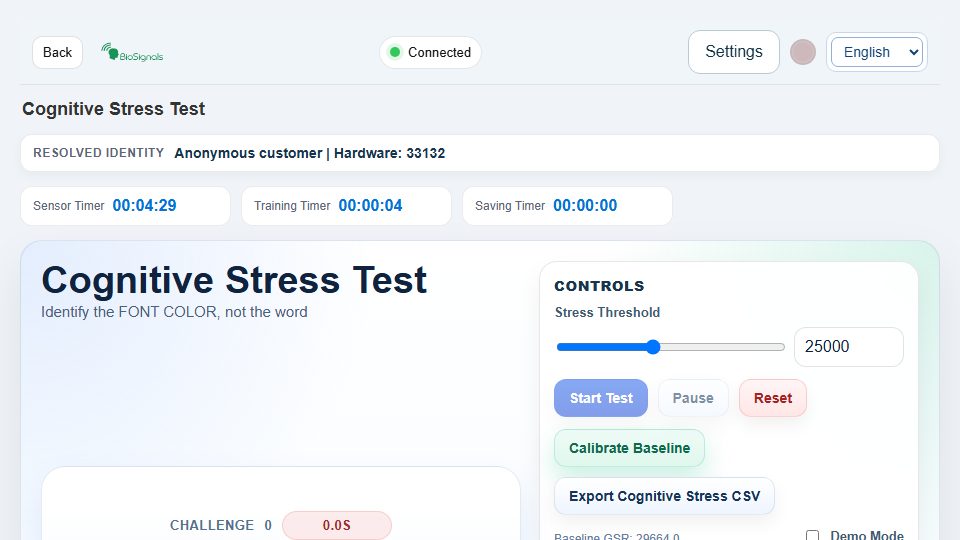
Operating sequence and interpretation
Begin only with reliable GSR and follow the on-screen calibration and Stroop task instructions. Answer the requested color task rather than assuming the printed word is the answer. Stress-threshold feedback can interrupt with a breathing-recovery phase; follow it before continuing. Export the completed task metrics if required. Reaction errors and GSR changes are not independent diagnostic findings.
Controls on this screen (33)
Control names below quote the interface’s existing labels so you can recognize them; their displayed language can vary. Only use a control when it is available. A hidden or disabled control is not an invitation to bypass a prerequisite.
| On-screen label | How to use it |
|---|---|
| Back | Return to the previous screen. Finish and save your exercise/recording first; navigation is not a save command. |
| Retry | Retry the page’s connection after verifying that the sensor application is running. Do not repeatedly restart a good recording; check status and quality first. |
| Device | Select the actual device, supported signal or displayed mode. Changing the choice does not add a sensor or validate an absent channel. Compare results only under equivalent settings. |
| Phone | Select the actual device, supported signal or displayed mode. Changing the choice does not add a sensor or validate an absent channel. Compare results only under equivalent settings. |
| Help | Open or close this screen’s instructions. Read its task-specific rules before starting. |
| Start Save Data | Start or stop this page’s local data capture according to its current button label. Exercise scoring and cloud recording are separate. |
| Read Saved Data | Open the feature’s saved sessions. Select the intended date/session before viewing or exporting. Local history is not automatically cloud history. |
| Fullscreen | Enter/exit fullscreen. It changes layout only, not sensor quality, recording or account login. |
| cog Stress Answer Btn0 | Set this labelled option before starting, using its shown units/options. Check the effect on screen and preserve the assigned exercise; changing a preference does not save a measurement. |
| cog Stress Answer Btn1 | Set this labelled option before starting, using its shown units/options. Check the effect on screen and preserve the assigned exercise; changing a preference does not save a measurement. |
| cog Stress Answer Btn2 | Set this labelled option before starting, using its shown units/options. Check the effect on screen and preserve the assigned exercise; changing a preference does not save a measurement. |
| cog Stress Answer Btn3 | Set this labelled option before starting, using its shown units/options. Check the effect on screen and preserve the assigned exercise; changing a preference does not save a measurement. |
| Stress Threshold | Set this labelled option before starting, using its shown units/options. Check the effect on screen and preserve the assigned exercise; changing a preference does not save a measurement. |
| cog Stress Threshold | Set this labelled option before starting, using its shown units/options. Check the effect on screen and preserve the assigned exercise; changing a preference does not save a measurement. |
| Start Test | Start the named exercise, test or guidance after preparation and any required calibration. This is not automatically the separate Save Data function. |
| Pause | Pause or resume the function named on the button (exercise, scoring, guidance, scrolling, replay or sound). Verify its state; other recording can continue. |
| Reset | Restart/reset the named exercise, round or view. Save useful results first; reset is not a backup. Reset zoom only changes chart viewing. |
| Calibrate Baseline | Establish the personal baseline following the displayed stages. Keep valid input and the requested posture. Recalibrate deliberately if conditions change, not to force a preferred score. |
| Export Cognitive Stress CSV | Download the selected session, table or history in the stated format. Check the file and its scope; store it privately. Export does not email it or prove cloud backup. |
| cog Stress Demo | Demonstration/simulator mode is for examples only. Disable it before genuine measurement and independently verify a live sensor signal. |
| Export History JSON | Download the selected session, table or history in the stated format. Check the file and its scope; store it privately. Export does not email it or prove cloud backup. |
| Export History CSV | Download the selected session, table or history in the stated format. Check the file and its scope; store it privately. Export does not email it or prove cloud backup. |
| Import History JSON | Select a compatible file previously exported for this feature. Keep a backup first and verify dates, units and session selection after loading. Do not import someone else’s private records. |
| Clear History | Remove the selected item or history only after checking the confirmation and exporting anything needed. Clearing history can be irreversible. For media lists this removes a media choice, not a clinical record. |
| cog Stress Import History | Select a compatible file previously exported for this feature. Keep a backup first and verify dates, units and session selection after loading. Do not import someone else’s private records. |
| Close | Open or close this screen’s instructions. Read its task-specific rules before starting. |
| Close | Open the feature’s saved sessions. Select the intended date/session before viewing or exporting. Local history is not automatically cloud history. |
| View all rows | Open the named result/table/tab or navigate the selected record. Confirm the current session and available channels before interpretation. Viewing does not start a new sensor measurement. |
| View HRV rows | Open the named result/table/tab or navigate the selected record. Confirm the current session and available channels before interpretation. Viewing does not start a new sensor measurement. |
| Export CSV | Download the selected session, table or history in the stated format. Check the file and its scope; store it privately. Export does not email it or prove cloud backup. |
| Close | Close the current panel. This does not necessarily stop the exercise, media or a separate recording. |
| Window Position | Move the visible chart window or change its scale. Compare the same time range when reviewing; zoom does not alter the saved measurements. |
| Zoom Window | Move the visible chart window or change its scale. Compare the same time range when reviewing; zoom does not alter the saved measurements. |
AI-HRV Stress Assessment
Open training screen ↗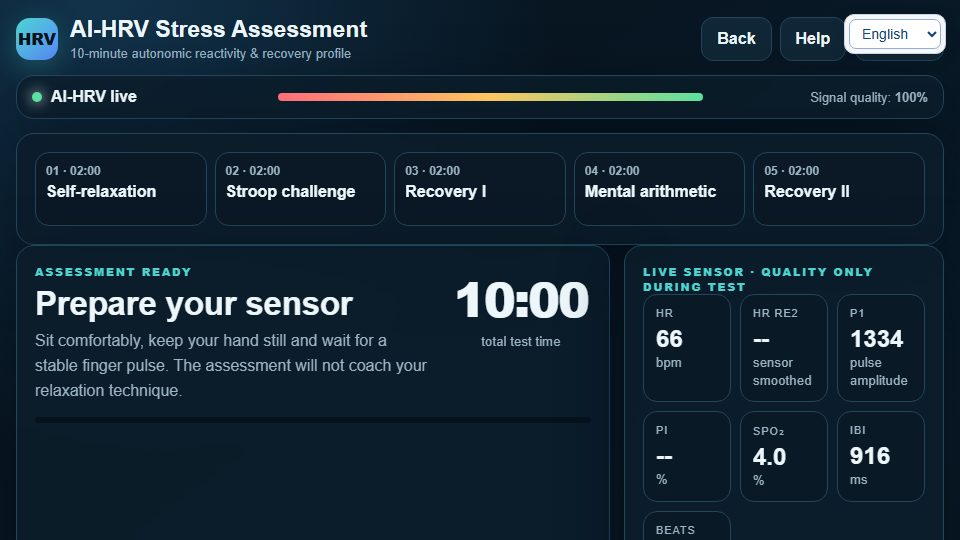
Operating sequence and interpretation
Plan an uninterrupted 10-minute period and verify the required pulse information. Start the five-phase assessment and follow each phase’s displayed instructions; enter and submit arithmetic answers only during the relevant task. End assessment early marks an interrupted assessment rather than a completed equivalent. Export report JSON or summary CSV after reviewing completeness and signal quality. Derived reactivity/recovery results are not a diagnosis.
Controls on this screen (11)
Control names below quote the interface’s existing labels so you can recognize them; their displayed language can vary. Only use a control when it is available. A hidden or disabled control is not an invitation to bypass a prerequisite.
| On-screen label | How to use it |
|---|---|
| Back | Return to the previous screen. Finish and save your exercise/recording first; navigation is not a save command. |
| Help | Open or close this screen’s instructions. Read its task-specific rules before starting. |
| עברית | Choose the interface language. This changes labels, not stored measurements. Some existing media or older screens may retain another language. |
| Start 10-minute assessment | Start the named exercise, test or guidance after preparation and any required calibration. This is not automatically the separate Save Data function. |
| math | Set this labelled option before starting, using its shown units/options. Check the effect on screen and preserve the assigned exercise; changing a preference does not save a measurement. |
| Submit | Set this labelled option before starting, using its shown units/options. Check the effect on screen and preserve the assigned exercise; changing a preference does not save a measurement. |
| New assessment | Set this labelled option before starting, using its shown units/options. Check the effect on screen and preserve the assigned exercise; changing a preference does not save a measurement. |
| Export report JSON | Download the selected session, table or history in the stated format. Check the file and its scope; store it privately. Export does not email it or prove cloud backup. |
| Export summary CSV | Download the selected session, table or history in the stated format. Check the file and its scope; store it privately. Export does not email it or prove cloud backup. |
| End assessment early | End the named exercise or finalize its recording as labelled. Review the result and export before leaving. An early end may make an assessment incomplete. |
| Close | Open or close this screen’s instructions. Read its task-specific rules before starting. |
Stress Meter
Open training screen ↗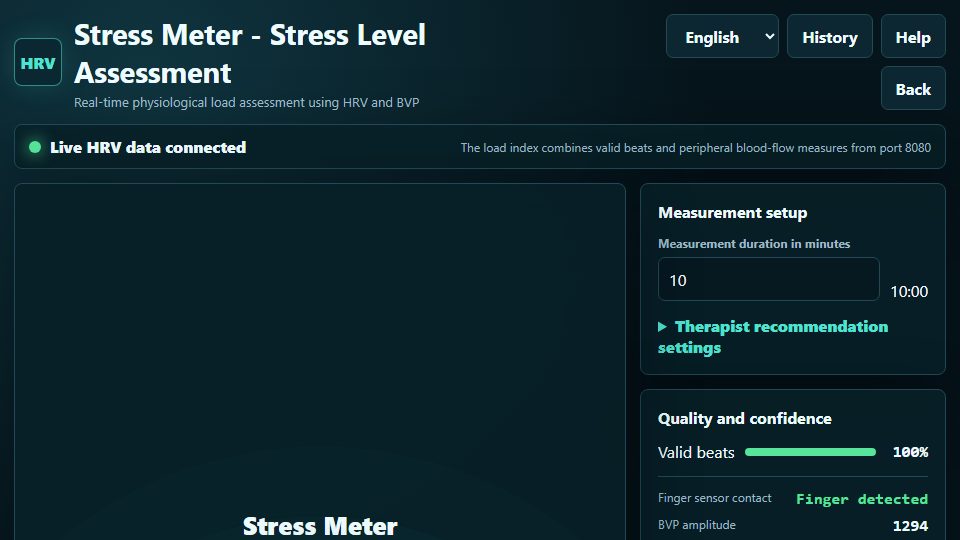
Operating sequence and interpretation
Choose language and measurement duration before starting. Keep the sensor steady during personal calibration and measurement, and review the signal-quality indicators beside the result. The 0–100 bands are the screen’s calculated feedback categories, not a medical severity scale. History opens earlier assessments; Save recommendations saves the offered notes, not proof that treatment occurred.
Controls on this screen (10)
Control names below quote the interface’s existing labels so you can recognize them; their displayed language can vary. Only use a control when it is available. A hidden or disabled control is not an invitation to bypass a prerequisite.
| On-screen label | How to use it |
|---|---|
| עברית English العربية Русский Español Français | Choose the interface language. This changes labels, not stored measurements. Some existing media or older screens may retain another language. |
| היסטוריה | Open the feature’s saved sessions. Select the intended date/session before viewing or exporting. Local history is not automatically cloud history. |
| עזרה | Open or close this screen’s instructions. Read its task-specific rules before starting. |
| חזרה | Return to the previous screen. Finish and save your exercise/recording first; navigation is not a save command. |
| התחל אימון | Start the named exercise, test or guidance after preparation and any required calibration. This is not automatically the separate Save Data function. |
| צפו בסיכום האבחונים | Open the feature’s saved sessions. Select the intended date/session before viewing or exporting. Local history is not automatically cloud history. |
| משך המדידה בדקות | Set this labelled option before starting, using its shown units/options. Check the effect on screen and preserve the assigned exercise; changing a preference does not save a measurement. |
| שמור המלצות | Set this labelled option before starting, using its shown units/options. Check the effect on screen and preserve the assigned exercise; changing a preference does not save a measurement. |
| סגור | Open or close this screen’s instructions. Read its task-specific rules before starting. |
| סגור | Open the feature’s saved sessions. Select the intended date/session before viewing or exporting. Local history is not automatically cloud history. |
HRV Sync Flow
Open training screen ↗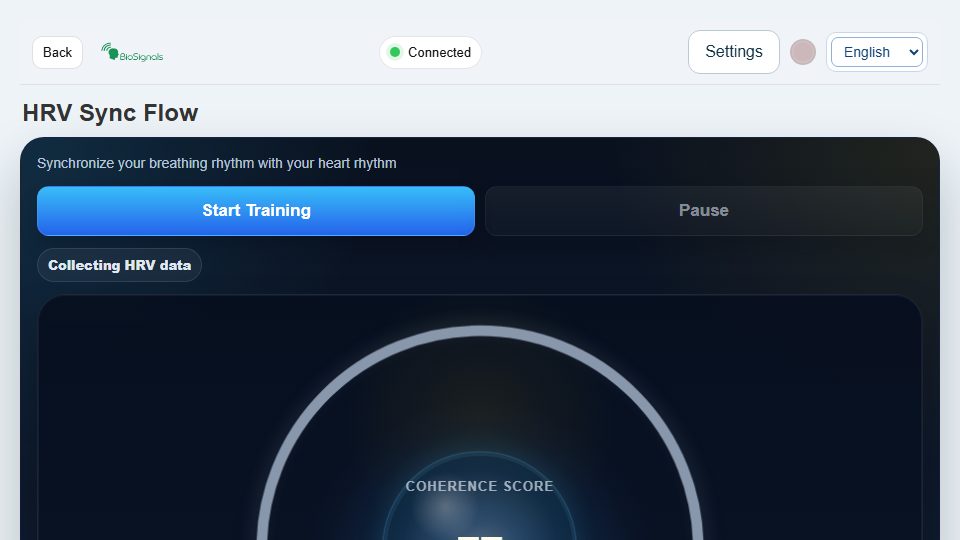
Operating sequence and interpretation
Set the breathing pace, verify genuine pulse/IBI data and select Calibrate before the assigned training. Start Training follows breathing and pulse-ring/coherence feedback; Pause and Reset affect that exercise. Keep Demo disabled for real measurements. View History and session JSON/CSV exports review the exercise; full-history export/import transfers its local history. Clearing history is destructive and requires a checked backup first.
Controls on this screen (32)
Control names below quote the interface’s existing labels so you can recognize them; their displayed language can vary. Only use a control when it is available. A hidden or disabled control is not an invitation to bypass a prerequisite.
| On-screen label | How to use it |
|---|---|
| Back | Return to the previous screen. Finish and save your exercise/recording first; navigation is not a save command. |
| Retry | Retry the page’s connection after verifying that the sensor application is running. Do not repeatedly restart a good recording; check status and quality first. |
| Device | Select the actual device, supported signal or displayed mode. Changing the choice does not add a sensor or validate an absent channel. Compare results only under equivalent settings. |
| Phone | Select the actual device, supported signal or displayed mode. Changing the choice does not add a sensor or validate an absent channel. Compare results only under equivalent settings. |
| Help | Open or close this screen’s instructions. Read its task-specific rules before starting. |
| Start Save Data | Start or stop this page’s local data capture according to its current button label. Exercise scoring and cloud recording are separate. |
| Read Saved Data | Open the feature’s saved sessions. Select the intended date/session before viewing or exporting. Local history is not automatically cloud history. |
| Fullscreen | Enter/exit fullscreen. It changes layout only, not sensor quality, recording or account login. |
| Breathing Pace | Set the labelled phase duration or breathing pace in the units shown. Follow your assigned comfortable pattern; confirm all phases before starting. Do not force breath holds. |
| Breaths Per Minute | Set the labelled phase duration or breathing pace in the units shown. Follow your assigned comfortable pattern; confirm all phases before starting. Do not force breath holds. |
| Start Training | Start the named exercise, test or guidance after preparation and any required calibration. This is not automatically the separate Save Data function. |
| Pause | Pause or resume the function named on the button (exercise, scoring, guidance, scrolling, replay or sound). Verify its state; other recording can continue. |
| Reset | Restart/reset the named exercise, round or view. Save useful results first; reset is not a backup. Reset zoom only changes chart viewing. |
| Calibrate | Establish the personal baseline following the displayed stages. Keep valid input and the requested posture. Recalibrate deliberately if conditions change, not to force a preferred score. |
| Export HRV Sync CSV | Download the selected session, table or history in the stated format. Check the file and its scope; store it privately. Export does not email it or prove cloud backup. |
| Demo | Demonstration/simulator mode is for examples only. Disable it before genuine measurement and independently verify a live sensor signal. |
| Export Full History JSON | Download the selected session, table or history in the stated format. Check the file and its scope; store it privately. Export does not email it or prove cloud backup. |
| Export History CSV | Download the selected session, table or history in the stated format. Check the file and its scope; store it privately. Export does not email it or prove cloud backup. |
| Import History JSON | Select a compatible file previously exported for this feature. Keep a backup first and verify dates, units and session selection after loading. Do not import someone else’s private records. |
| Clear Training History | Remove the selected item or history only after checking the confirmation and exporting anything needed. Clearing history can be irreversible. For media lists this removes a media choice, not a clinical record. |
| Import History | Select a compatible file previously exported for this feature. Keep a backup first and verify dates, units and session selection after loading. Do not import someone else’s private records. |
| Close | Open or close this screen’s instructions. Read its task-specific rules before starting. |
| Close | Open the feature’s saved sessions. Select the intended date/session before viewing or exporting. Local history is not automatically cloud history. |
| View all rows | Open the named result/table/tab or navigate the selected record. Confirm the current session and available channels before interpretation. Viewing does not start a new sensor measurement. |
| View HRV rows | Open the named result/table/tab or navigate the selected record. Confirm the current session and available channels before interpretation. Viewing does not start a new sensor measurement. |
| Export CSV | Download the selected session, table or history in the stated format. Check the file and its scope; store it privately. Export does not email it or prove cloud backup. |
| Close | Close the current panel. This does not necessarily stop the exercise, media or a separate recording. |
| Window Position | Move the visible chart window or change its scale. Compare the same time range when reviewing; zoom does not alter the saved measurements. |
| Zoom Window | Move the visible chart window or change its scale. Compare the same time range when reviewing; zoom does not alter the saved measurements. |
| View History | Open the feature’s saved sessions. Select the intended date/session before viewing or exporting. Local history is not automatically cloud history. |
| Export This Session JSON | Download the selected session, table or history in the stated format. Check the file and its scope; store it privately. Export does not email it or prove cloud backup. |
| Export This Session CSV | Download the selected session, table or history in the stated format. Check the file and its scope; store it privately. Export does not email it or prove cloud backup. |
HRV Challenge
Open training screen ↗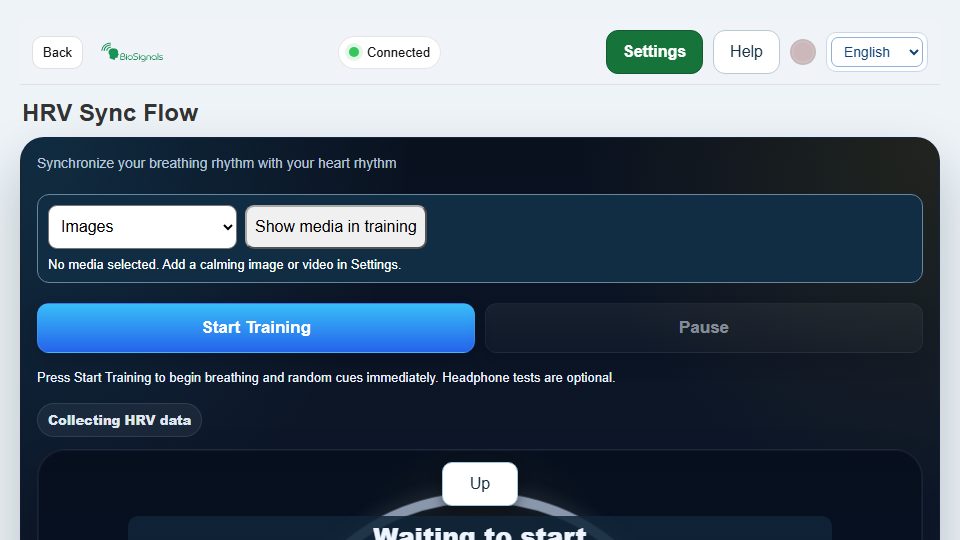
Operating sequence and interpretation
Use correctly oriented stereo headphones and follow the random audible and on-screen direction cues. Check the page’s instructions for the requested response, breathing pace and scoring before Start Training. Complete calibration and do not confuse attention points with physiological improvement. Keep Demo off for genuine data. Pause when interrupted, then review the session and export this session or the full local history as required.
Controls on this screen (32)
Control names below quote the interface’s existing labels so you can recognize them; their displayed language can vary. Only use a control when it is available. A hidden or disabled control is not an invitation to bypass a prerequisite.
| On-screen label | How to use it |
|---|---|
| Back | Return to the previous screen. Finish and save your exercise/recording first; navigation is not a save command. |
| Retry | Retry the page’s connection after verifying that the sensor application is running. Do not repeatedly restart a good recording; check status and quality first. |
| Device | Select the actual device, supported signal or displayed mode. Changing the choice does not add a sensor or validate an absent channel. Compare results only under equivalent settings. |
| Phone | Select the actual device, supported signal or displayed mode. Changing the choice does not add a sensor or validate an absent channel. Compare results only under equivalent settings. |
| Help | Open or close this screen’s instructions. Read its task-specific rules before starting. |
| Start Save Data | Start or stop this page’s local data capture according to its current button label. Exercise scoring and cloud recording are separate. |
| Read Saved Data | Open the feature’s saved sessions. Select the intended date/session before viewing or exporting. Local history is not automatically cloud history. |
| Fullscreen | Enter/exit fullscreen. It changes layout only, not sensor quality, recording or account login. |
| Breathing Pace | Set the labelled phase duration or breathing pace in the units shown. Follow your assigned comfortable pattern; confirm all phases before starting. Do not force breath holds. |
| Breaths Per Minute | Set the labelled phase duration or breathing pace in the units shown. Follow your assigned comfortable pattern; confirm all phases before starting. Do not force breath holds. |
| Start Training | Start the named exercise, test or guidance after preparation and any required calibration. This is not automatically the separate Save Data function. |
| Pause | Pause or resume the function named on the button (exercise, scoring, guidance, scrolling, replay or sound). Verify its state; other recording can continue. |
| Reset | Restart/reset the named exercise, round or view. Save useful results first; reset is not a backup. Reset zoom only changes chart viewing. |
| Calibrate | Establish the personal baseline following the displayed stages. Keep valid input and the requested posture. Recalibrate deliberately if conditions change, not to force a preferred score. |
| Export HRV Sync CSV | Download the selected session, table or history in the stated format. Check the file and its scope; store it privately. Export does not email it or prove cloud backup. |
| Demo | Demonstration/simulator mode is for examples only. Disable it before genuine measurement and independently verify a live sensor signal. |
| Export Full History JSON | Download the selected session, table or history in the stated format. Check the file and its scope; store it privately. Export does not email it or prove cloud backup. |
| Export History CSV | Download the selected session, table or history in the stated format. Check the file and its scope; store it privately. Export does not email it or prove cloud backup. |
| Import History JSON | Select a compatible file previously exported for this feature. Keep a backup first and verify dates, units and session selection after loading. Do not import someone else’s private records. |
| Clear Training History | Remove the selected item or history only after checking the confirmation and exporting anything needed. Clearing history can be irreversible. For media lists this removes a media choice, not a clinical record. |
| Import History | Select a compatible file previously exported for this feature. Keep a backup first and verify dates, units and session selection after loading. Do not import someone else’s private records. |
| Close | Open or close this screen’s instructions. Read its task-specific rules before starting. |
| Close | Open the feature’s saved sessions. Select the intended date/session before viewing or exporting. Local history is not automatically cloud history. |
| View all rows | Open the named result/table/tab or navigate the selected record. Confirm the current session and available channels before interpretation. Viewing does not start a new sensor measurement. |
| View HRV rows | Open the named result/table/tab or navigate the selected record. Confirm the current session and available channels before interpretation. Viewing does not start a new sensor measurement. |
| Export CSV | Download the selected session, table or history in the stated format. Check the file and its scope; store it privately. Export does not email it or prove cloud backup. |
| Close | Close the current panel. This does not necessarily stop the exercise, media or a separate recording. |
| Window Position | Move the visible chart window or change its scale. Compare the same time range when reviewing; zoom does not alter the saved measurements. |
| Zoom Window | Move the visible chart window or change its scale. Compare the same time range when reviewing; zoom does not alter the saved measurements. |
| View History | Open the feature’s saved sessions. Select the intended date/session before viewing or exporting. Local history is not automatically cloud history. |
| Export This Session JSON | Download the selected session, table or history in the stated format. Check the file and its scope; store it privately. Export does not email it or prove cloud backup. |
| Export This Session CSV | Download the selected session, table or history in the stated format. Check the file and its scope; store it privately. Export does not email it or prove cloud backup. |
Immersive Zen Audio
Open training screen ↗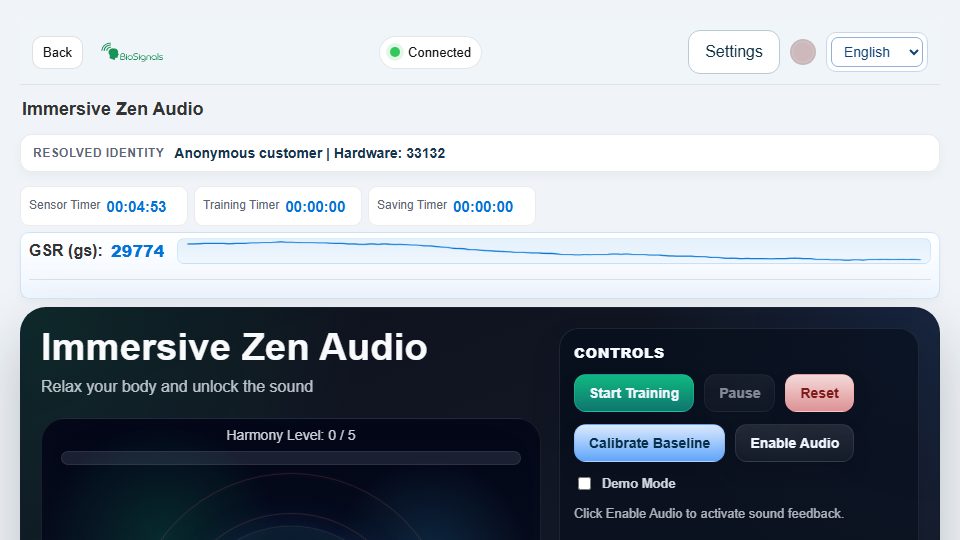
Operating sequence and interpretation
Wear comfortable headphones, Enable Audio and begin at low volume. Check the required GSR/temperature inputs, calibrate and Start Training. The sound changes with the screen’s feedback rules; silence can also mean audio permission or output trouble, not physiological failure. Keep Demo off for real sessions. Pause/Reset manage the exercise; history and exports retain its results locally.
Controls on this screen (31)
Control names below quote the interface’s existing labels so you can recognize them; their displayed language can vary. Only use a control when it is available. A hidden or disabled control is not an invitation to bypass a prerequisite.
| On-screen label | How to use it |
|---|---|
| Back | Return to the previous screen. Finish and save your exercise/recording first; navigation is not a save command. |
| Retry | Retry the page’s connection after verifying that the sensor application is running. Do not repeatedly restart a good recording; check status and quality first. |
| Device | Select the actual device, supported signal or displayed mode. Changing the choice does not add a sensor or validate an absent channel. Compare results only under equivalent settings. |
| Phone | Select the actual device, supported signal or displayed mode. Changing the choice does not add a sensor or validate an absent channel. Compare results only under equivalent settings. |
| Help | Open or close this screen’s instructions. Read its task-specific rules before starting. |
| Start Save Data | Start or stop this page’s local data capture according to its current button label. Exercise scoring and cloud recording are separate. |
| Read Saved Data | Open the feature’s saved sessions. Select the intended date/session before viewing or exporting. Local history is not automatically cloud history. |
| Fullscreen | Enter/exit fullscreen. It changes layout only, not sensor quality, recording or account login. |
| Start Training | Choose, enable, play, stop or adjust the labelled sound/media. A deliberate click may be required for playback. Check output and comfortable volume; this does not start measurement saving. |
| Pause | Choose, enable, play, stop or adjust the labelled sound/media. A deliberate click may be required for playback. Check output and comfortable volume; this does not start measurement saving. |
| Reset | Choose, enable, play, stop or adjust the labelled sound/media. A deliberate click may be required for playback. Check output and comfortable volume; this does not start measurement saving. |
| Calibrate Baseline | Establish the personal baseline following the displayed stages. Keep valid input and the requested posture. Recalibrate deliberately if conditions change, not to force a preferred score. |
| Enable Audio | Choose, enable, play, stop or adjust the labelled sound/media. A deliberate click may be required for playback. Check output and comfortable volume; this does not start measurement saving. |
| Demo | Demonstration/simulator mode is for examples only. Disable it before genuine measurement and independently verify a live sensor signal. |
| Export Full History JSON | Download the selected session, table or history in the stated format. Check the file and its scope; store it privately. Export does not email it or prove cloud backup. |
| Export History CSV | Download the selected session, table or history in the stated format. Check the file and its scope; store it privately. Export does not email it or prove cloud backup. |
| Import History JSON | Select a compatible file previously exported for this feature. Keep a backup first and verify dates, units and session selection after loading. Do not import someone else’s private records. |
| Clear Zen Audio History | Remove the selected item or history only after checking the confirmation and exporting anything needed. Clearing history can be irreversible. For media lists this removes a media choice, not a clinical record. |
| Import History | Select a compatible file previously exported for this feature. Keep a backup first and verify dates, units and session selection after loading. Do not import someone else’s private records. |
| Close | Open or close this screen’s instructions. Read its task-specific rules before starting. |
| Close | Open the feature’s saved sessions. Select the intended date/session before viewing or exporting. Local history is not automatically cloud history. |
| View all rows | Open the named result/table/tab or navigate the selected record. Confirm the current session and available channels before interpretation. Viewing does not start a new sensor measurement. |
| View HRV rows | Open the named result/table/tab or navigate the selected record. Confirm the current session and available channels before interpretation. Viewing does not start a new sensor measurement. |
| Export CSV | Download the selected session, table or history in the stated format. Check the file and its scope; store it privately. Export does not email it or prove cloud backup. |
| Close | Close the current panel. This does not necessarily stop the exercise, media or a separate recording. |
| Window Position | Move the visible chart window or change its scale. Compare the same time range when reviewing; zoom does not alter the saved measurements. |
| Zoom Window | Move the visible chart window or change its scale. Compare the same time range when reviewing; zoom does not alter the saved measurements. |
| Close | Choose, enable, play, stop or adjust the labelled sound/media. A deliberate click may be required for playback. Check output and comfortable volume; this does not start measurement saving. |
| View History | Open the feature’s saved sessions. Select the intended date/session before viewing or exporting. Local history is not automatically cloud history. |
| Export This Session JSON | Download the selected session, table or history in the stated format. Check the file and its scope; store it privately. Export does not email it or prove cloud backup. |
| Export This Session CSV | Download the selected session, table or history in the stated format. Check the file and its scope; store it privately. Export does not email it or prove cloud backup. |
Night Monitor
Open training screen ↗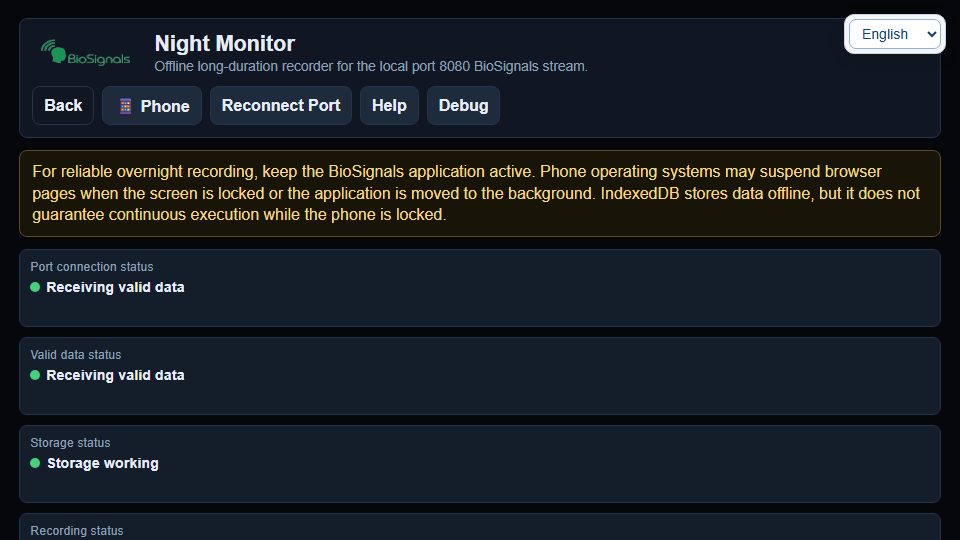
Operating sequence and interpretation
For a long recording, keep the application running, the device powered and the browser available; Dim Display does not guarantee recording through device sleep or operating-system suspension. Enter a private session label, review automatic start and hours/minutes, then Start New Recording. Add Marker notes an event; Stop and Finalize completes the recording. After interruption choose deliberately between continuing the same session, finalizing it or viewing saved data. Review playback speed, window and signal selection, then export current/saved CSV or ZIP. Verify downloads before clearing browser storage. Offline recording still requires a functioning local sensor stream.
Controls on this screen (36)
Control names below quote the interface’s existing labels so you can recognize them; their displayed language can vary. Only use a control when it is available. A hidden or disabled control is not an invitation to bypass a prerequisite.
| On-screen label | How to use it |
|---|---|
| Back | Return to the previous screen. Finish and save your exercise/recording first; navigation is not a save command. |
| Phone | Select the actual device, supported signal or displayed mode. Changing the choice does not add a sensor or validate an absent channel. Compare results only under equivalent settings. |
| Reconnect Port | Retry the page’s connection after verifying that the sensor application is running. Do not repeatedly restart a good recording; check status and quality first. |
| Help | Open or close this screen’s instructions. Read its task-specific rules before starting. |
| Debug | Set this labelled option before starting, using its shown units/options. Check the effect on screen and preserve the assigned exercise; changing a preference does not save a measurement. |
| Continue recording in the same session | Start or stop this page’s local data capture according to its current button label. Exercise scoring and cloud recording are separate. |
| Finalize the previous session | End the named exercise or finalize its recording as labelled. Review the result and export before leaving. An early end may make an assessment incomplete. |
| View saved data | Open the feature’s saved sessions. Select the intended date/session before viewing or exporting. Local history is not automatically cloud history. |
| session Name | Set this labelled option before starting, using its shown units/options. Check the effect on screen and preserve the assigned exercise; changing a preference does not save a measurement. |
| patient Id | Set this labelled option before starting, using its shown units/options. Check the effect on screen and preserve the assigned exercise; changing a preference does not save a measurement. |
| auto Mode Enabled | Set this labelled option before starting, using its shown units/options. Check the effect on screen and preserve the assigned exercise; changing a preference does not save a measurement. |
| auto Duration Hours | Set this labelled option before starting, using its shown units/options. Check the effect on screen and preserve the assigned exercise; changing a preference does not save a measurement. |
| auto Duration Minutes | Set this labelled option before starting, using its shown units/options. Check the effect on screen and preserve the assigned exercise; changing a preference does not save a measurement. |
| Start New Recording | Start or stop this page’s local data capture according to its current button label. Exercise scoring and cloud recording are separate. |
| Stop and Finalize | Start or stop this page’s local data capture according to its current button label. Exercise scoring and cloud recording are separate. |
| Add Marker | Add a time marker and save its note during recording. A marker is an annotation, not another sensor measurement. Avoid unnecessary personal details. |
| View Saved Sessions | Open the feature’s saved sessions. Select the intended date/session before viewing or exporting. Local history is not automatically cloud history. |
| Export Current Session | Download the selected session, table or history in the stated format. Check the file and its scope; store it privately. Export does not email it or prove cloud backup. |
| Dim Display | Set this labelled option before starting, using its shown units/options. Check the effect on screen and preserve the assigned exercise; changing a preference does not save a measurement. |
| Chart Setup | Open the named result/table/tab or navigate the selected record. Confirm the current session and available channels before interpretation. Viewing does not start a new sensor measurement. |
| Open CSV / ZIP Files | Download the selected session, table or history in the stated format. Check the file and its scope; store it privately. Export does not email it or prove cloud backup. |
| Open Export Folder | Download the selected session, table or history in the stated format. Check the file and its scope; store it privately. Export does not email it or prove cloud backup. |
| export File | Download the selected session, table or history in the stated format. Check the file and its scope; store it privately. Export does not email it or prove cloud backup. |
| Close | Open the feature’s saved sessions. Select the intended date/session before viewing or exporting. Local history is not automatically cloud history. |
| Play | Open the feature’s saved sessions. Select the intended date/session before viewing or exporting. Local history is not automatically cloud history. |
| Pause | Open the feature’s saved sessions. Select the intended date/session before viewing or exporting. Local history is not automatically cloud history. |
| x1 x2 x5 x10 | Open the feature’s saved sessions. Select the intended date/session before viewing or exporting. Local history is not automatically cloud history. |
| Short Medium Wide Full session | Move the visible chart window or change its scale. Compare the same time range when reviewing; zoom does not alter the saved measurements. |
| Choose Signals | Open the feature’s saved sessions. Select the intended date/session before viewing or exporting. Local history is not automatically cloud history. |
| Previous | Open the named result/table/tab or navigate the selected record. Confirm the current session and available channels before interpretation. Viewing does not start a new sensor measurement. |
| Next | Open the named result/table/tab or navigate the selected record. Confirm the current session and available channels before interpretation. Viewing does not start a new sensor measurement. |
| Close | Open or close this screen’s instructions. Read its task-specific rules before starting. |
| Cancel | Close the current panel. This does not necessarily stop the exercise, media or a separate recording. |
| Save Marker | Add a time marker and save its note during recording. A marker is an annotation, not another sensor measurement. Avoid unnecessary personal details. |
| Cancel | End the named exercise or finalize its recording as labelled. Review the result and export before leaving. An early end may make an assessment incomplete. |
| Stop and Finalize | End the named exercise or finalize its recording as labelled. Review the result and export before leaving. An early end may make an assessment incomplete. |
Secure Sessions Report
Open training screen ↗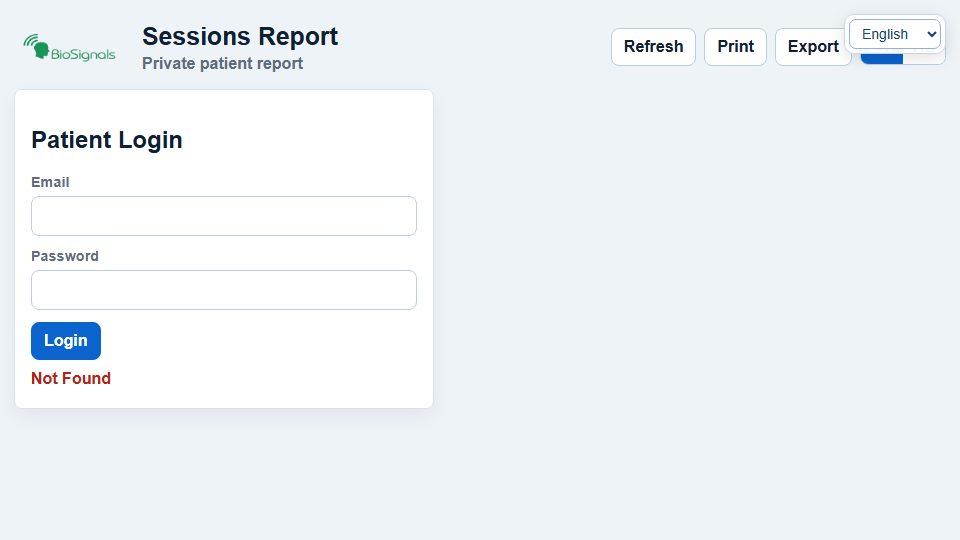
Operating sequence and interpretation
Sign in with your own authorized email/password, never another customer’s credentials. Overview summarizes available records; Progress compares time periods; Sessions opens individual sessions; Heart and Physiology shows available signal information; Export and Print prepares output. Set dates and quality filters before Load progress. For a selected session set start/end seconds and Load charts; Reset zoom restores the view. Choose CSV/JSON and summary/detailed scope before Generate. Print summary, detailed report and selected session are different outputs. Empty charts or unavailable measures must not be filled with guessed data. Log out on a shared computer.
Controls on this screen (37)
Control names below quote the interface’s existing labels so you can recognize them; their displayed language can vary. Only use a control when it is available. A hidden or disabled control is not an invitation to bypass a prerequisite.
| On-screen label | How to use it |
|---|---|
| Refresh | Open the named result/table/tab or navigate the selected record. Confirm the current session and available channels before interpretation. Viewing does not start a new sensor measurement. |
| Print the selected report using the browser dialog; check session/date, page orientation, preview and destination. Saving as PDF creates a private copy, not an emailed report. | |
| Export | Download the selected session, table or history in the stated format. Check the file and its scope; store it privately. Export does not email it or prove cloud backup. |
| Logout | Use only your authorized account details. Do not share credentials or enter them on another site; log out when finished on a shared device. |
| EN | Choose the interface language. This changes labels, not stored measurements. Some existing media or older screens may retain another language. |
| HE | Choose the interface language. This changes labels, not stored measurements. Some existing media or older screens may retain another language. |
| Use only your authorized account details. Do not share credentials or enter them on another site; log out when finished on a shared device. | |
| Password | Use only your authorized account details. Do not share credentials or enter them on another site; log out when finished on a shared device. |
| Login | Use only your authorized account details. Do not share credentials or enter them on another site; log out when finished on a shared device. |
| Overview | Open the named result/table/tab or navigate the selected record. Confirm the current session and available channels before interpretation. Viewing does not start a new sensor measurement. |
| Progress | Open the named result/table/tab or navigate the selected record. Confirm the current session and available channels before interpretation. Viewing does not start a new sensor measurement. |
| Sessions | Open the feature’s saved sessions. Select the intended date/session before viewing or exporting. Local history is not automatically cloud history. |
| Heart and Physiology | Set this labelled option before starting, using its shown units/options. Check the effect on screen and preserve the assigned exercise; changing a preference does not save a measurement. |
| Export and Print | Download the selected session, table or history in the stated format. Check the file and its scope; store it privately. Export does not email it or prove cloud backup. |
| Comparison | Choose, enable, play, stop or adjust the labelled sound/media. A deliberate click may be required for playback. Check output and comfortable volume; this does not start measurement saving. |
| Quality | Open the named result/table/tab or navigate the selected record. Confirm the current session and available channels before interpretation. Viewing does not start a new sensor measurement. |
| From | Filter the displayed list by search, date or order without changing saved recordings. Clear filters if an expected session is missing. |
| To | Filter the displayed list by search, date or order without changing saved recordings. Clear filters if an expected session is missing. |
| Load progress | Open the named result/table/tab or navigate the selected record. Confirm the current session and available channels before interpretation. Viewing does not start a new sensor measurement. |
| Patient | Open the named result/table/tab or navigate the selected record. Confirm the current session and available channels before interpretation. Viewing does not start a new sensor measurement. |
| Expert | Open the named result/table/tab or navigate the selected record. Confirm the current session and available channels before interpretation. Viewing does not start a new sensor measurement. |
| Previous | Open the named result/table/tab or navigate the selected record. Confirm the current session and available channels before interpretation. Viewing does not start a new sensor measurement. |
| Next | Open the named result/table/tab or navigate the selected record. Confirm the current session and available channels before interpretation. Viewing does not start a new sensor measurement. |
| Print summary | Print the selected report using the browser dialog; check session/date, page orientation, preview and destination. Saving as PDF creates a private copy, not an emailed report. |
| Print detailed report | Print the selected report using the browser dialog; check session/date, page orientation, preview and destination. Saving as PDF creates a private copy, not an emailed report. |
| Print selected session | Print the selected report using the browser dialog; check session/date, page orientation, preview and destination. Saving as PDF creates a private copy, not an emailed report. |
| Return to list | Return to the previous screen. Finish and save your exercise/recording first; navigation is not a save command. |
| Previous session | Open the named result/table/tab or navigate the selected record. Confirm the current session and available channels before interpretation. Viewing does not start a new sensor measurement. |
| Next session | Open the named result/table/tab or navigate the selected record. Confirm the current session and available channels before interpretation. Viewing does not start a new sensor measurement. |
| Start seconds | Start the named exercise, test or guidance after preparation and any required calibration. This is not automatically the separate Save Data function. |
| End seconds | Set this labelled option before starting, using its shown units/options. Check the effect on screen and preserve the assigned exercise; changing a preference does not save a measurement. |
| Load charts | Open the named result/table/tab or navigate the selected record. Confirm the current session and available channels before interpretation. Viewing does not start a new sensor measurement. |
| Reset zoom | Move the visible chart window or change its scale. Compare the same time range when reviewing; zoom does not alter the saved measurements. |
| Format | Download the selected session, table or history in the stated format. Check the file and its scope; store it privately. Export does not email it or prove cloud backup. |
| Report type | Download the selected session, table or history in the stated format. Check the file and its scope; store it privately. Export does not email it or prove cloud backup. |
| Generate | Download the selected session, table or history in the stated format. Check the file and its scope; store it privately. Export does not email it or prove cloud backup. |
| Cancel | Download the selected session, table or history in the stated format. Check the file and its scope; store it privately. Export does not email it or prove cloud backup. |
Calm Memory Game
Open training screen ↗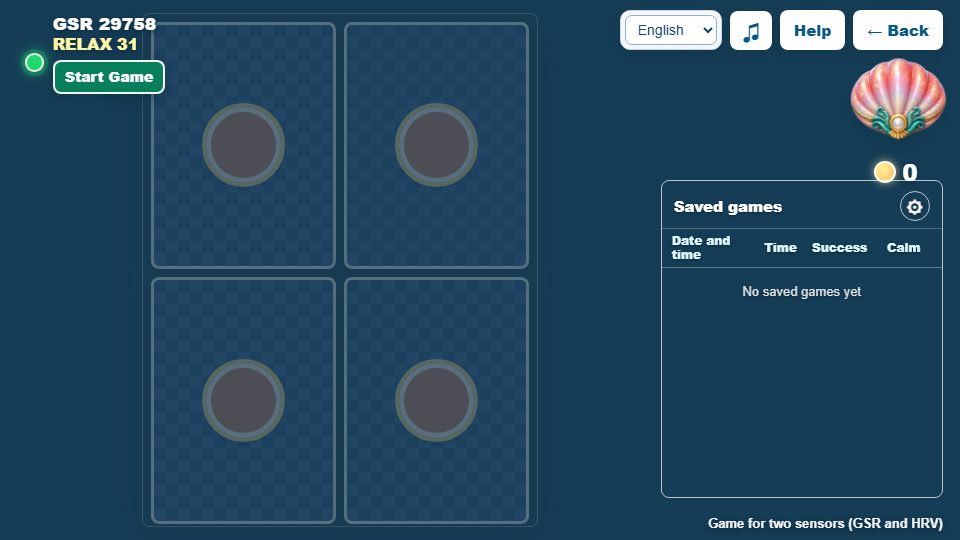
Operating sequence and interpretation
Read Help and the relaxation threshold before Start Game. Beginning resets the visible score and starts a 30-second calibration that requires valid live GSR. Reveal cards to find pairs while maintaining comfortable regulation, not only speed. Brief isolated movement is not equivalent to sustained rising conductance; a zero reading requires checking the sensor. End through the game’s completion flow and review History. Success/memory points and relaxation points are separate. Settings alter the threshold; music is optional. Browser data capture and game history are separate records.
Controls on this screen (22)
Control names below quote the interface’s existing labels so you can recognize them; their displayed language can vary. Only use a control when it is available. A hidden or disabled control is not an invitation to bypass a prerequisite.
| On-screen label | How to use it |
|---|---|
| Back | Return to the previous screen. Finish and save your exercise/recording first; navigation is not a save command. |
| Retry | Retry the page’s connection after verifying that the sensor application is running. Do not repeatedly restart a good recording; check status and quality first. |
| Device | Select the actual device, supported signal or displayed mode. Changing the choice does not add a sensor or validate an absent channel. Compare results only under equivalent settings. |
| Phone | Select the actual device, supported signal or displayed mode. Changing the choice does not add a sensor or validate an absent channel. Compare results only under equivalent settings. |
| Help | Open or close this screen’s instructions. Read its task-specific rules before starting. |
| Start Save Data | Start or stop this page’s local data capture according to its current button label. Exercise scoring and cloud recording are separate. |
| Read Saved Data | Open the feature’s saved sessions. Select the intended date/session before viewing or exporting. Local history is not automatically cloud history. |
| Fullscreen | Enter/exit fullscreen. It changes layout only, not sensor quality, recording or account login. |
| Close | Open or close this screen’s instructions. Read its task-specific rules before starting. |
| Close | Open the feature’s saved sessions. Select the intended date/session before viewing or exporting. Local history is not automatically cloud history. |
| View all rows | Open the named result/table/tab or navigate the selected record. Confirm the current session and available channels before interpretation. Viewing does not start a new sensor measurement. |
| View HRV rows | Open the named result/table/tab or navigate the selected record. Confirm the current session and available channels before interpretation. Viewing does not start a new sensor measurement. |
| Export CSV | Download the selected session, table or history in the stated format. Check the file and its scope; store it privately. Export does not email it or prove cloud backup. |
| Close | Close the current panel. This does not necessarily stop the exercise, media or a separate recording. |
| Window Position | Move the visible chart window or change its scale. Compare the same time range when reviewing; zoom does not alter the saved measurements. |
| Zoom Window | Move the visible chart window or change its scale. Compare the same time range when reviewing; zoom does not alter the saved measurements. |
| History | Open the feature’s saved sessions. Select the intended date/session before viewing or exporting. Local history is not automatically cloud history. |
| ♫ | Choose, enable, play, stop or adjust the labelled sound/media. A deliberate click may be required for playback. Check output and comfortable volume; this does not start measurement saving. |
| ← Back | Return to the previous screen. Finish and save your exercise/recording first; navigation is not a save command. |
| Start Game | Start the named exercise, test or guidance after preparation and any required calibration. This is not automatically the separate Save Data function. |
| ⚙ | Set this labelled option before starting, using its shown units/options. Check the effect on screen and preserve the assigned exercise; changing a preference does not save a measurement. |
| memory Threshold | Set this labelled option before starting, using its shown units/options. Check the effect on screen and preserve the assigned exercise; changing a preference does not save a measurement. |
Study Room Journey
Open training screen ↗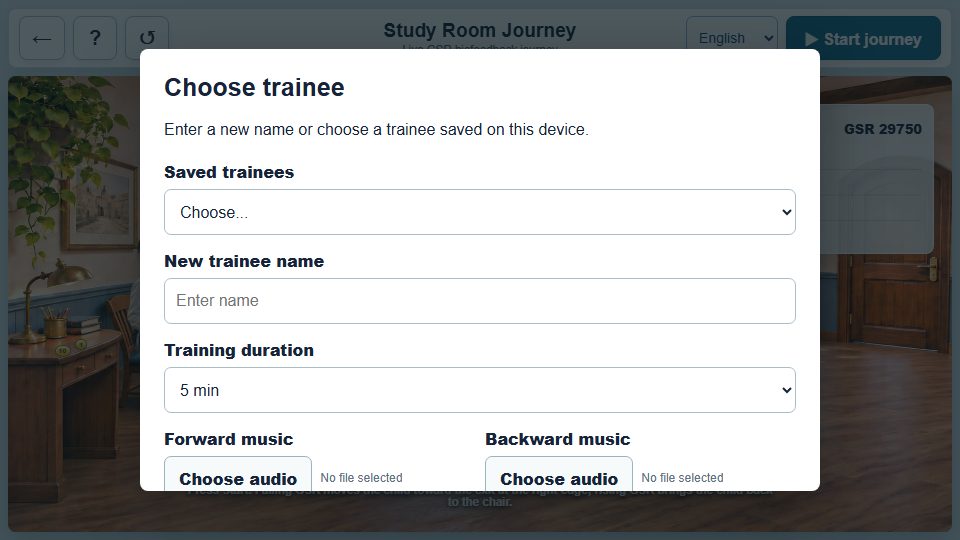
Operating sequence and interpretation
Start journey opens setup: choose a saved trainee or a private new name, duration and optional forward/backward audio files. Decide whether the timer pauses on invalid signal. Continue starts the configured journey. If therapist controls are shown, Forward, Stop and Backward are manual movement interventions, not proof of signal-driven movement. Resume/Discard concerns an unfinished local session. At the end view the summary/history; export/import history for backup and switch trainee before another person uses the page.
Controls on this screen (26)
Control names below quote the interface’s existing labels so you can recognize them; their displayed language can vary. Only use a control when it is available. A hidden or disabled control is not an invitation to bypass a prerequisite.
| On-screen label | How to use it |
|---|---|
| ← | Return to the previous screen. Finish and save your exercise/recording first; navigation is not a save command. |
| Open or close this screen’s instructions. Read its task-specific rules before starting. | |
| ↺ | Open the feature’s saved sessions. Select the intended date/session before viewing or exporting. Local history is not automatically cloud history. |
| ▶ Start journey | Start the named exercise, test or guidance after preparation and any required calibration. This is not automatically the separate Save Data function. |
| → Forward | Set this labelled option before starting, using its shown units/options. Check the effect on screen and preserve the assigned exercise; changing a preference does not save a measurement. |
| Stop | End the named exercise or finalize its recording as labelled. Review the result and export before leaving. An early end may make an assessment incomplete. |
| ← Backward | Return to the previous screen. Finish and save your exercise/recording first; navigation is not a save command. |
| Resume | Pause or resume the function named on the button (exercise, scoring, guidance, scrolling, replay or sound). Verify its state; other recording can continue. |
| Discard | Remove the selected item or history only after checking the confirmation and exporting anything needed. Clearing history can be irreversible. For media lists this removes a media choice, not a clinical record. |
| Saved trainees | Open the feature’s saved sessions. Select the intended date/session before viewing or exporting. Local history is not automatically cloud history. |
| New trainee name | Set this labelled option before starting, using its shown units/options. Check the effect on screen and preserve the assigned exercise; changing a preference does not save a measurement. |
| Training duration | Set this labelled option before starting, using its shown units/options. Check the effect on screen and preserve the assigned exercise; changing a preference does not save a measurement. |
| Forward music | Select a compatible file previously exported for this feature. Keep a backup first and verify dates, units and session selection after loading. Do not import someone else’s private records. |
| Backward music | Select a compatible file previously exported for this feature. Keep a backup first and verify dates, units and session selection after loading. Do not import someone else’s private records. |
| When the signal is invalid | Pause or resume the function named on the button (exercise, scoring, guidance, scrolling, replay or sound). Verify its state; other recording can continue. |
| therapist Mode | Set this labelled option before starting, using its shown units/options. Check the effect on screen and preserve the assigned exercise; changing a preference does not save a measurement. |
| Continue | Set this labelled option before starting, using its shown units/options. Check the effect on screen and preserve the assigned exercise; changing a preference does not save a measurement. |
| Trainee | Open the feature’s saved sessions. Select the intended date/session before viewing or exporting. Local history is not automatically cloud history. |
| history Import | Select a compatible file previously exported for this feature. Keep a backup first and verify dates, units and session selection after loading. Do not import someone else’s private records. |
| Export | Download the selected session, table or history in the stated format. Check the file and its scope; store it privately. Export does not email it or prove cloud backup. |
| Import | Select a compatible file previously exported for this feature. Keep a backup first and verify dates, units and session selection after loading. Do not import someone else’s private records. |
| Switch trainee | Set this labelled option before starting, using its shown units/options. Check the effect on screen and preserve the assigned exercise; changing a preference does not save a measurement. |
| Close | Open the feature’s saved sessions. Select the intended date/session before viewing or exporting. Local history is not automatically cloud history. |
| Close | Open or close this screen’s instructions. Read its task-specific rules before starting. |
| History | Open the feature’s saved sessions. Select the intended date/session before viewing or exporting. Local history is not automatically cloud history. |
| Play again | Set this labelled option before starting, using its shown units/options. Check the effect on screen and preserve the assigned exercise; changing a preference does not save a measurement. |
Unity Off-road — Test Screen / Test Screen 2
Open training screen ↗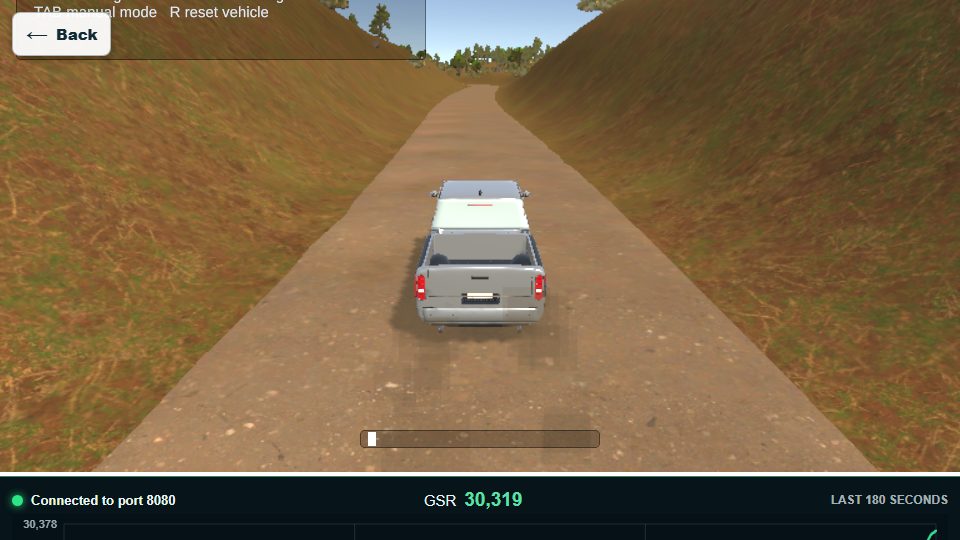
Operating sequence and interpretation
Both selector cards open this same experimental off-road page. Wait for the game assets to load, check the visible connection state and follow the displayed controls. Use the supported application environment and the assigned GSR input. A rendered road or moving vehicle alone does not prove a genuine sensor connection. Treat this as a test screen, not a substitute for a prescribed completed training session or guaranteed cloud report. If loading stalls, check internet and device/browser support before retrying.
Controls on this screen (0)
Control names below quote the interface’s existing labels so you can recognize them; their displayed language can vary. Only use a control when it is available. A hidden or disabled control is not an invitation to bypass a prerequisite.
| On-screen label | How to use it |
|---|
Sky Calm Adventure
Open training screen ↗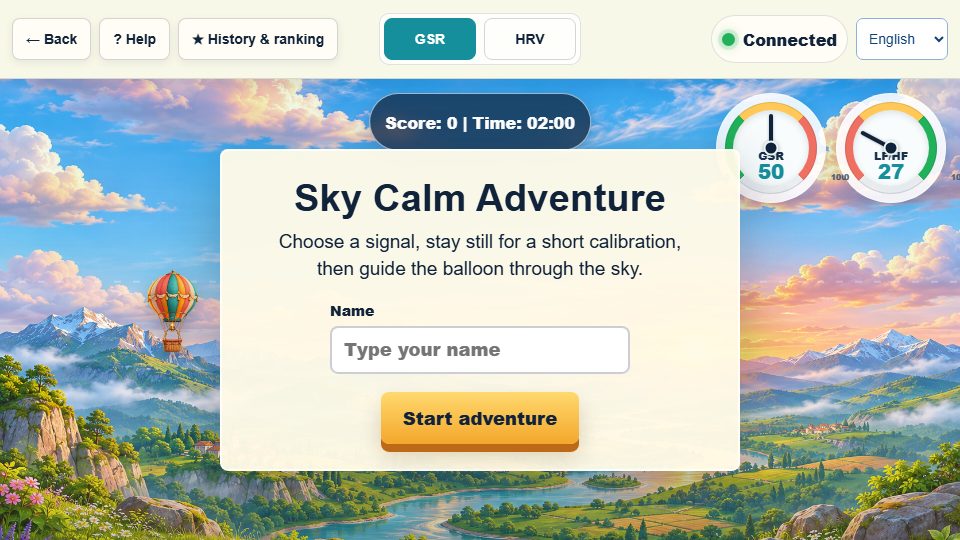
Operating sequence and interpretation
Choose GSR or HRV only if that input is supported, enter a private player name and Start adventure. Complete the displayed calibration before interpreting balloon movement or scores. Use Finish and view results to end the adventure and Results to inspect it. Width/height zoom belongs to chart viewing; Start Save Data is a separate browser recorder. Do not switch signal modes midway and compare scores as though the rules were unchanged.
Controls on this screen (21)
Control names below quote the interface’s existing labels so you can recognize them; their displayed language can vary. Only use a control when it is available. A hidden or disabled control is not an invitation to bypass a prerequisite.
| On-screen label | How to use it |
|---|---|
| Back | Return to the previous screen. Finish and save your exercise/recording first; navigation is not a save command. |
| Phone | Select the actual device, supported signal or displayed mode. Changing the choice does not add a sensor or validate an absent channel. Compare results only under equivalent settings. |
| Help | Open or close this screen’s instructions. Read its task-specific rules before starting. |
| Start Save Data | Start or stop this page’s local data capture according to its current button label. Exercise scoring and cloud recording are separate. |
| Read Saved Data | Open the feature’s saved sessions. Select the intended date/session before viewing or exporting. Local history is not automatically cloud history. |
| Fullscreen | Enter/exit fullscreen. It changes layout only, not sensor quality, recording or account login. |
| Width Zoom 1.0x | Move the visible chart window or change its scale. Compare the same time range when reviewing; zoom does not alter the saved measurements. |
| Height Zoom 1.0x | Move the visible chart window or change its scale. Compare the same time range when reviewing; zoom does not alter the saved measurements. |
| Close | Open or close this screen’s instructions. Read its task-specific rules before starting. |
| Close | Open the feature’s saved sessions. Select the intended date/session before viewing or exporting. Local history is not automatically cloud history. |
| View signals rows | Open the named result/table/tab or navigate the selected record. Confirm the current session and available channels before interpretation. Viewing does not start a new sensor measurement. |
| View HRV rows | Open the named result/table/tab or navigate the selected record. Confirm the current session and available channels before interpretation. Viewing does not start a new sensor measurement. |
| Save CSV files | Download the selected session, table or history in the stated format. Check the file and its scope; store it privately. Export does not email it or prove cloud backup. |
| ← Back | Return to the previous screen. Finish and save your exercise/recording first; navigation is not a save command. |
| ★ Results | Open the named result/table/tab or navigate the selected record. Confirm the current session and available channels before interpretation. Viewing does not start a new sensor measurement. |
| ■ Finish and view results | End the named exercise or finalize its recording as labelled. Review the result and export before leaving. An early end may make an assessment incomplete. |
| GSR | Set this labelled option before starting, using its shown units/options. Check the effect on screen and preserve the assigned exercise; changing a preference does not save a measurement. |
| HRV | Set this labelled option before starting, using its shown units/options. Check the effect on screen and preserve the assigned exercise; changing a preference does not save a measurement. |
| Name | Set this labelled option before starting, using its shown units/options. Check the effect on screen and preserve the assigned exercise; changing a preference does not save a measurement. |
| Start adventure | Start the named exercise, test or guidance after preparation and any required calibration. This is not automatically the separate Save Data function. |
| Close | Close the current panel. This does not necessarily stop the exercise, media or a separate recording. |
NeuroBalance
Open training screen ↗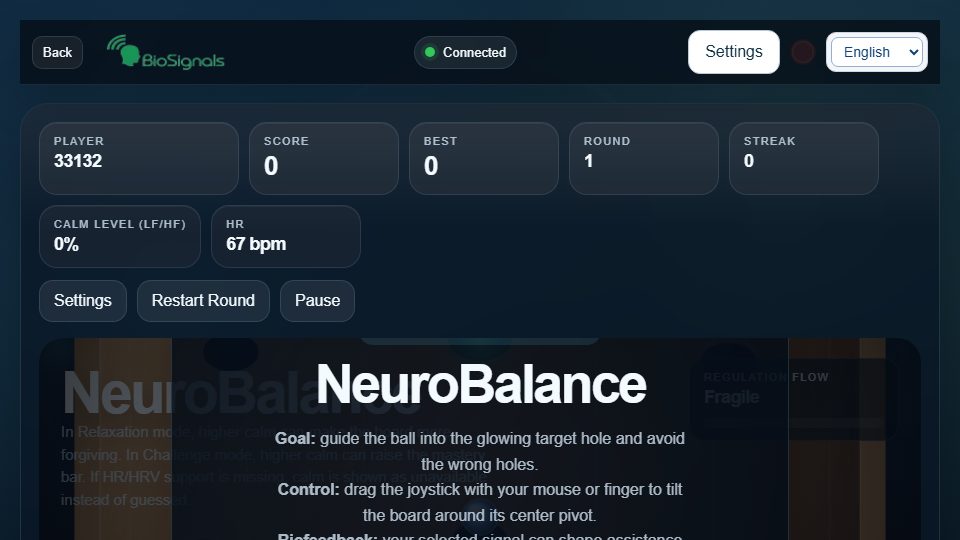
Operating sequence and interpretation
Open Settings before Start to choose supported feedback source, calm-to-difficulty mapping and regular/reverse control. Adjust music/effects and enable audio if desired. Read the game’s instructions before balancing; Pause/Resume manage play, Restart Round begins another round and may reset progress. Keep posture comfortable and verify that the chosen signal actually exists. Export saved measurements separately from observing a game score.
Controls on this screen (33)
Control names below quote the interface’s existing labels so you can recognize them; their displayed language can vary. Only use a control when it is available. A hidden or disabled control is not an invitation to bypass a prerequisite.
| On-screen label | How to use it |
|---|---|
| Back | Return to the previous screen. Finish and save your exercise/recording first; navigation is not a save command. |
| Retry | Retry the page’s connection after verifying that the sensor application is running. Do not repeatedly restart a good recording; check status and quality first. |
| Device | Select the actual device, supported signal or displayed mode. Changing the choice does not add a sensor or validate an absent channel. Compare results only under equivalent settings. |
| Phone | Select the actual device, supported signal or displayed mode. Changing the choice does not add a sensor or validate an absent channel. Compare results only under equivalent settings. |
| Help | Open or close this screen’s instructions. Read its task-specific rules before starting. |
| Start Save Data | Start or stop this page’s local data capture according to its current button label. Exercise scoring and cloud recording are separate. |
| Read Saved Data | Open the feature’s saved sessions. Select the intended date/session before viewing or exporting. Local history is not automatically cloud history. |
| Fullscreen | Enter/exit fullscreen. It changes layout only, not sensor quality, recording or account login. |
| Settings | Set this labelled option before starting, using its shown units/options. Check the effect on screen and preserve the assigned exercise; changing a preference does not save a measurement. |
| Restart Round | Restart/reset the named exercise, round or view. Save useful results first; reset is not a backup. Reset zoom only changes chart viewing. |
| Pause | Pause or resume the function named on the button (exercise, scoring, guidance, scrolling, replay or sound). Verify its state; other recording can continue. |
| Start | Start the named exercise, test or guidance after preparation and any required calibration. This is not automatically the separate Save Data function. |
| Resume | Pause or resume the function named on the button (exercise, scoring, guidance, scrolling, replay or sound). Verify its state; other recording can continue. |
| Hide | Close the current panel. This does not necessarily stop the exercise, media or a separate recording. |
| LF/HF Epoch GSR P1 | Select the actual device, supported signal or displayed mode. Changing the choice does not add a sensor or validate an absent channel. Compare results only under equivalent settings. |
| More Calm = Less Difficulty More Calm = More Challenge Balanced | Set this labelled option before starting, using its shown units/options. Check the effect on screen and preserve the assigned exercise; changing a preference does not save a measurement. |
| Regular Reverse | Set this labelled option before starting, using its shown units/options. Check the effect on screen and preserve the assigned exercise; changing a preference does not save a measurement. |
| music | Choose, enable, play, stop or adjust the labelled sound/media. A deliberate click may be required for playback. Check output and comfortable volume; this does not start measurement saving. |
| music Volume | Choose, enable, play, stop or adjust the labelled sound/media. A deliberate click may be required for playback. Check output and comfortable volume; this does not start measurement saving. |
| effects Volume | Set this labelled option before starting, using its shown units/options. Check the effect on screen and preserve the assigned exercise; changing a preference does not save a measurement. |
| music Url | Choose, enable, play, stop or adjust the labelled sound/media. A deliberate click may be required for playback. Check output and comfortable volume; this does not start measurement saving. |
| Choose saved music | Open the feature’s saved sessions. Select the intended date/session before viewing or exporting. Local history is not automatically cloud history. |
| Apply Music URL | Choose, enable, play, stop or adjust the labelled sound/media. A deliberate click may be required for playback. Check output and comfortable volume; this does not start measurement saving. |
| Save URL | Choose, enable, play, stop or adjust the labelled sound/media. A deliberate click may be required for playback. Check output and comfortable volume; this does not start measurement saving. |
| Enable Audio | Choose, enable, play, stop or adjust the labelled sound/media. A deliberate click may be required for playback. Check output and comfortable volume; this does not start measurement saving. |
| Close | Open or close this screen’s instructions. Read its task-specific rules before starting. |
| Close | Open the feature’s saved sessions. Select the intended date/session before viewing or exporting. Local history is not automatically cloud history. |
| View signals rows | Open the named result/table/tab or navigate the selected record. Confirm the current session and available channels before interpretation. Viewing does not start a new sensor measurement. |
| View HRV rows | Open the named result/table/tab or navigate the selected record. Confirm the current session and available channels before interpretation. Viewing does not start a new sensor measurement. |
| Save CSV files | Download the selected session, table or history in the stated format. Check the file and its scope; store it privately. Export does not email it or prove cloud backup. |
| Close | Close the current panel. This does not necessarily stop the exercise, media or a separate recording. |
| Window Position | Move the visible chart window or change its scale. Compare the same time range when reviewing; zoom does not alter the saved measurements. |
| Zoom Window | Move the visible chart window or change its scale. Compare the same time range when reviewing; zoom does not alter the saved measurements. |
Mind Runner
Open training screen ↗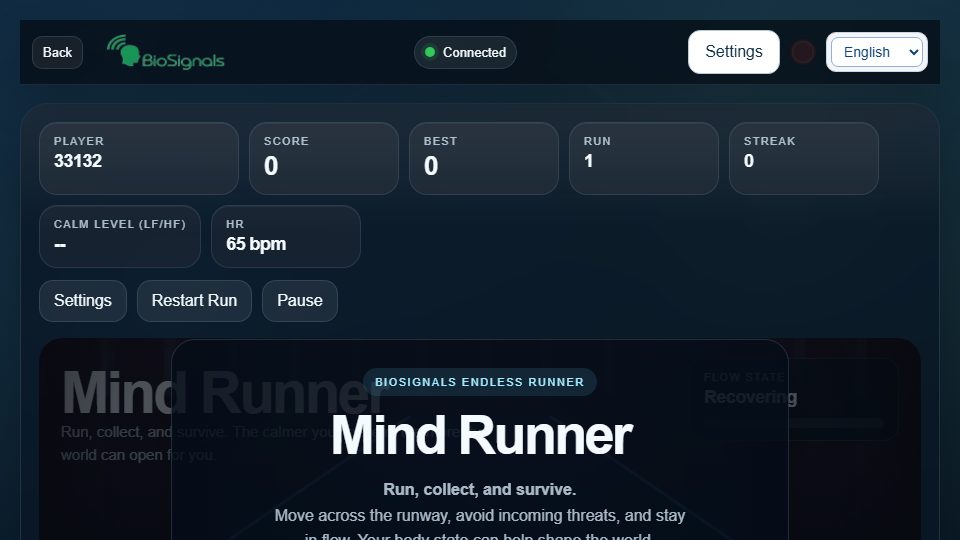
Operating sequence and interpretation
Before running, use Settings to select a supported signal source, the desired calm/difficulty mapping and control orientation. Confirm audio and effects at comfortable levels, then Start. Pause/Resume are for play; Restart Round is a new attempt, not a recording backup. Compare rounds only with the same settings and reliable data. Save Data/history/export are separate from the running animation.
Controls on this screen (33)
Control names below quote the interface’s existing labels so you can recognize them; their displayed language can vary. Only use a control when it is available. A hidden or disabled control is not an invitation to bypass a prerequisite.
| On-screen label | How to use it |
|---|---|
| Back | Return to the previous screen. Finish and save your exercise/recording first; navigation is not a save command. |
| Retry | Retry the page’s connection after verifying that the sensor application is running. Do not repeatedly restart a good recording; check status and quality first. |
| Device | Select the actual device, supported signal or displayed mode. Changing the choice does not add a sensor or validate an absent channel. Compare results only under equivalent settings. |
| Phone | Select the actual device, supported signal or displayed mode. Changing the choice does not add a sensor or validate an absent channel. Compare results only under equivalent settings. |
| Help | Open or close this screen’s instructions. Read its task-specific rules before starting. |
| Start Save Data | Start or stop this page’s local data capture according to its current button label. Exercise scoring and cloud recording are separate. |
| Read Saved Data | Open the feature’s saved sessions. Select the intended date/session before viewing or exporting. Local history is not automatically cloud history. |
| Fullscreen | Enter/exit fullscreen. It changes layout only, not sensor quality, recording or account login. |
| Settings | Set this labelled option before starting, using its shown units/options. Check the effect on screen and preserve the assigned exercise; changing a preference does not save a measurement. |
| Restart Round | Restart/reset the named exercise, round or view. Save useful results first; reset is not a backup. Reset zoom only changes chart viewing. |
| Pause | Pause or resume the function named on the button (exercise, scoring, guidance, scrolling, replay or sound). Verify its state; other recording can continue. |
| Start | Start the named exercise, test or guidance after preparation and any required calibration. This is not automatically the separate Save Data function. |
| Resume | Pause or resume the function named on the button (exercise, scoring, guidance, scrolling, replay or sound). Verify its state; other recording can continue. |
| Hide | Close the current panel. This does not necessarily stop the exercise, media or a separate recording. |
| LF/HF Epoch GSR P1 | Select the actual device, supported signal or displayed mode. Changing the choice does not add a sensor or validate an absent channel. Compare results only under equivalent settings. |
| More Calm = Less Difficulty More Calm = More Challenge Balanced | Set this labelled option before starting, using its shown units/options. Check the effect on screen and preserve the assigned exercise; changing a preference does not save a measurement. |
| Regular Reverse | Set this labelled option before starting, using its shown units/options. Check the effect on screen and preserve the assigned exercise; changing a preference does not save a measurement. |
| music | Choose, enable, play, stop or adjust the labelled sound/media. A deliberate click may be required for playback. Check output and comfortable volume; this does not start measurement saving. |
| music Volume | Choose, enable, play, stop or adjust the labelled sound/media. A deliberate click may be required for playback. Check output and comfortable volume; this does not start measurement saving. |
| effects Volume | Set this labelled option before starting, using its shown units/options. Check the effect on screen and preserve the assigned exercise; changing a preference does not save a measurement. |
| music Url | Choose, enable, play, stop or adjust the labelled sound/media. A deliberate click may be required for playback. Check output and comfortable volume; this does not start measurement saving. |
| Choose saved music | Open the feature’s saved sessions. Select the intended date/session before viewing or exporting. Local history is not automatically cloud history. |
| Apply Music URL | Choose, enable, play, stop or adjust the labelled sound/media. A deliberate click may be required for playback. Check output and comfortable volume; this does not start measurement saving. |
| Save URL | Choose, enable, play, stop or adjust the labelled sound/media. A deliberate click may be required for playback. Check output and comfortable volume; this does not start measurement saving. |
| Enable Audio | Choose, enable, play, stop or adjust the labelled sound/media. A deliberate click may be required for playback. Check output and comfortable volume; this does not start measurement saving. |
| Close | Open or close this screen’s instructions. Read its task-specific rules before starting. |
| Close | Open the feature’s saved sessions. Select the intended date/session before viewing or exporting. Local history is not automatically cloud history. |
| View signals rows | Open the named result/table/tab or navigate the selected record. Confirm the current session and available channels before interpretation. Viewing does not start a new sensor measurement. |
| View HRV rows | Open the named result/table/tab or navigate the selected record. Confirm the current session and available channels before interpretation. Viewing does not start a new sensor measurement. |
| Save CSV files | Download the selected session, table or history in the stated format. Check the file and its scope; store it privately. Export does not email it or prove cloud backup. |
| Close | Close the current panel. This does not necessarily stop the exercise, media or a separate recording. |
| Window Position | Move the visible chart window or change its scale. Compare the same time range when reviewing; zoom does not alter the saved measurements. |
| Zoom Window | Move the visible chart window or change its scale. Compare the same time range when reviewing; zoom does not alter the saved measurements. |
Brain Control: City of Calm
Open training screen ↗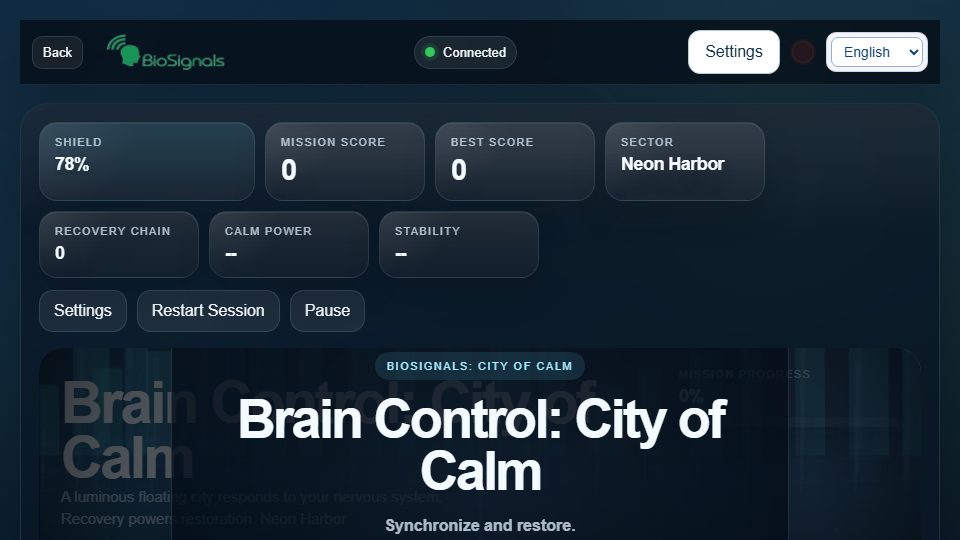
Operating sequence and interpretation
Choose a supported source and mapping in Settings, then Start the city-restoration game. The title does not mean that brain electrical activity is measured; verify the actual input, such as GSR or a supported pulse-derived value. Pause/Resume and Restart Round control the game. Music URL and saved music settings only manage audio. A restored city is game feedback, not evidence of clinical recovery.
Controls on this screen (33)
Control names below quote the interface’s existing labels so you can recognize them; their displayed language can vary. Only use a control when it is available. A hidden or disabled control is not an invitation to bypass a prerequisite.
| On-screen label | How to use it |
|---|---|
| Back | Return to the previous screen. Finish and save your exercise/recording first; navigation is not a save command. |
| Retry | Retry the page’s connection after verifying that the sensor application is running. Do not repeatedly restart a good recording; check status and quality first. |
| Device | Select the actual device, supported signal or displayed mode. Changing the choice does not add a sensor or validate an absent channel. Compare results only under equivalent settings. |
| Phone | Select the actual device, supported signal or displayed mode. Changing the choice does not add a sensor or validate an absent channel. Compare results only under equivalent settings. |
| Help | Open or close this screen’s instructions. Read its task-specific rules before starting. |
| Start Save Data | Start or stop this page’s local data capture according to its current button label. Exercise scoring and cloud recording are separate. |
| Read Saved Data | Open the feature’s saved sessions. Select the intended date/session before viewing or exporting. Local history is not automatically cloud history. |
| Fullscreen | Enter/exit fullscreen. It changes layout only, not sensor quality, recording or account login. |
| Settings | Set this labelled option before starting, using its shown units/options. Check the effect on screen and preserve the assigned exercise; changing a preference does not save a measurement. |
| Restart Round | Restart/reset the named exercise, round or view. Save useful results first; reset is not a backup. Reset zoom only changes chart viewing. |
| Pause | Pause or resume the function named on the button (exercise, scoring, guidance, scrolling, replay or sound). Verify its state; other recording can continue. |
| Start | Start the named exercise, test or guidance after preparation and any required calibration. This is not automatically the separate Save Data function. |
| Resume | Pause or resume the function named on the button (exercise, scoring, guidance, scrolling, replay or sound). Verify its state; other recording can continue. |
| Hide | Close the current panel. This does not necessarily stop the exercise, media or a separate recording. |
| LF/HF Epoch GSR P1 | Select the actual device, supported signal or displayed mode. Changing the choice does not add a sensor or validate an absent channel. Compare results only under equivalent settings. |
| More Calm = Less Difficulty More Calm = More Challenge Balanced | Set this labelled option before starting, using its shown units/options. Check the effect on screen and preserve the assigned exercise; changing a preference does not save a measurement. |
| Regular Reverse | Set this labelled option before starting, using its shown units/options. Check the effect on screen and preserve the assigned exercise; changing a preference does not save a measurement. |
| music | Choose, enable, play, stop or adjust the labelled sound/media. A deliberate click may be required for playback. Check output and comfortable volume; this does not start measurement saving. |
| music Volume | Choose, enable, play, stop or adjust the labelled sound/media. A deliberate click may be required for playback. Check output and comfortable volume; this does not start measurement saving. |
| effects Volume | Set this labelled option before starting, using its shown units/options. Check the effect on screen and preserve the assigned exercise; changing a preference does not save a measurement. |
| music Url | Choose, enable, play, stop or adjust the labelled sound/media. A deliberate click may be required for playback. Check output and comfortable volume; this does not start measurement saving. |
| Choose saved music | Open the feature’s saved sessions. Select the intended date/session before viewing or exporting. Local history is not automatically cloud history. |
| Apply Music URL | Choose, enable, play, stop or adjust the labelled sound/media. A deliberate click may be required for playback. Check output and comfortable volume; this does not start measurement saving. |
| Save URL | Choose, enable, play, stop or adjust the labelled sound/media. A deliberate click may be required for playback. Check output and comfortable volume; this does not start measurement saving. |
| Enable Audio | Choose, enable, play, stop or adjust the labelled sound/media. A deliberate click may be required for playback. Check output and comfortable volume; this does not start measurement saving. |
| Close | Open or close this screen’s instructions. Read its task-specific rules before starting. |
| Close | Open the feature’s saved sessions. Select the intended date/session before viewing or exporting. Local history is not automatically cloud history. |
| View signals rows | Open the named result/table/tab or navigate the selected record. Confirm the current session and available channels before interpretation. Viewing does not start a new sensor measurement. |
| View HRV rows | Open the named result/table/tab or navigate the selected record. Confirm the current session and available channels before interpretation. Viewing does not start a new sensor measurement. |
| Save CSV files | Download the selected session, table or history in the stated format. Check the file and its scope; store it privately. Export does not email it or prove cloud backup. |
| Close | Close the current panel. This does not necessarily stop the exercise, media or a separate recording. |
| Window Position | Move the visible chart window or change its scale. Compare the same time range when reviewing; zoom does not alter the saved measurements. |
| Zoom Window | Move the visible chart window or change its scale. Compare the same time range when reviewing; zoom does not alter the saved measurements. |
Bio Prayer
Open training screen ↗
Operating sequence and interpretation
Read the prayer/reader display and set a comfortable scrolling speed. Pause Scroll pauses the reader, not necessarily the sensor or recorder. Check genuine GSR input before interpreting relaxation-responsive scrolling. Start Save Data, Read Saved Data and CSV export manage separate local measurements. The guide language does not translate the prayer text itself; choose a suitable existing text and follow your professional’s exercise instructions.
Controls on this screen (18)
Control names below quote the interface’s existing labels so you can recognize them; their displayed language can vary. Only use a control when it is available. A hidden or disabled control is not an invitation to bypass a prerequisite.
| On-screen label | How to use it |
|---|---|
| Back | Return to the previous screen. Finish and save your exercise/recording first; navigation is not a save command. |
| Retry | Retry the page’s connection after verifying that the sensor application is running. Do not repeatedly restart a good recording; check status and quality first. |
| Device | Select the actual device, supported signal or displayed mode. Changing the choice does not add a sensor or validate an absent channel. Compare results only under equivalent settings. |
| Phone | Select the actual device, supported signal or displayed mode. Changing the choice does not add a sensor or validate an absent channel. Compare results only under equivalent settings. |
| Help | Open or close this screen’s instructions. Read its task-specific rules before starting. |
| Start Save Data | Start or stop this page’s local data capture according to its current button label. Exercise scoring and cloud recording are separate. |
| Read Saved Data | Open the feature’s saved sessions. Select the intended date/session before viewing or exporting. Local history is not automatically cloud history. |
| Fullscreen | Enter/exit fullscreen. It changes layout only, not sensor quality, recording or account login. |
| Speed | Set this labelled option before starting, using its shown units/options. Check the effect on screen and preserve the assigned exercise; changing a preference does not save a measurement. |
| Pause Scroll | Pause or resume the function named on the button (exercise, scoring, guidance, scrolling, replay or sound). Verify its state; other recording can continue. |
| Close | Open or close this screen’s instructions. Read its task-specific rules before starting. |
| Close | Open the feature’s saved sessions. Select the intended date/session before viewing or exporting. Local history is not automatically cloud history. |
| View all rows | Open the named result/table/tab or navigate the selected record. Confirm the current session and available channels before interpretation. Viewing does not start a new sensor measurement. |
| View HRV rows | Open the named result/table/tab or navigate the selected record. Confirm the current session and available channels before interpretation. Viewing does not start a new sensor measurement. |
| Export CSV | Download the selected session, table or history in the stated format. Check the file and its scope; store it privately. Export does not email it or prove cloud backup. |
| Close | Close the current panel. This does not necessarily stop the exercise, media or a separate recording. |
| Window Position | Move the visible chart window or change its scale. Compare the same time range when reviewing; zoom does not alter the saved measurements. |
| Zoom Window | Move the visible chart window or change its scale. Compare the same time range when reviewing; zoom does not alter the saved measurements. |
BioSignals Session Review
Open training screen ↗Operating sequence and interpretation
This is a review entry, not a command to start a new body measurement. Refresh reloads available review content; Back returns to the previous page. Review only records legitimately available in your current context. If no record is available, return to the page where it was recorded or the authorized account report; do not enter someone else’s identity to find data.
Controls on this screen (2)
Control names below quote the interface’s existing labels so you can recognize them; their displayed language can vary. Only use a control when it is available. A hidden or disabled control is not an invitation to bypass a prerequisite.
| On-screen label | How to use it |
|---|---|
| Back | Return to the previous screen. Finish and save your exercise/recording first; navigation is not a save command. |
| Refresh | Open the named result/table/tab or navigate the selected record. Confirm the current session and available channels before interpretation. Viewing does not start a new sensor measurement. |
Local Session Report
Open training screen ↗Operating sequence and interpretation
Open the local recording files/folder with the available file-selection controls. Select the intended session before comparing or printing. Overview, graphs and export refer to the selected local content, not automatically to your cloud account. Check the available channels and time window, then export JSON/CSV or print where offered. Keep originals until the exported report is checked; the browser may need renewed folder permission after restart.
Controls on this screen (28)
Control names below quote the interface’s existing labels so you can recognize them; their displayed language can vary. Only use a control when it is available. A hidden or disabled control is not an invitation to bypass a prerequisite.
| On-screen label | How to use it |
|---|---|
| Add session folder | Select a compatible file previously exported for this feature. Keep a backup first and verify dates, units and session selection after loading. Do not import someone else’s private records. |
| Choose CSV files | Set this labelled option before starting, using its shown units/options. Check the effect on screen and preserve the assigned exercise; changing a preference does not save a measurement. |
| Reset folders | Select or deselect recordings as labelled without deleting original files. Reset folders clears the current folder selection; choose the intended files again before analysis. |
| ↻ | Open the named result/table/tab or navigate the selected record. Confirm the current session and available channels before interpretation. Viewing does not start a new sensor measurement. |
| ⎙ | Print the selected report using the browser dialog; check session/date, page orientation, preview and destination. Saving as PDF creates a private copy, not an emailed report. |
| Export JSON HTML IBI CSV | Download the selected session, table or history in the stated format. Check the file and its scope; store it privately. Export does not email it or prove cloud backup. |
| Open or close this screen’s instructions. Read its task-specific rules before starting. | |
| Latest | Select or deselect recordings as labelled without deleting original files. Reset folders clears the current folder selection; choose the intended files again before analysis. |
| Select all | Select or deselect recordings as labelled without deleting original files. Reset folders clears the current folder selection; choose the intended files again before analysis. |
| Clear | Select or deselect recordings as labelled without deleting original files. Reset folders clears the current folder selection; choose the intended files again before analysis. |
| recording Search | Filter the displayed list by search, date or order without changing saved recordings. Clear filters if an expected session is missing. |
| recording From | Filter the displayed list by search, date or order without changing saved recordings. Clear filters if an expected session is missing. |
| recording To | Filter the displayed list by search, date or order without changing saved recordings. Clear filters if an expected session is missing. |
| Newest first Oldest first | Filter the displayed list by search, date or order without changing saved recordings. Clear filters if an expected session is missing. |
| fallback Picker | Select a compatible file previously exported for this feature. Keep a backup first and verify dates, units and session selection after loading. Do not import someone else’s private records. |
| csv Picker | Select a compatible file previously exported for this feature. Keep a backup first and verify dates, units and session selection after loading. Do not import someone else’s private records. |
| Overview | Open the named result/table/tab or navigate the selected record. Confirm the current session and available channels before interpretation. Viewing does not start a new sensor measurement. |
| Professional Report | Set this labelled option before starting, using its shown units/options. Check the effect on screen and preserve the assigned exercise; changing a preference does not save a measurement. |
| Scientific Explorer | Set this labelled option before starting, using its shown units/options. Check the effect on screen and preserve the assigned exercise; changing a preference does not save a measurement. |
| Heart & HRV | Set this labelled option before starting, using its shown units/options. Check the effect on screen and preserve the assigned exercise; changing a preference does not save a measurement. |
| Data Quality | Set this labelled option before starting, using its shown units/options. Check the effect on screen and preserve the assigned exercise; changing a preference does not save a measurement. |
| Comparison | Set this labelled option before starting, using its shown units/options. Check the effect on screen and preserve the assigned exercise; changing a preference does not save a measurement. |
| Methods | Set this labelled option before starting, using its shown units/options. Check the effect on screen and preserve the assigned exercise; changing a preference does not save a measurement. |
| 1 min | Set this labelled option before starting, using its shown units/options. Check the effect on screen and preserve the assigned exercise; changing a preference does not save a measurement. |
| 5 min | Set this labelled option before starting, using its shown units/options. Check the effect on screen and preserve the assigned exercise; changing a preference does not save a measurement. |
| 10 min | Set this labelled option before starting, using its shown units/options. Check the effect on screen and preserve the assigned exercise; changing a preference does not save a measurement. |
| All | Set this labelled option before starting, using its shown units/options. Check the effect on screen and preserve the assigned exercise; changing a preference does not save a measurement. |
| × | Open or close this screen’s instructions. Read its task-specific rules before starting. |
Course Continuation Choice
Open training screen ↗Operating sequence and interpretation
Open this page only through the authorized continuation link when your course makes the choice available. Read each offered option before confirming. A bookmarked public address without the required authorized context may not offer a choice. Do not use another customer’s link. Selecting a continuation is not a reason to reset training history or manually change device settings.
Controls on this screen (1)
Control names below quote the interface’s existing labels so you can recognize them; their displayed language can vary. Only use a control when it is available. A hidden or disabled control is not an invitation to bypass a prerequisite.
| On-screen label | How to use it |
|---|---|
| עברית | Choose the interface language. This changes labels, not stored measurements. Some existing media or older screens may retain another language. |
Continuation Guidance
Open training screen ↗Operating sequence and interpretation
Follow the assigned lesson’s instruction stage before Continue to guidance. Previous/Next guidance changes the displayed instruction; Read/Stop/Resume controls spoken guidance. Start guidance starts the breathing cue, not necessarily recording. Connect local stream verifies live input; Start local recording, Saved measurements and Export CSV manage local data separately. Preview a lesson is a preview, not evidence of completed training. Show every cue changes cue visibility, not the prescribed course.
Controls on this screen (21)
Control names below quote the interface’s existing labels so you can recognize them; their displayed language can vary. Only use a control when it is available. A hidden or disabled control is not an invitation to bypass a prerequisite.
| On-screen label | How to use it |
|---|---|
| עברית | Choose the interface language. This changes labels, not stored measurements. Some existing media or older screens may retain another language. |
| Connect local stream | Retry the page’s connection after verifying that the sensor application is running. Do not repeatedly restart a good recording; check status and quality first. |
| Preview a lesson | Open the named result/table/tab or navigate the selected record. Confirm the current session and available channels before interpretation. Viewing does not start a new sensor measurement. |
| Start local recording | Start or stop this page’s local data capture according to its current button label. Exercise scoring and cloud recording are separate. |
| Saved measurements | Open the feature’s saved sessions. Select the intended date/session before viewing or exporting. Local history is not automatically cloud history. |
| Export CSV | Download the selected session, table or history in the stated format. Check the file and its scope; store it privately. Export does not email it or prove cloud backup. |
| Full screen | Enter/exit fullscreen. It changes layout only, not sensor quality, recording or account login. |
| Mute media | Choose, enable, play, stop or adjust the labelled sound/media. A deliberate click may be required for playback. Check output and comfortable volume; this does not start measurement saving. |
| Help | Open or close this screen’s instructions. Read its task-specific rules before starting. |
| Back to instructions | Return to the previous screen. Finish and save your exercise/recording first; navigation is not a save command. |
| Continue to guidance | Set this labelled option before starting, using its shown units/options. Check the effect on screen and preserve the assigned exercise; changing a preference does not save a measurement. |
| Previous | Open the named result/table/tab or navigate the selected record. Confirm the current session and available channels before interpretation. Viewing does not start a new sensor measurement. |
| Next guidance | Open the named result/table/tab or navigate the selected record. Confirm the current session and available channels before interpretation. Viewing does not start a new sensor measurement. |
| Read guidance | Set this labelled option before starting, using its shown units/options. Check the effect on screen and preserve the assigned exercise; changing a preference does not save a measurement. |
| Stop | End the named exercise or finalize its recording as labelled. Review the result and export before leaving. An early end may make an assessment incomplete. |
| Resume guidance | Pause or resume the function named on the button (exercise, scoring, guidance, scrolling, replay or sound). Verify its state; other recording can continue. |
| Start guidance | Start the named exercise, test or guidance after preparation and any required calibration. This is not automatically the separate Save Data function. |
| restore Cues | Set this labelled option before starting, using its shown units/options. Check the effect on screen and preserve the assigned exercise; changing a preference does not save a measurement. |
| Close | Open the feature’s saved sessions. Select the intended date/session before viewing or exporting. Local history is not automatically cloud history. |
| Remove selected local recording | Remove the selected item or history only after checking the confirmation and exporting anything needed. Clearing history can be irreversible. For media lists this removes a media choice, not a clinical record. |
| Close | Open or close this screen’s instructions. Read its task-specific rules before starting. |
Relaxation Challenge
Open training screen ↗Operating sequence and interpretation
If this additional screen is available to you, verify the signal then Start 10-minute practice. Pause interrupts the exercise; Stop ends the attempt. Quiet distractor sounds are optional. Camera selection and Enable/Stop camera are separate optional controls requiring your explicit permission; do not enable them merely to make sensor readings appear. A camera preview is not a validated replacement for the connected sensor. Review and save results only through the functions offered.
Controls on this screen (23)
Control names below quote the interface’s existing labels so you can recognize them; their displayed language can vary. Only use a control when it is available. A hidden or disabled control is not an invitation to bypass a prerequisite.
| On-screen label | How to use it |
|---|---|
| Back | Return to the previous screen. Finish and save your exercise/recording first; navigation is not a save command. |
| Retry | Retry the page’s connection after verifying that the sensor application is running. Do not repeatedly restart a good recording; check status and quality first. |
| Device | Select the actual device, supported signal or displayed mode. Changing the choice does not add a sensor or validate an absent channel. Compare results only under equivalent settings. |
| Phone | Select the actual device, supported signal or displayed mode. Changing the choice does not add a sensor or validate an absent channel. Compare results only under equivalent settings. |
| Help | Open or close this screen’s instructions. Read its task-specific rules before starting. |
| Start Save Data | Start or stop this page’s local data capture according to its current button label. Exercise scoring and cloud recording are separate. |
| Read Saved Data | Open the feature’s saved sessions. Select the intended date/session before viewing or exporting. Local history is not automatically cloud history. |
| Fullscreen | Enter/exit fullscreen. It changes layout only, not sensor quality, recording or account login. |
| Start 10-minute practice | Start the named exercise, test or guidance after preparation and any required calibration. This is not automatically the separate Save Data function. |
| Pause | Pause or resume the function named on the button (exercise, scoring, guidance, scrolling, replay or sound). Verify its state; other recording can continue. |
| Stop | End the named exercise or finalize its recording as labelled. Review the result and export before leaving. An early end may make an assessment incomplete. |
| challenge Sounds | Choose, enable, play, stop or adjust the labelled sound/media. A deliberate click may be required for playback. Check output and comfortable volume; this does not start measurement saving. |
| Camera | Optional camera control: enable only with your permission and stop explicitly when done. Camera preview does not prove physiological measurement or recording. |
| Enable camera | Optional camera control: enable only with your permission and stop explicitly when done. Camera preview does not prove physiological measurement or recording. |
| Stop camera | Optional camera control: enable only with your permission and stop explicitly when done. Camera preview does not prove physiological measurement or recording. |
| Close | Open or close this screen’s instructions. Read its task-specific rules before starting. |
| Close | Open the feature’s saved sessions. Select the intended date/session before viewing or exporting. Local history is not automatically cloud history. |
| View all rows | Open the named result/table/tab or navigate the selected record. Confirm the current session and available channels before interpretation. Viewing does not start a new sensor measurement. |
| View HRV rows | Open the named result/table/tab or navigate the selected record. Confirm the current session and available channels before interpretation. Viewing does not start a new sensor measurement. |
| Export CSV | Download the selected session, table or history in the stated format. Check the file and its scope; store it privately. Export does not email it or prove cloud backup. |
| Close | Close the current panel. This does not necessarily stop the exercise, media or a separate recording. |
| Window Position | Move the visible chart window or change its scale. Compare the same time range when reviewing; zoom does not alter the saved measurements. |
| Zoom Window | Move the visible chart window or change its scale. Compare the same time range when reviewing; zoom does not alter the saved measurements. |
EMDR — Older Link
Open training screen ↗Operating sequence and interpretation
This older filename is a separate retained page. Prefer the EMDR Training card in the current selector unless your professional supplied this exact link. Do not assume that controls, timing or saved history match the current page. Check its Help, signal state and media before any assigned exercise; return to the selector if unsure.
Controls on this screen (16)
Control names below quote the interface’s existing labels so you can recognize them; their displayed language can vary. Only use a control when it is available. A hidden or disabled control is not an invitation to bypass a prerequisite.
| On-screen label | How to use it |
|---|---|
| Back | Return to the previous screen. Finish and save your exercise/recording first; navigation is not a save command. |
| Phone | Select the actual device, supported signal or displayed mode. Changing the choice does not add a sensor or validate an absent channel. Compare results only under equivalent settings. |
| Sound On | Choose, enable, play, stop or adjust the labelled sound/media. A deliberate click may be required for playback. Check output and comfortable volume; this does not start measurement saving. |
| Start Save Data | Start or stop this page’s local data capture according to its current button label. Exercise scoring and cloud recording are separate. |
| Read Saved Data | Open the feature’s saved sessions. Select the intended date/session before viewing or exporting. Local history is not automatically cloud history. |
| custom Video Url | Choose, enable, play, stop or adjust the labelled sound/media. A deliberate click may be required for playback. Check output and comfortable volume; this does not start measurement saving. |
| Apply Video | Choose, enable, play, stop or adjust the labelled sound/media. A deliberate click may be required for playback. Check output and comfortable volume; this does not start measurement saving. |
| Default Video | Choose, enable, play, stop or adjust the labelled sound/media. A deliberate click may be required for playback. Check output and comfortable volume; this does not start measurement saving. |
| inhale | Set the labelled phase duration or breathing pace in the units shown. Follow your assigned comfortable pattern; confirm all phases before starting. Do not force breath holds. |
| hold1 | Set the labelled phase duration or breathing pace in the units shown. Follow your assigned comfortable pattern; confirm all phases before starting. Do not force breath holds. |
| exhale | Set the labelled phase duration or breathing pace in the units shown. Follow your assigned comfortable pattern; confirm all phases before starting. Do not force breath holds. |
| hold2 | Set the labelled phase duration or breathing pace in the units shown. Follow your assigned comfortable pattern; confirm all phases before starting. Do not force breath holds. |
| Close | Open the feature’s saved sessions. Select the intended date/session before viewing or exporting. Local history is not automatically cloud history. |
| View signals rows | Open the named result/table/tab or navigate the selected record. Confirm the current session and available channels before interpretation. Viewing does not start a new sensor measurement. |
| View HRV rows | Open the named result/table/tab or navigate the selected record. Confirm the current session and available channels before interpretation. Viewing does not start a new sensor measurement. |
| Save CSV files | Download the selected session, table or history in the stated format. Check the file and its scope; store it privately. Export does not email it or prove cloud backup. |
Connection Diagnostic — Support Only
Open training screen ↗Operating sequence and interpretation
Use only when BioSignals support asks for a connection check. Choose WebSocket; do not use the retained Iframe option as an alternative training connection. Pause/Resume pauses the diagnostic view, Clear clears its displayed log and Export CSV downloads diagnostic output. None proves sensor quality or records a clinical session. Do not publish diagnostic files without checking for private contents. Return to the assigned training page after support completes the check.
Controls on this screen (6)
Control names below quote the interface’s existing labels so you can recognize them; their displayed language can vary. Only use a control when it is available. A hidden or disabled control is not an invitation to bypass a prerequisite.
| On-screen label | How to use it |
|---|---|
| WebSocket | Set this labelled option before starting, using its shown units/options. Check the effect on screen and preserve the assigned exercise; changing a preference does not save a measurement. |
| Iframe | Retained legacy option, not an approved training connection. Use WebSocket and follow support instructions. |
| Pause | Pause or resume the function named on the button (exercise, scoring, guidance, scrolling, replay or sound). Verify its state; other recording can continue. |
| Resume | Pause or resume the function named on the button (exercise, scoring, guidance, scrolling, replay or sound). Verify its state; other recording can continue. |
| Clear | Clear the displayed diagnostic log, not saved training history. Export needed diagnostic output first. |
| Export CSV | Download the selected session, table or history in the stated format. Check the file and its scope; store it privately. Export does not email it or prove cloud backup. |